User guide
voraus Robot UI has no simulation mode. The robot moves only while a button is held and stops as soon as it is released. This does not replace the safety equipment of your cell.
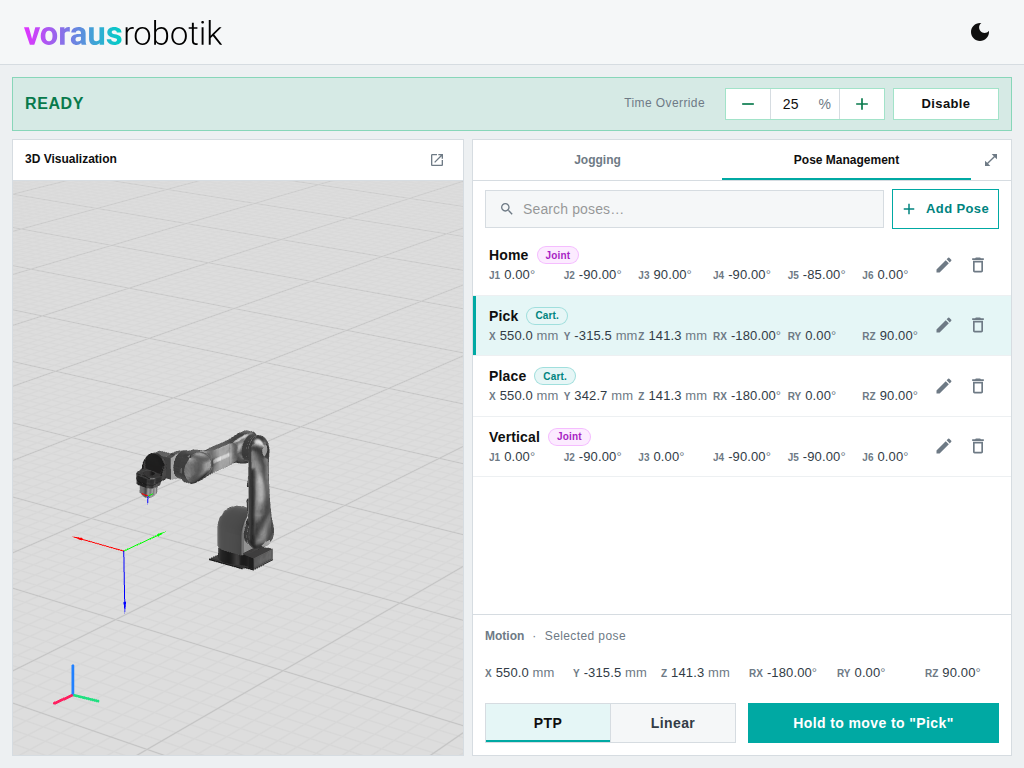
The status bar shows the robot state and its controls, see Robot status and controls. Below it sits one panel per enabled widget: 3D Visualization, Jogging and Pose Management. Jogging is always there, the other two depend on the configuration. The switch in the header toggles between light and dark mode. The choice is kept per browser and also applies to the visualization.
On small screens, Jogging and Pose Management share one panel and are switched with the tabs in its title bar. On large screens, at least 1000 px high and about 900 px wide, they are stacked next to the visualization instead, and on a narrow screen the visualization moves above the tabbed panel.
The expand icon at the right of a title bar (Open jogging page, Open poses page) opens the widget on a page of its own that fills the browser window. The status bar moves to the top of that page and can be collapsed to a single line with the arrow at its right end. Minimize brings you back to the dashboard. Open 3D visualization opens the visualization in a new browser tab, for example on a second screen.
When the browser loses the connection to voraus Robot UI, a No Connection notice covers the page until the browser has reconnected on its own. If it stays, see Troubleshooting.