Pose Management
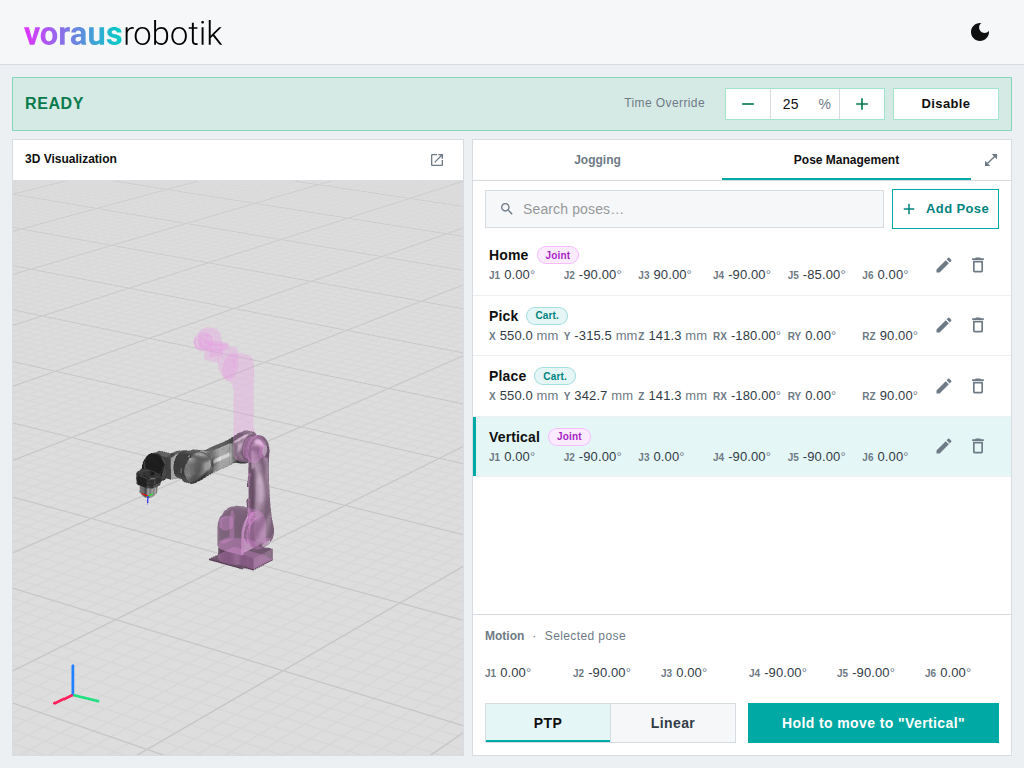
Pose Management stores positions of the robot under a name and moves the robot back to them. A pose is either a joint pose, one value per joint, or a Cartesian pose, the position and orientation of the tool center point in the robot base frame. Poses are stored in the voraus parameter server, not in the browser, so every browser that opens voraus Robot UI works with the same list. Changes made in another browser appear after a reload.
Moving to a pose
Click a row to select a pose. The 3D visualization previews it: a joint pose as a translucent copy of the robot, a Cartesian pose as a coordinate frame. PTP or Linear selects the motion type. Hold to move to "<name>" moves the robot to the pose. If you release the button early, press it again to continue.
Creating and editing a pose
Add Pose opens the editor inside the widget. Jogging stays usable while it is open, so you can move the robot and pick up its position without leaving the editor.
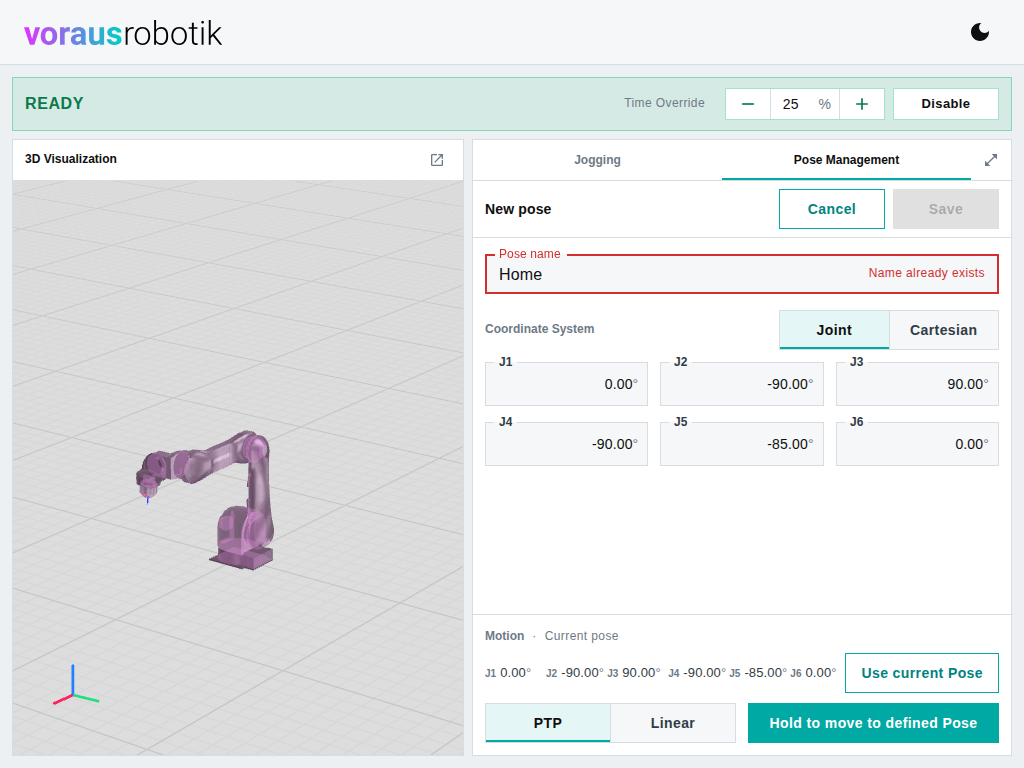
- Type a Pose name. Names are unique.
- Choose Joint or Cartesian. A new pose starts from the robot's current position in joint representation.
- Set the values. Use current Pose copies the robot's live position into the fields. The up and down arrow keys nudge a field by one default step, 1° or 10 mm.
- Save. The pose appears in the list and is selected.
Hold to move to defined Pose moves the robot to the values in the fields before they are saved.
Edit in a row opens the same editor with the stored values, Delete removes the pose after a confirmation. The name cannot be changed. To rename a pose, create it under the new name and delete the old one.
Switching between Joint and Cartesian
The Joint and Cartesian toggle in the editor converts the values with the kinematics of Robot Control. Values you have already entered in the other representation are remembered, so toggling back and forth does not change them. Editing a field or Use current Pose discards them. A conversion needs a valid number in every field.
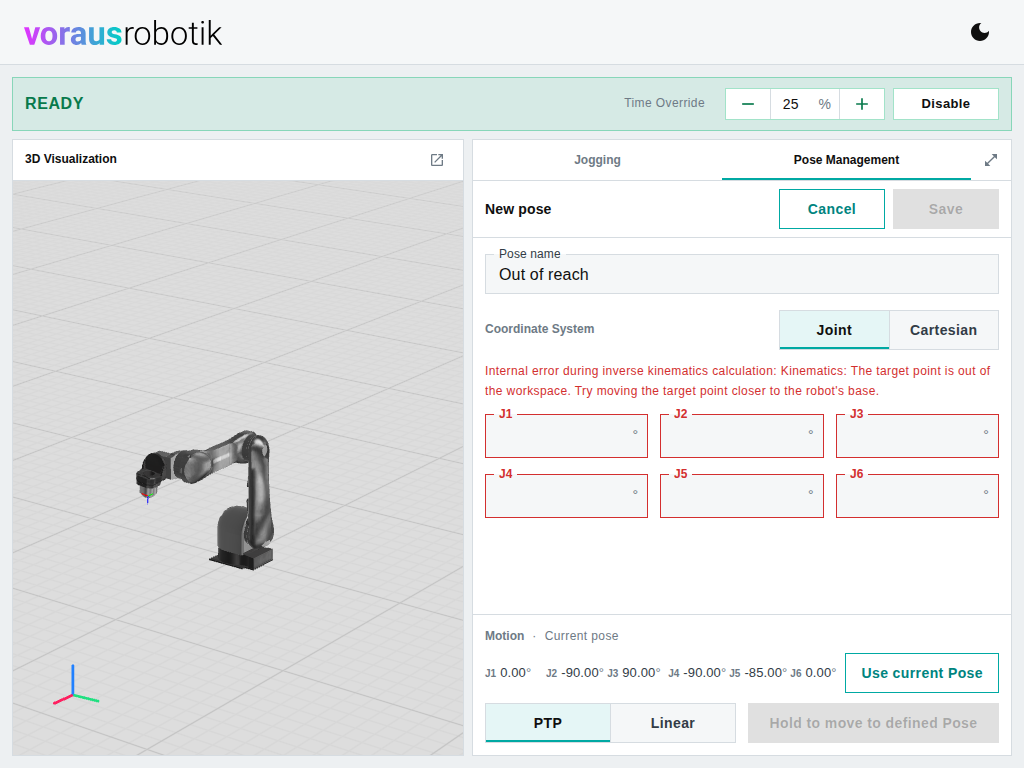
Some Cartesian poses have no joint solution. The editor then switches to joint representation with empty fields and shows the message from Robot Control. Toggle back to Cartesian to get your values back.