Robot Status and Controls
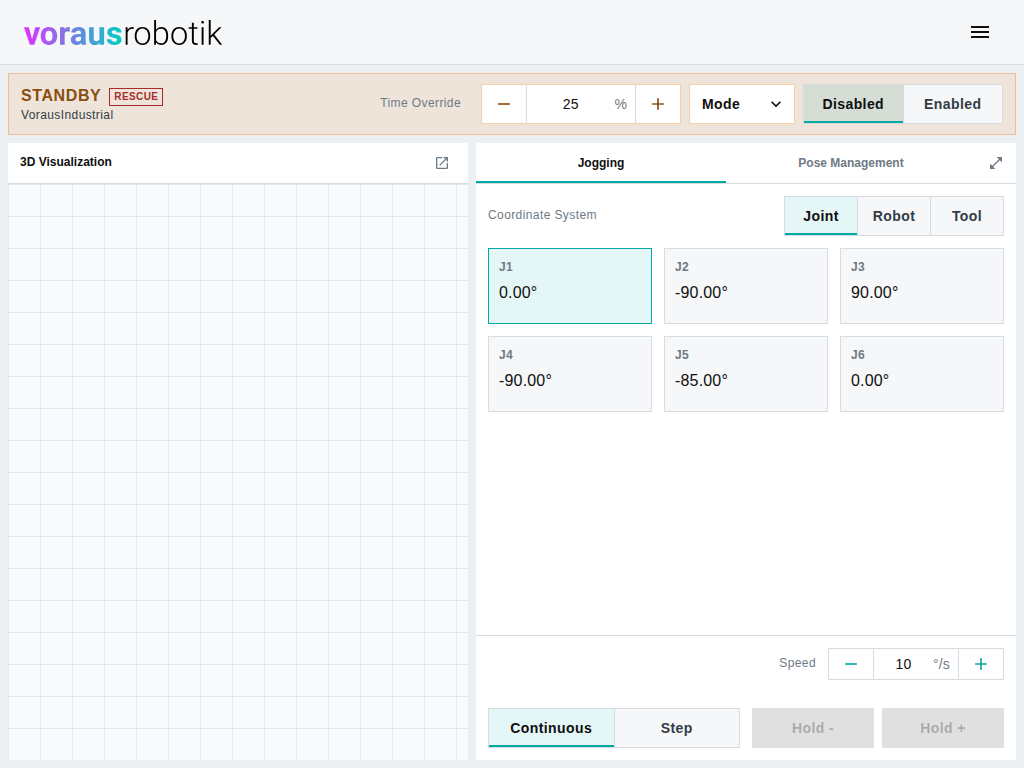
The status bar shows the state of voraus Robot Control and adapts its controls to it. The drives switch Disabled | Enabled marks which way the drives are; the other segment switches them. It is greyed out, with the reason as a tooltip, in the states where Robot Control does not switch them.
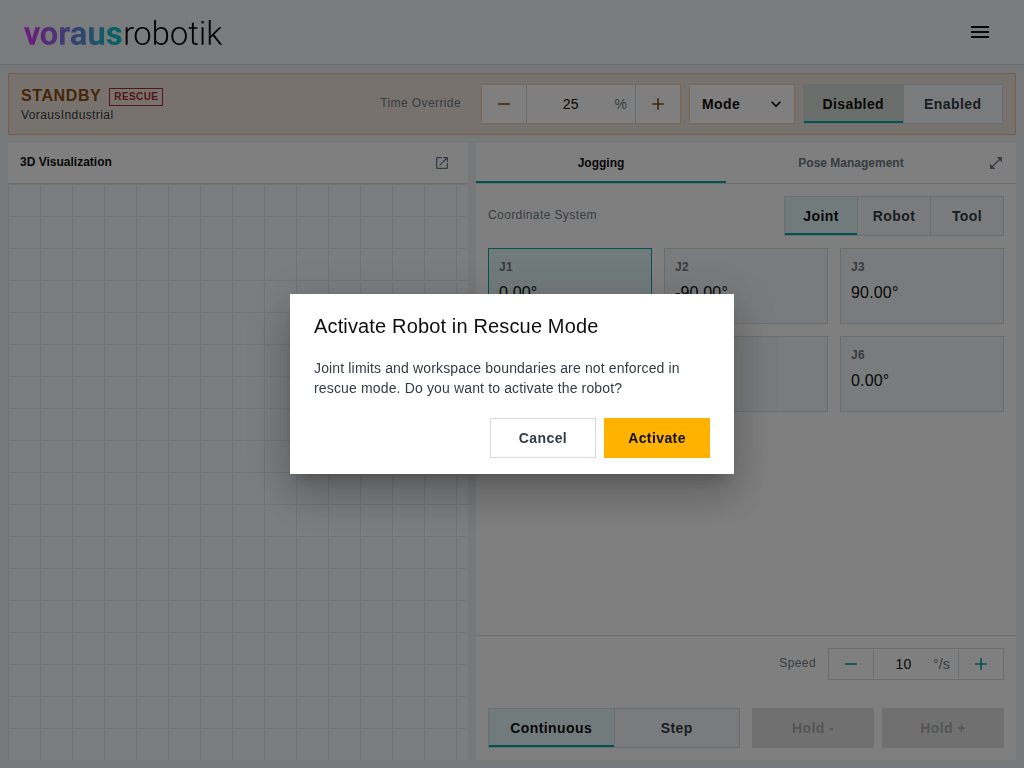
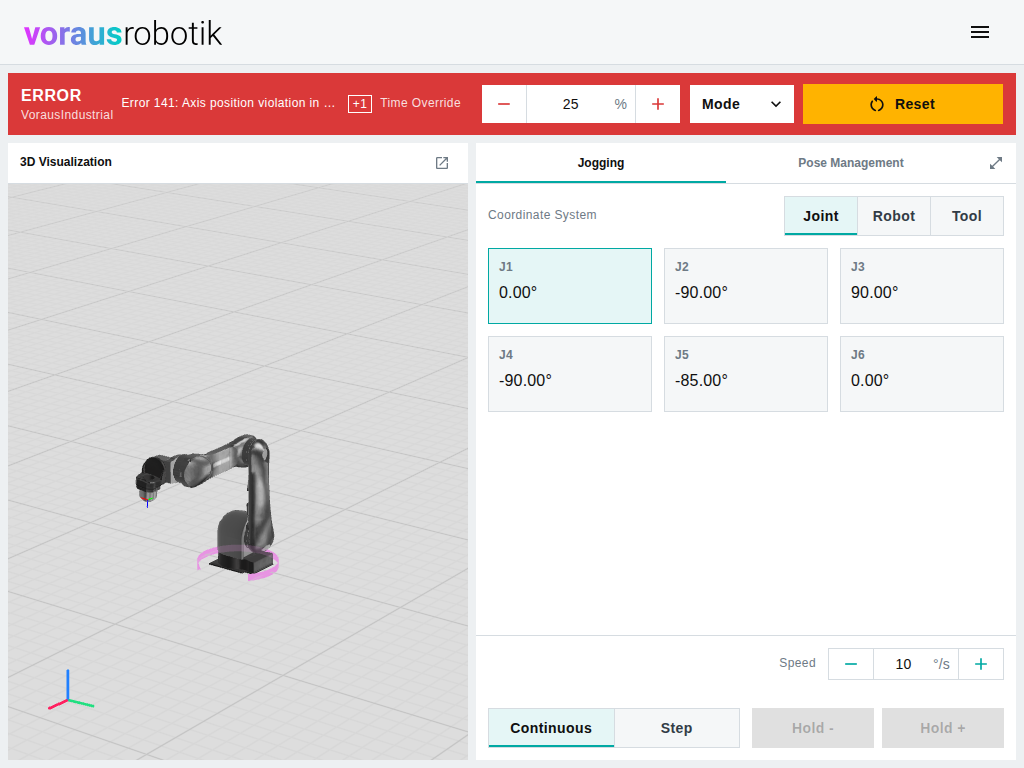
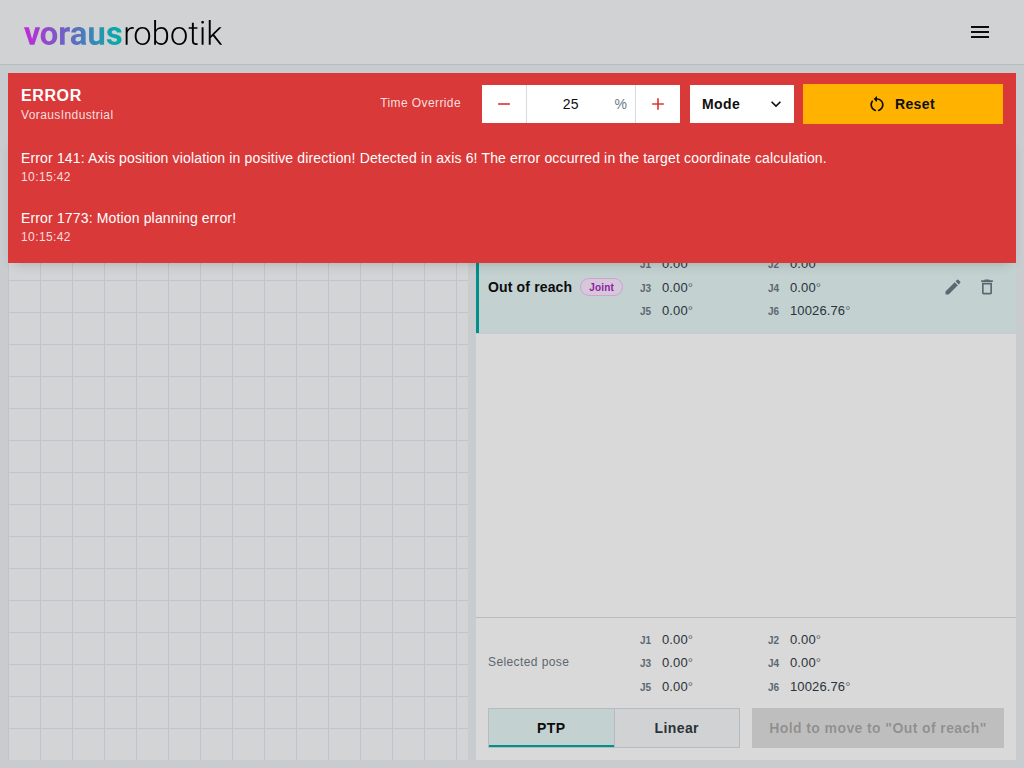
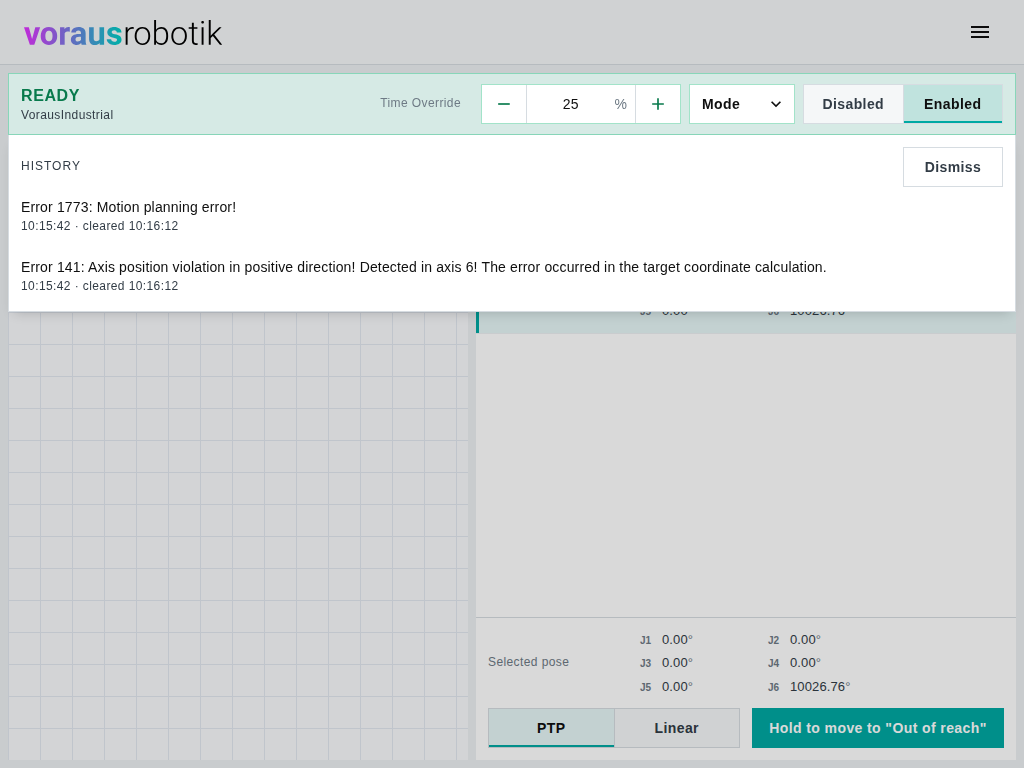
READYandACTIVE: The drives are on. The motion controls of Jogging and Pose Management are enabled, Disabled switches the drives off.GRAVCOMPandCOLLISIONREACTION: The drives are on, but the motion controls are disabled. Disabled switches the drives off.STANDBY: The drives are off. Enabled switches them on.ERROR: The status bar turns solid red and shows the number and message of the oldest error. A Reset button takes the place of the drives switch and acknowledges every error (Figure 1). A badge such as +2 means that more errors are active. Click the status bar (the state, the name or the message) to read the message in full and to open the list of all active errors with the time each one occurred. The list continues the status bar below it and scrolls when it is longer than the window. While it is open, the rest of the page is dimmed: the controls of the status bar still work and close the list, a click anywhere else only closes it. After a reset, Robot Control raises again what still applies.- Errors that a reset cleared move to a history. The same click on the status bar opens it in every state, below the active errors: each past error with the time it occurred and the time voraus Robot UI saw it cleared. Dismiss empties the history after a confirmation, for every connected browser. The history is what voraus Robot UI observed, not a log of Robot Control: it keeps the last 100 entries, is lost when voraus Robot UI restarts, and misses errors that came and went while it was not connected to Robot Control.
STOPPING,RESET,INITandSHUTDOWN: The motion controls are disabled.
Under the state, the status bar shows the name of the robot as configured in Robot Control. On the full-screen pages it stays visible when the status bar is collapsed.
Time Override sets the speed override of Robot Control in percent. The minus and plus buttons walk through the quarter marks, 0, 25, 50, 75 and 100 percent. You can also type a value between 0 and 100 into the field and confirm it with Enter or by leaving the field. A value set by another client is shown here as well.
Operating modes
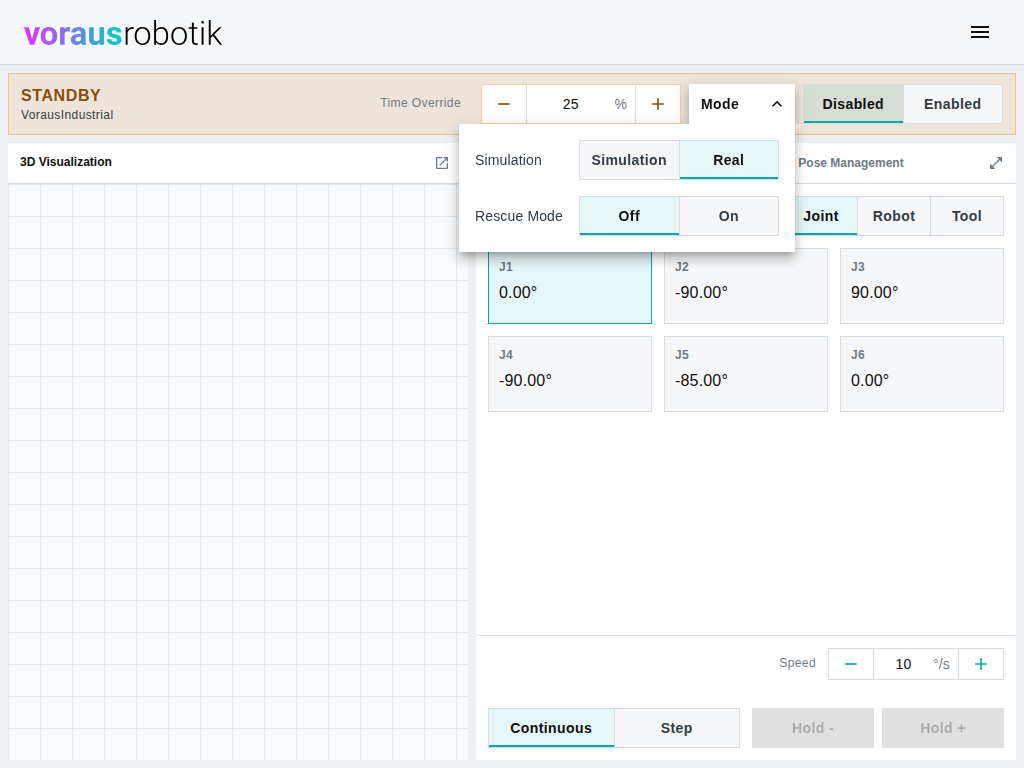
Mode opens the operating modes of Robot Control. While a mode is active, a Simulation or Rescue badge appears next to the state, also in the collapsed status bar of the full-screen pages. A mode switched by another client is shown here as well. Each switch is only offered in the states where Robot Control accepts it; otherwise the switch is greyed out.
Simulation
In simulation, Robot Control does not drive the real axes. The motion controls then move only the simulated robot, which the 3D Visualization shows.
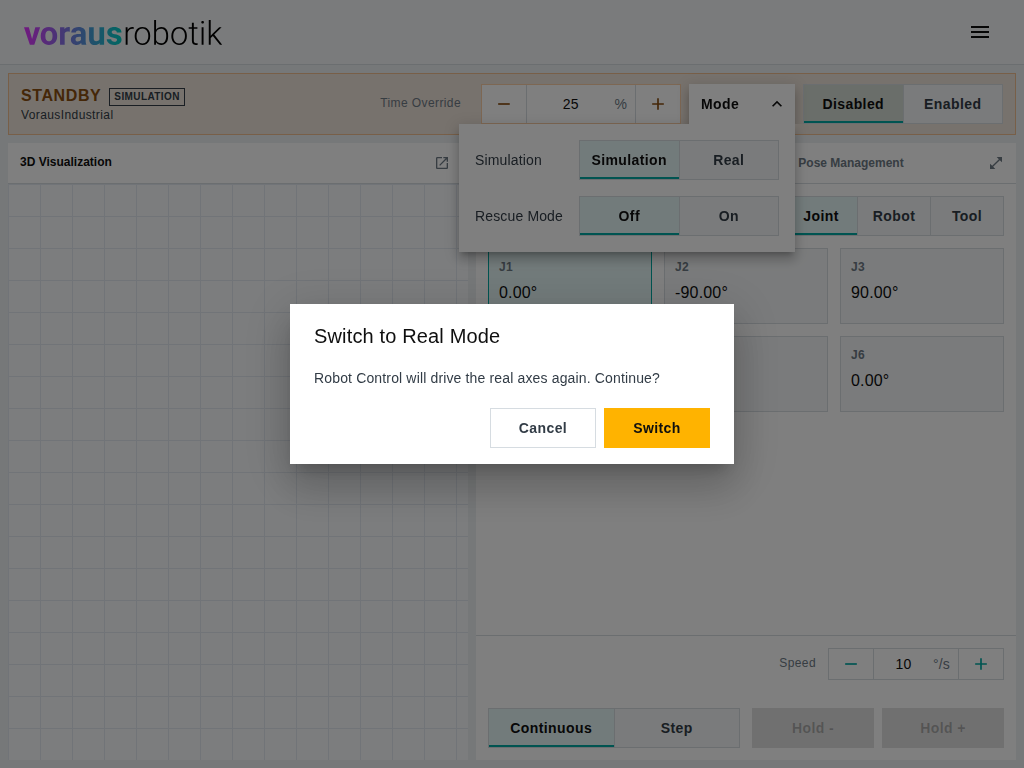
Both directions are available in STANDBY only; voraus Robot UI never switches the drives on or
off for a mode switch. Real asks for confirmation, since the motion controls move the real
robot again afterwards. Robot Control switches the drives on after either switch, so the state
changes to READY.
Rescue mode
In rescue mode, Robot Control does not enforce joint limits and workspace boundaries, so that a robot standing beyond a limit can be moved back into its working range. The active limit sets shown by Jogging change accordingly.
- On is available with the drives off, in
STANDBY,ERRORandRESET. - Off is additionally available with the drives on while the robot does not move, in
READY,GRAVCOMPandCOLLISIONREACTION. - Switching the drives to Enabled asks for confirmation while rescue mode is on, because the robot moves without limits afterwards.