
2.3.3. Starting, Stopping, and Activating the voraus.core
Note
The following chapter describes starting, stopping, and activating the voraus.core. Please select the section corresponding to your setup, whether it is a physical robot or a virtual instance.
Starting and Stopping the voraus.core
Your setup is now ready to use. You can now start and stop the voraus.core using the runtime. To open the voraus.operator: Open a browser (preferably Chrome) in your computer and type in the following URL address: http://<robot-IP>:8080.
In order to start the voraus software, execute the following terminal command within your persistent workspace:
docker compose up -d
After some seconds, the voraus.operator is available under the following http://<robot-IP>:8080.
Note
If you change the port mapping of the voraus.operator in the docker-compose.yml file, you need to change it
in the link as well.
The software can be stopped by executing:
docker compose down
Opening the voraus.operator
To open the voraus.operator:
Open a browser (preferably Chrome) on your device and type in the following URL: http://<robot-IP>:8080.
To open the voraus.operator:
Open a browser (preferably Chrome) on your device and type in the following URL: http://<robot-IP>:8080.
To open the voraus.operator:
Open a browser (preferably Chrome) on your device and type in the following URL: http://<robot-IP>:8080.
The robot is initially in the state
STANDBYand displayed in its zero position until RSI communication has been established.Start the program
voraus_rsi.srcon the KUKA smartPAD. It must be running while the voraus.operator is used. The program can be run either in T1 or in automatic mode.The program must be stepped through until the message
RSI_MOVECORR: Motion activeis displayed on the KUKA smartPAD. In T1 mode, this must be confirmed manually beforehand.After establishing the RSI connection, the robot must be in the state
READYand updated to its current pose.
Note
If the RSI communication is interrupted, the last received position is used by voraus. Movements outside the RSI communication, e.g., via the KUKA TeachPanel, are only recognized once RSI has been re-established.
Warning
We strongly advise against moving the robot via the smartPAD while the RSI program is paused but still active. This can happen, for example, in T1 mode when the RSI program is running, but the Start button is released. As soon as the Start button is pressed again, the robot moves immediately to its last known pose where it was before releasing the Start button.
If you wish to move the robot using the smartPAD, please close the RSI program first.
Reset
Currently, voraus and KUKA errors must be reset on each device individually. voraus errors on the voraus HMI, KUKA errors must be reset on the KUKA smartPAD. We recommend stopping RSI communication and resetting the errors, and re-establishing RSI.
Warning
Always reset voraus.operator error first before starting or restarting the RSI script on the KUKA smartPad. Otherwise, the robot may try to move and will most likely stop immediately, which may result in a loud “crack” from the robot, indicated by torque error on the smartPad.
To open the voraus.operator:
Open a browser (preferably Chrome) on your device and type in the following URL: http://<robot-IP>:8080.
License Activation
Activate Licenses on Your Machine
After the WiBu CodeMeter User Runtime has been successfully installed, the licenses need to be activated on your machine. Open the license activation link in your browser, which was provided to you by voraus support.
Note
The license activation link has the following format:
https://lc.codemeter.com/90377/depot/overview.php?id=XXXXX-XXXXX-XXXXX-XXXXX-XXXXX.
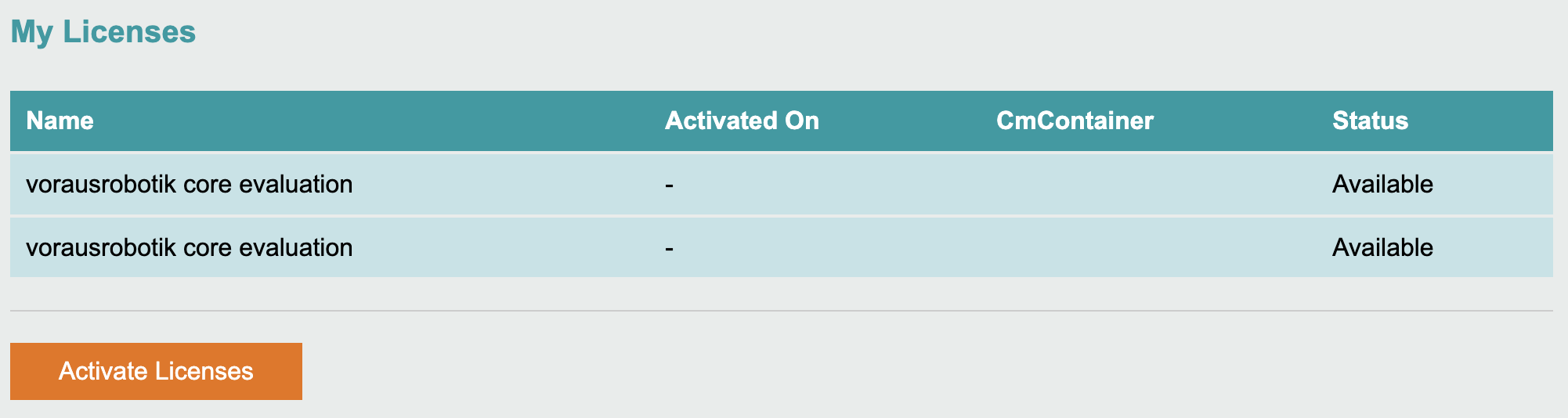
On the page that lists the available licenses (Fig. 28) click on Activate Licenses.
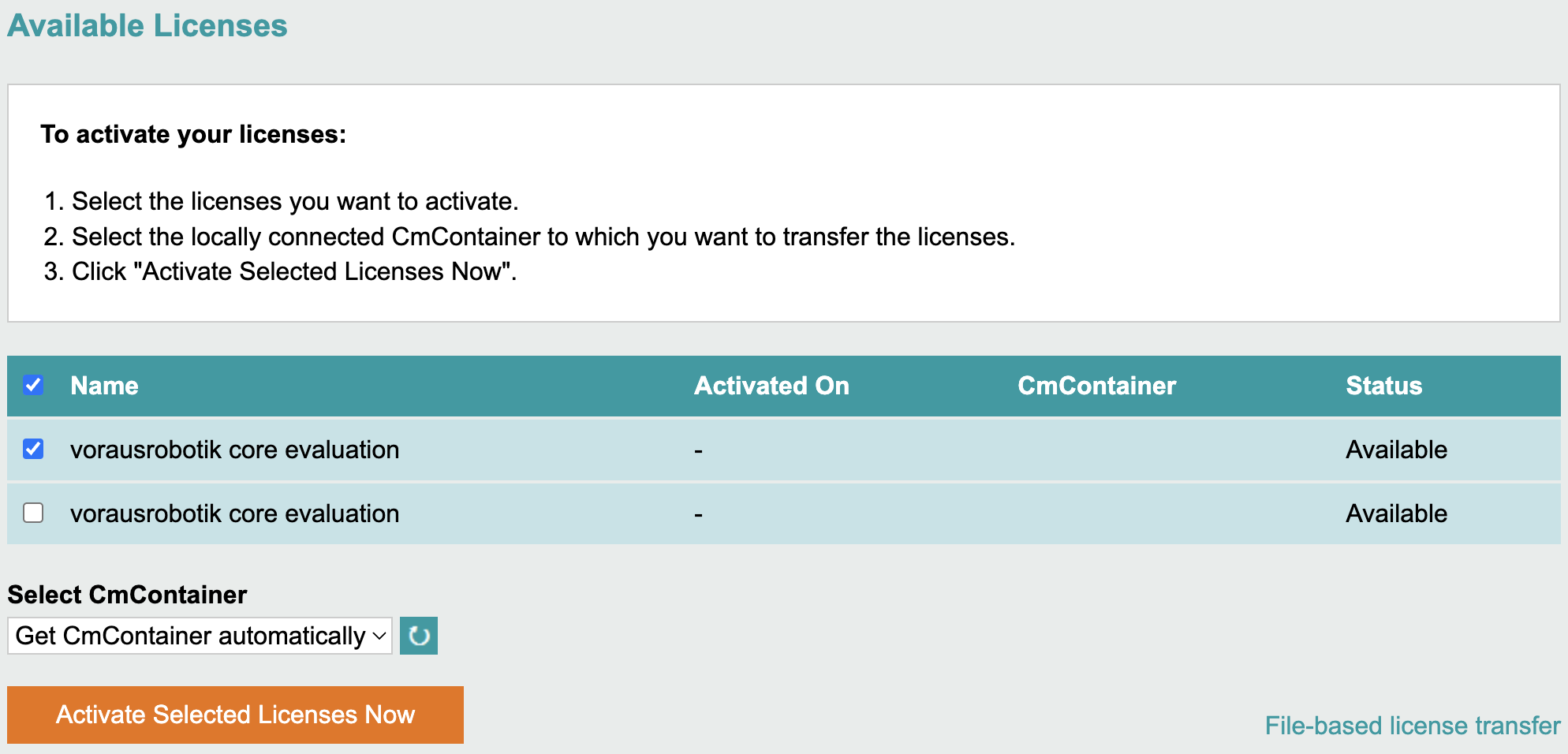
From the list of available licenses, select the first checkbox and click on Activate Selected Licenses Now as shown in Fig. 29.
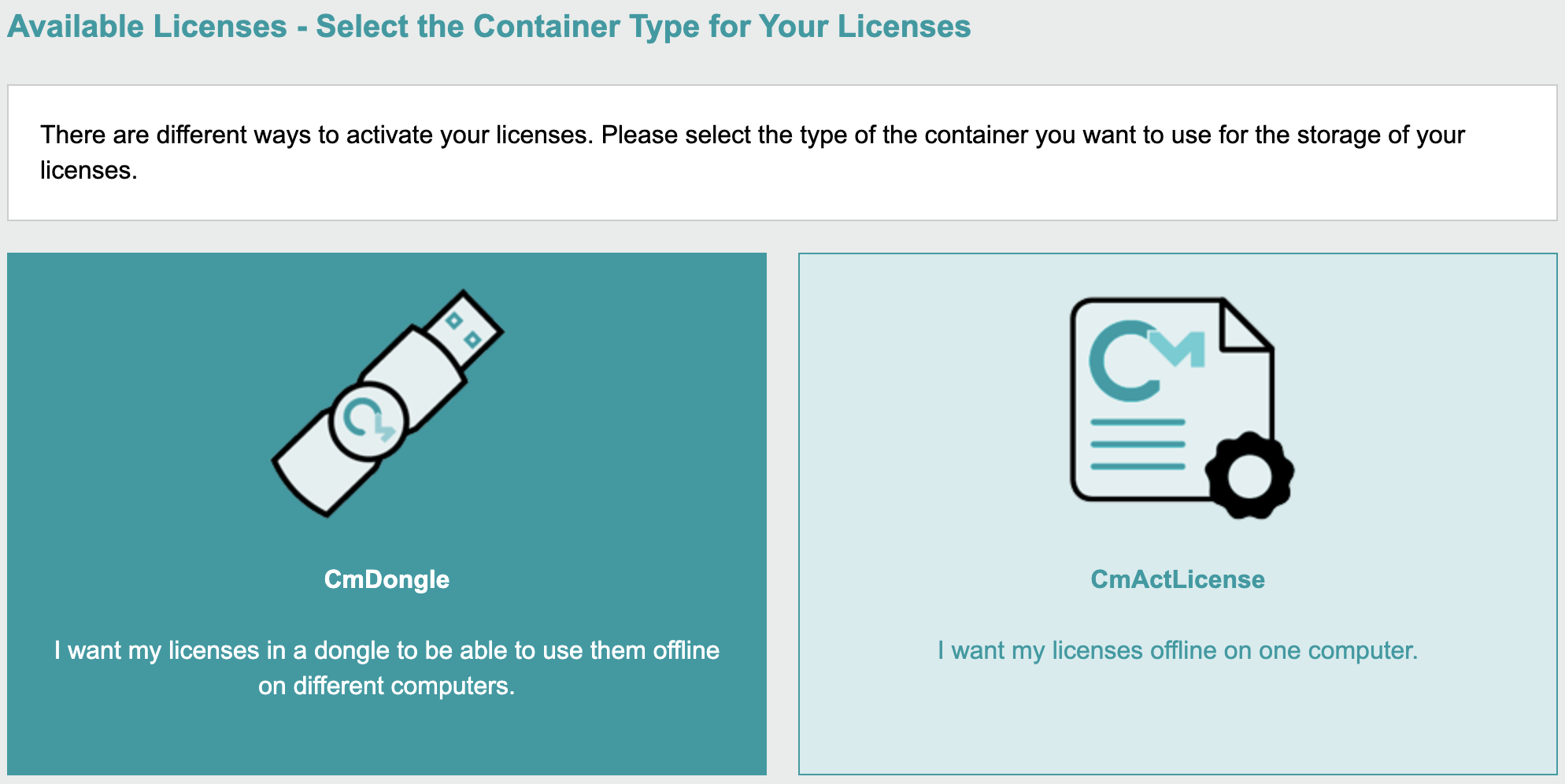
When asked whether a CmDongle or a CmActLicense should be used, select CmActLicense (Fig. 30).
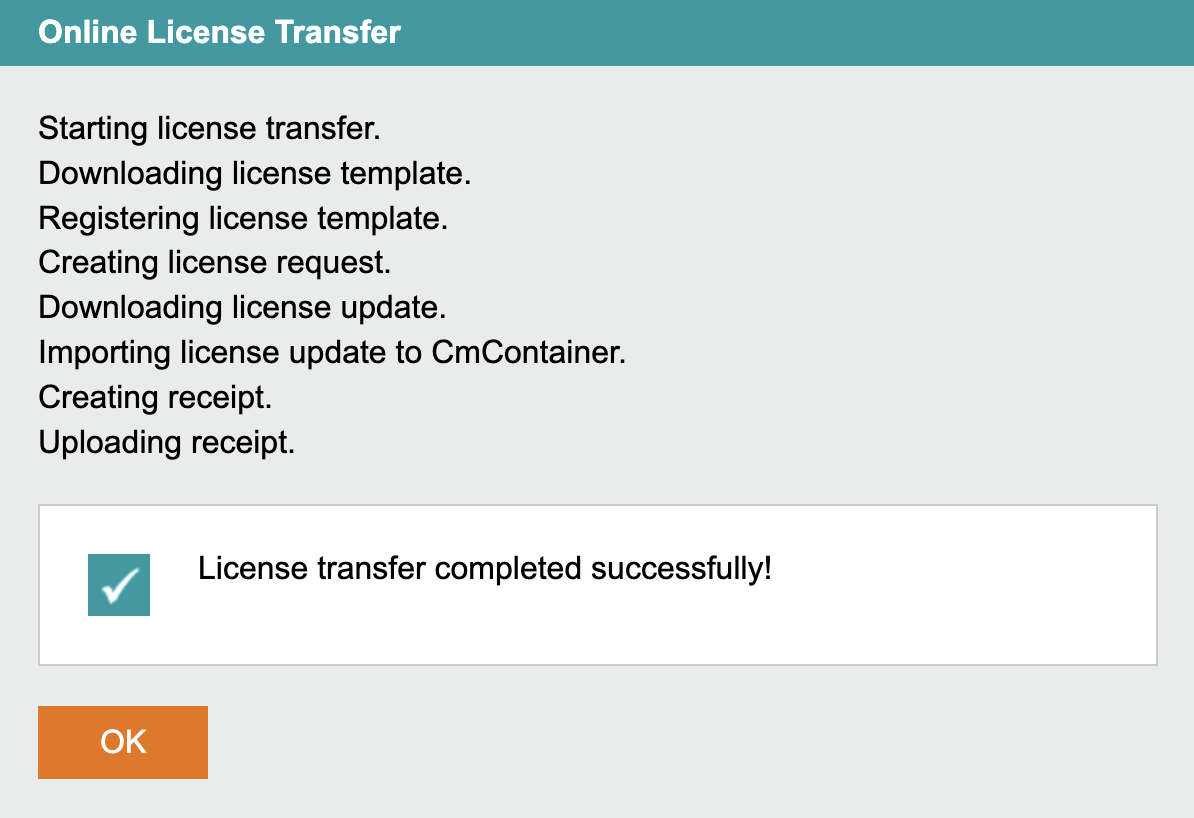
The popup (Fig. 31) shows the license transfer progress. After the license has been activated successfully, confirm and close the dialog by clicking OK.
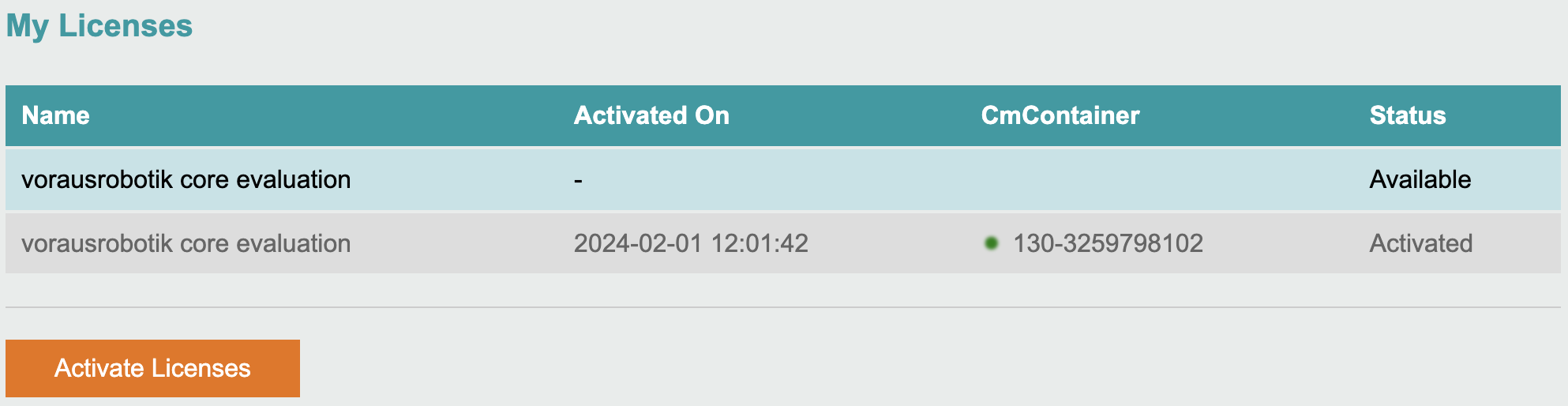
On the list of available licenses, the activated license is now marked as Activated (Fig. 32). The license activation process is now completed.
Activate a voraus.core software license by following the steps of the chapter License Activation.
Activate a voraus.core software license by following the steps of the chapter License Activation.
Activate a voraus.core software license by following the steps of the chapter License Activation.