
Work in the Cloud
Run the examples directly in a cloud environment from your web browser from any device:
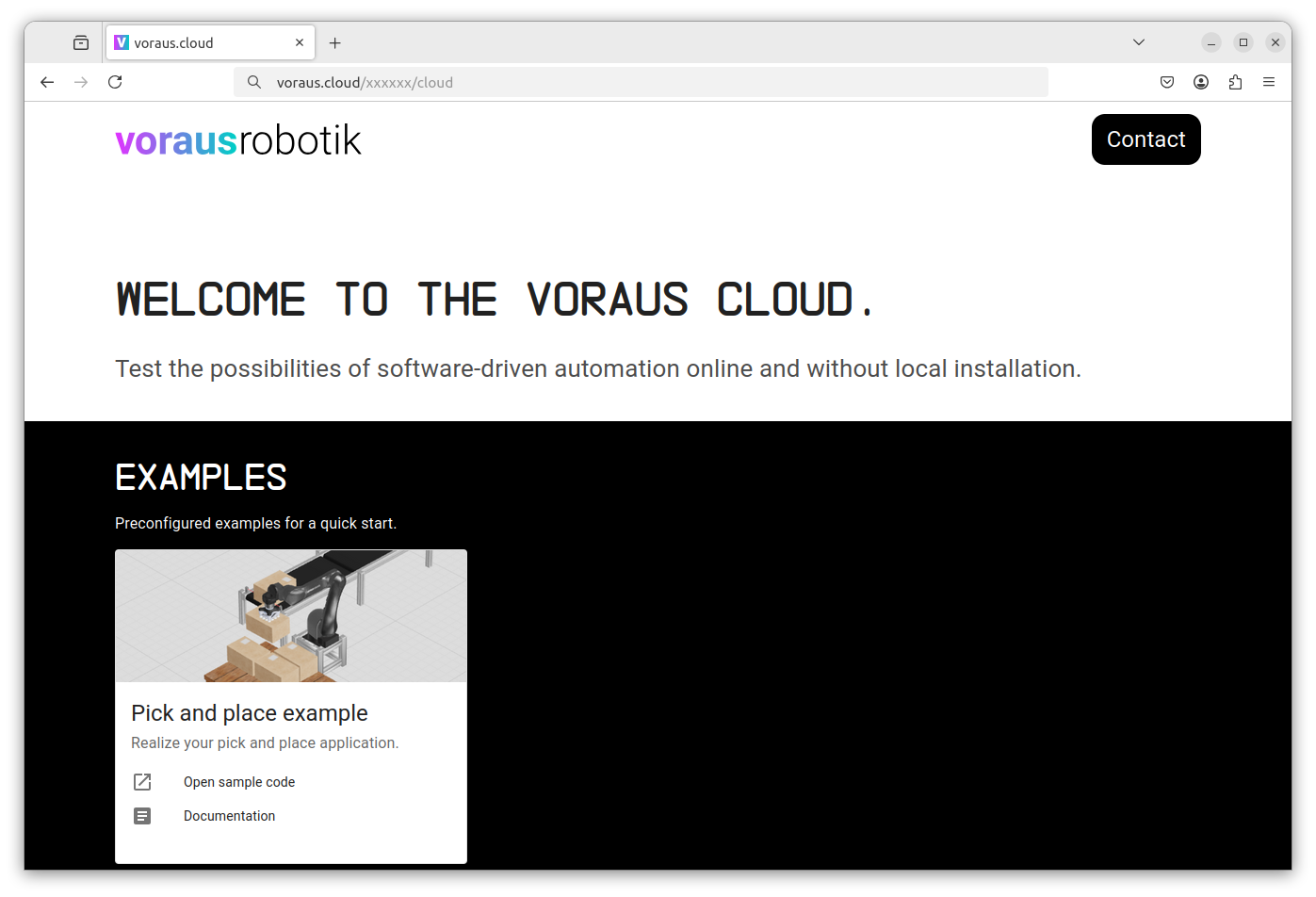
You will receive an access link in the format https://voraus.cloud/xxxxxx and login credentials (username and
password) with which you can log in to the cloud. The link takes you to the landing page of the cloud,
which is shown in Fig. 13.
Open VS Code in the Web Browser
Click Open sample code on the Pick and place example card on the cloud landing page to open VS Code in a new tab. If you are asked whether you trust the authors, click Yes, I trust the authors.
Embed 3D Visualization
To display the 3D visualization directly in VS Code, press Ctrl + Shift + P, search for Simple Browser: Show, and click it (Fig. 14).
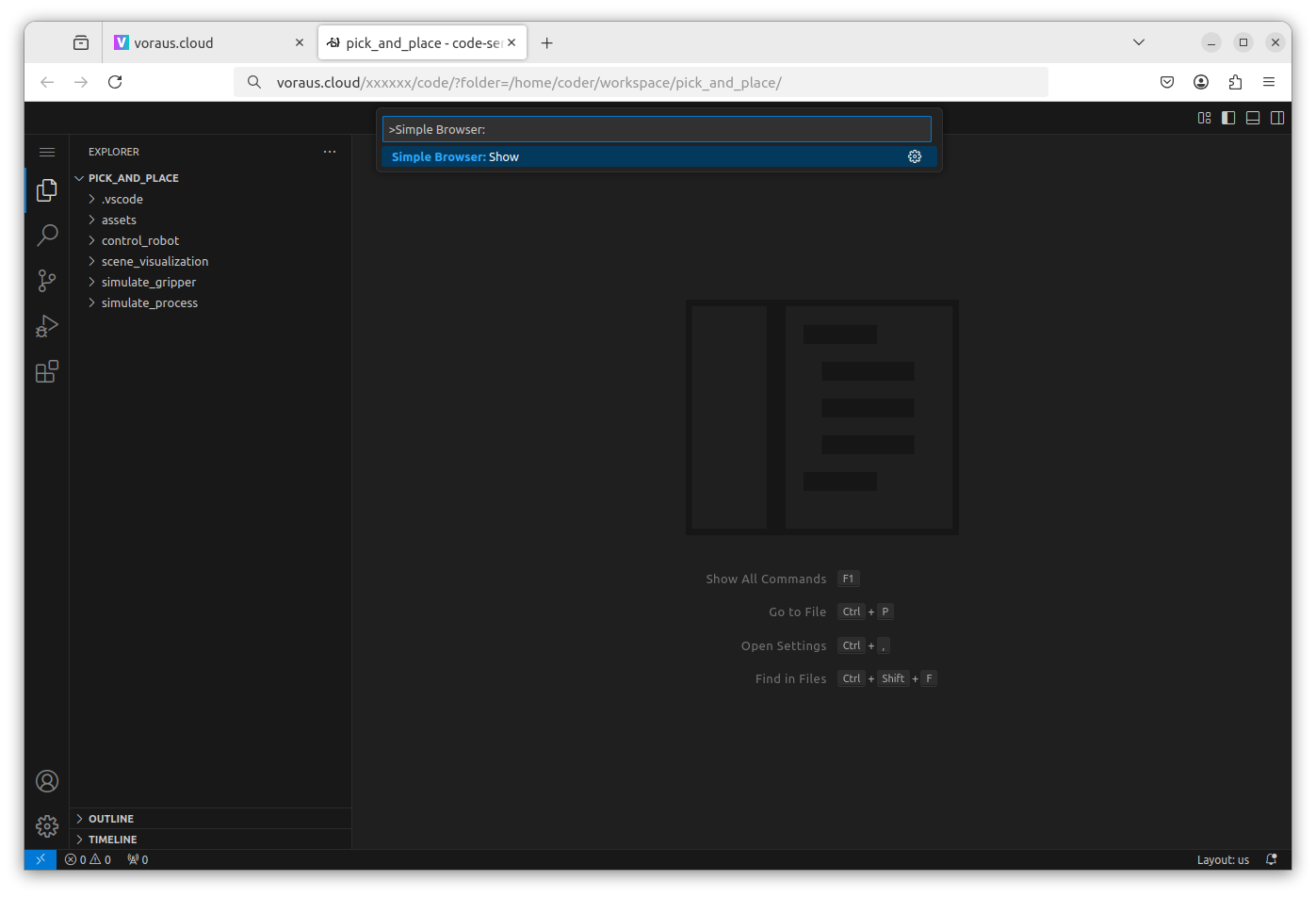
Enter the URL of the 3D visualization https://voraus.cloud/xxxxxx/visu
in the following menu and press Enter.
Replace the placeholder xxxxxx with your cloud ID, which is the same as the one used for the landing page.
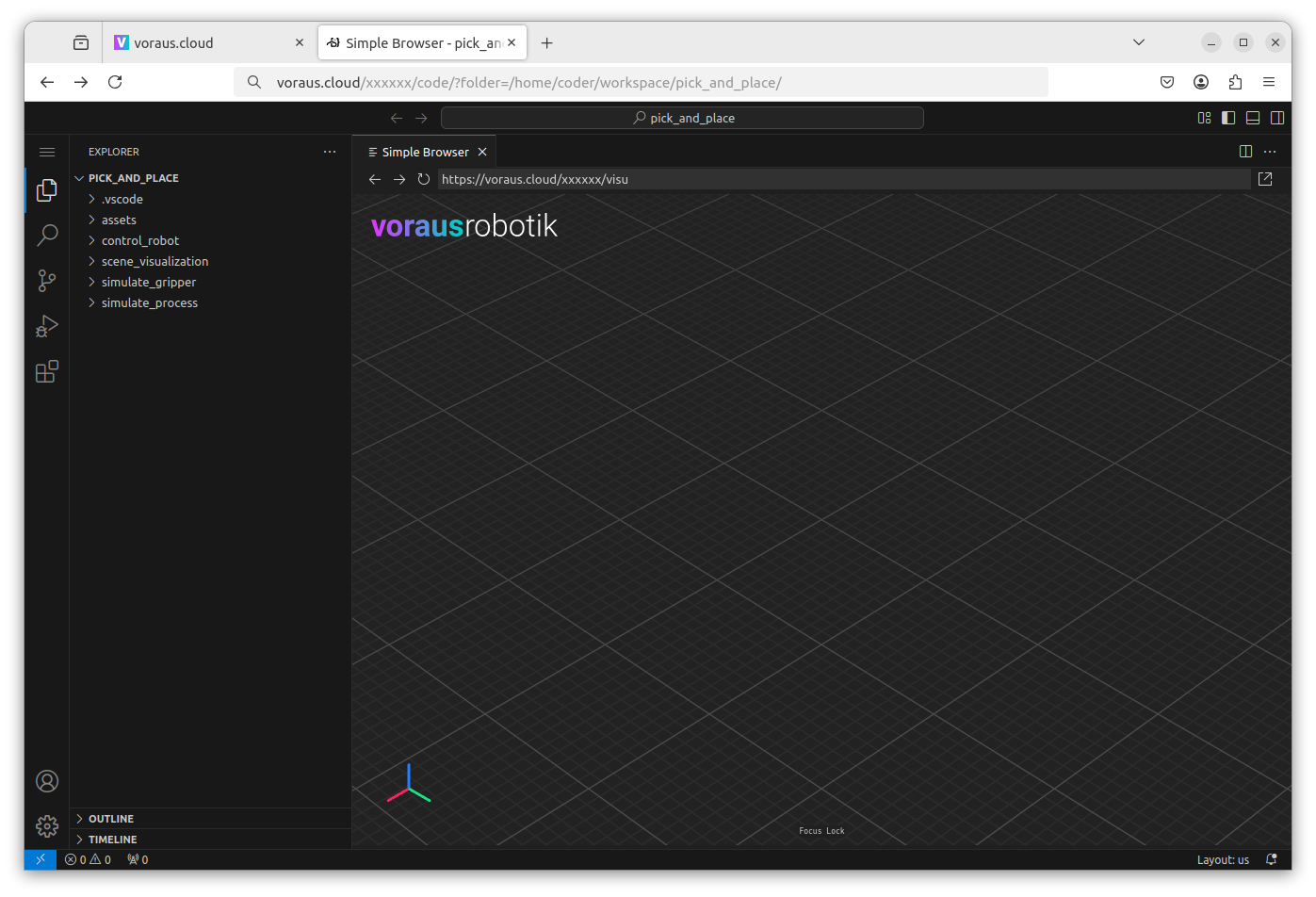
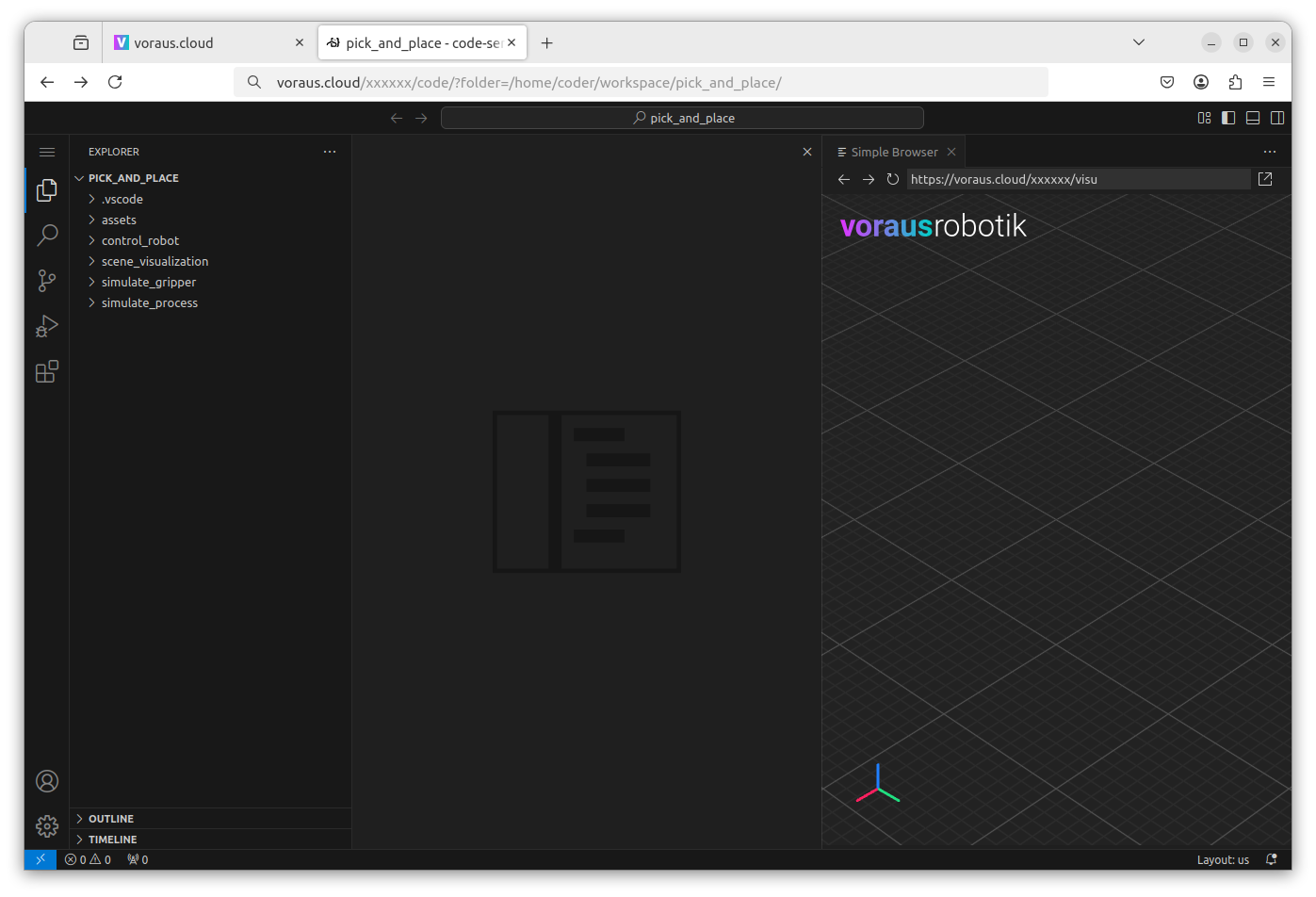
The 3D visualization is now visible in VS Code, as shown in Fig. 15.
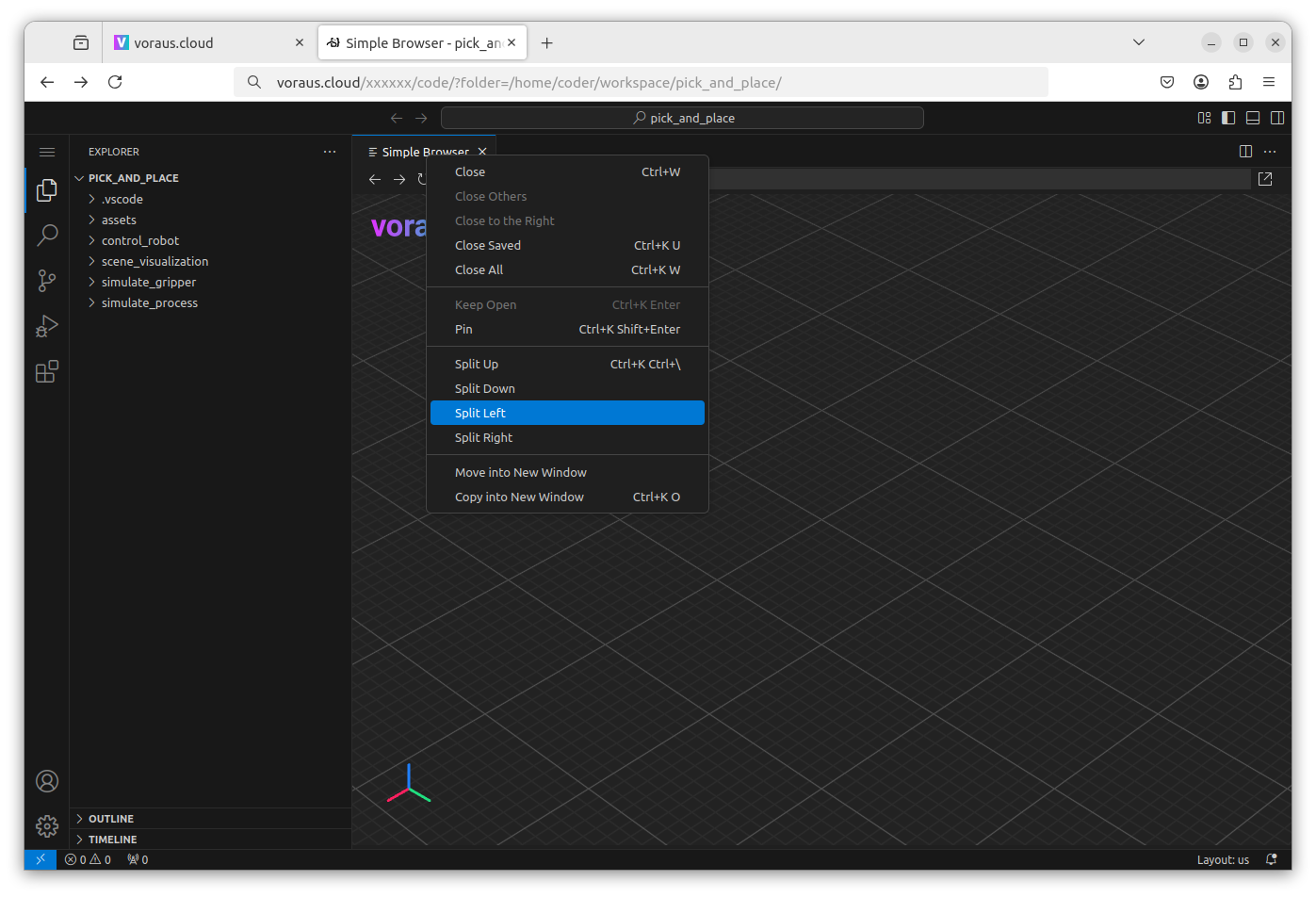
For efficient development, the screen can be split so that you can see both the Python code and the 3D visualization at the same time. To do this, right-click Simple Browser and then select Split Left (Fig. 16).
As shown in Fig. 17, the 3D visualization is now displayed on the right side of the screen.
Note
Displaying the 3D visualization directly in VS Code is practical for development, but performance problems can occur with large 3D scenes in the Simple Browser. In these cases, use a web browser such as Chrome.
To do this, read Open 3D Visualization.
Open a Terminal
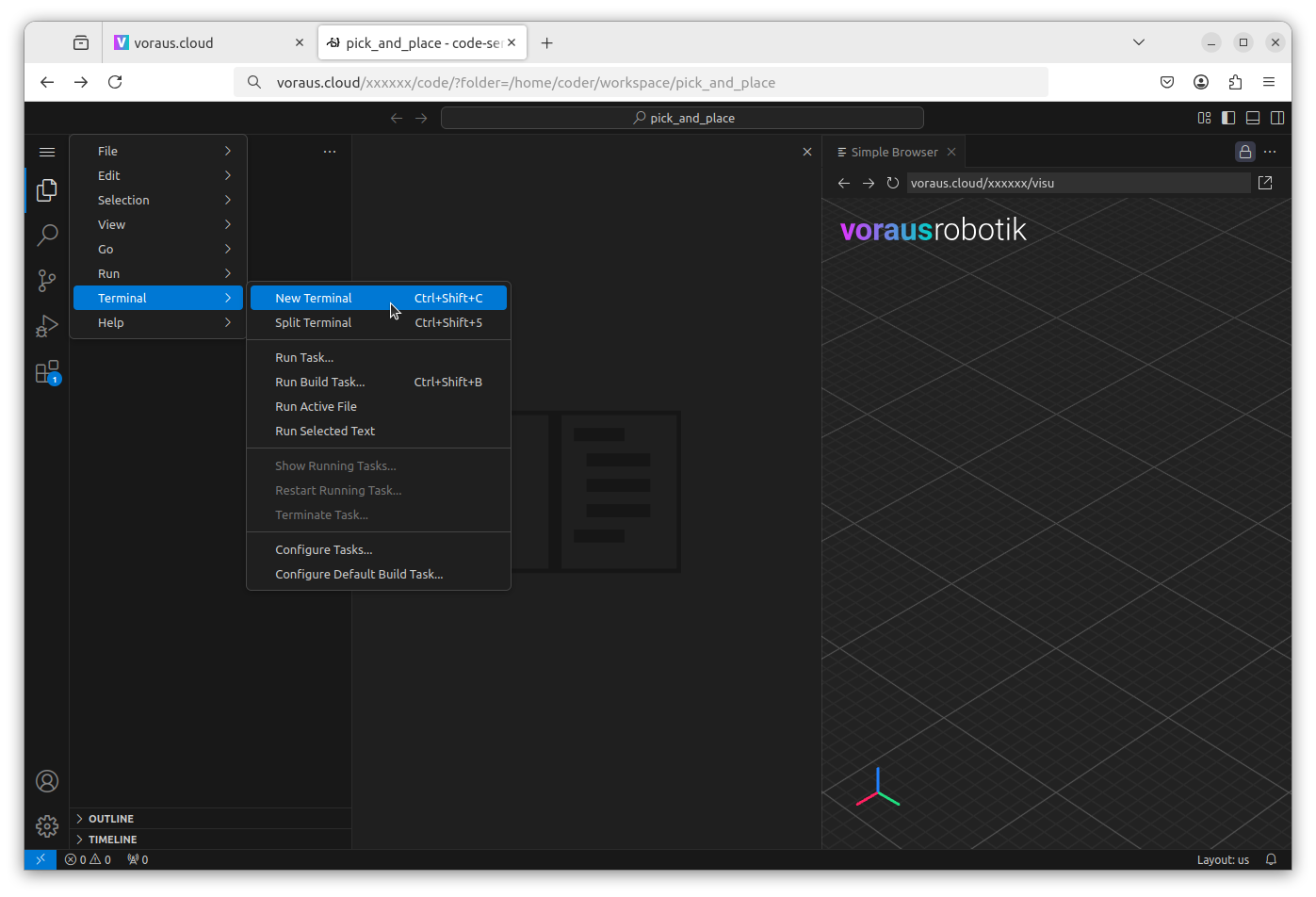
During development, a terminal is required to execute Python scripts. To open a terminal, click the menu in the top-left corner of the screen. Then, select New Terminal under the Terminal menu item or press Ctrl + Shift + C, as shown in Fig. 18.
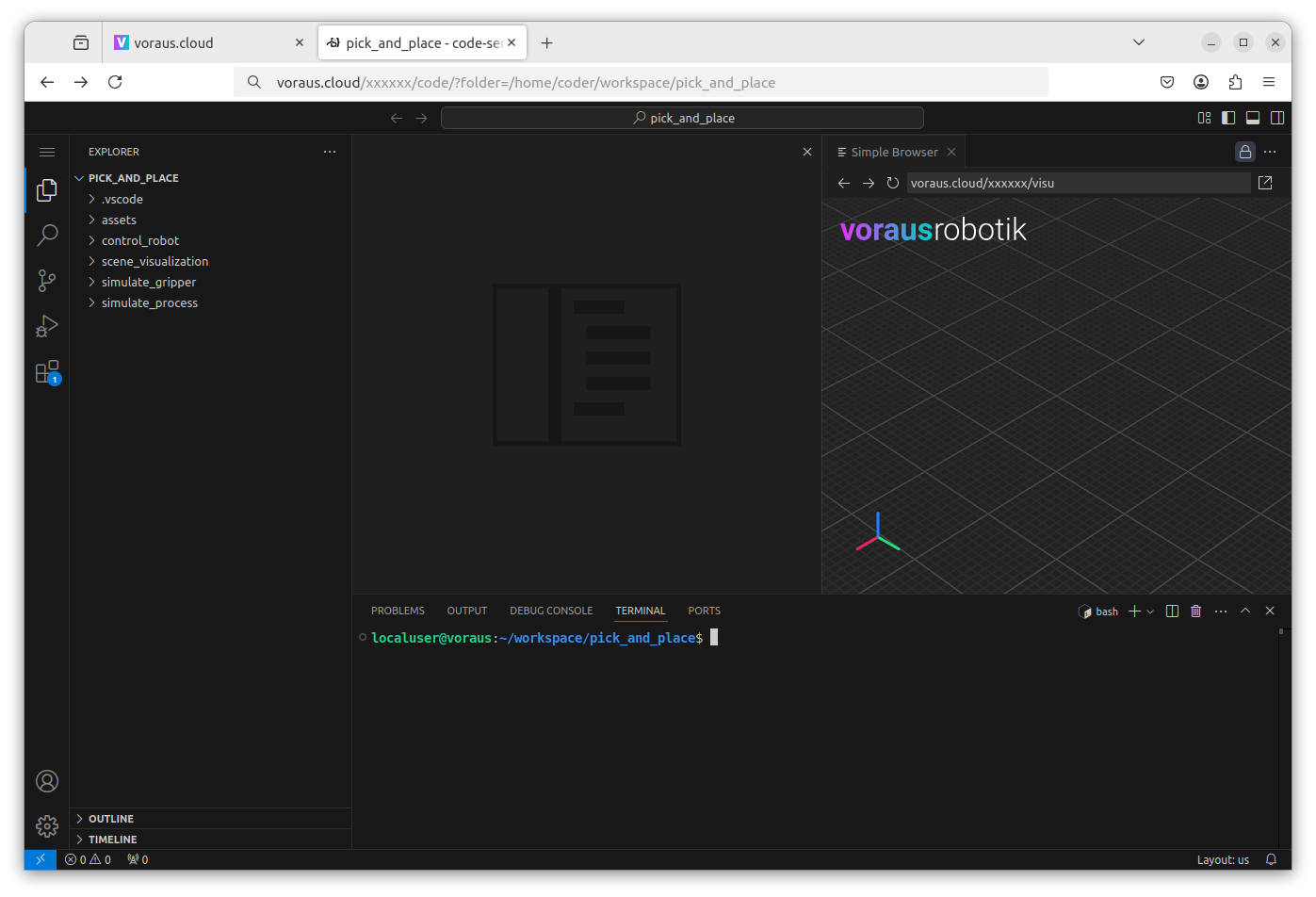
The terminal is now displayed at the bottom of the screen, as shown in Fig. 19. In the following examples, you can enter the commands here. If you need a second terminal to execute scripts in parallel, you can also split the terminal by clicking Split Terminal at the top right of the terminal window.
Open 3D Visualization
This section is only relevant if you want to display the 3D visualization in a separate tab of your web browser instead of in VS Code. Otherwise, continue with Open voraus.operator.
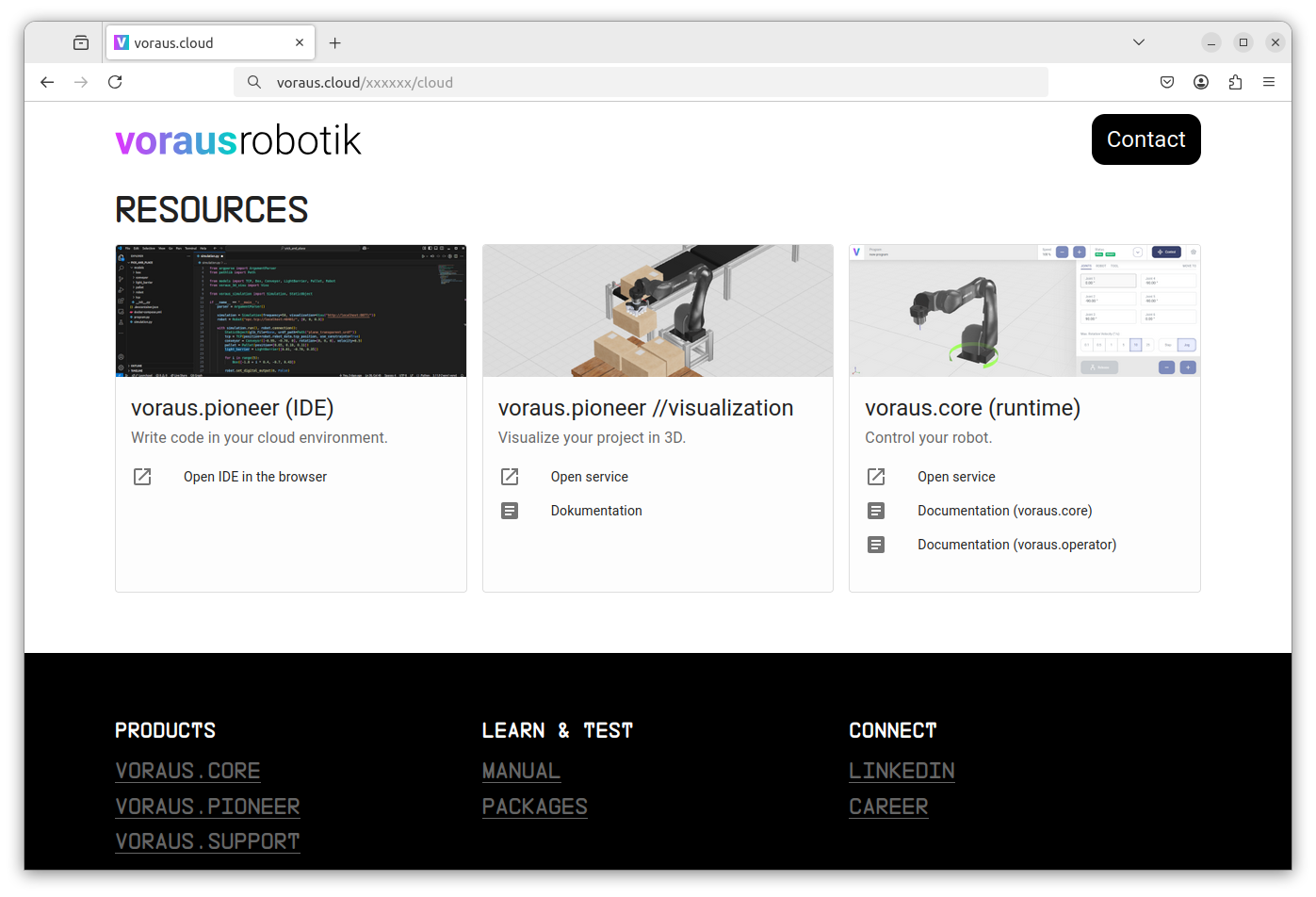
On the cloud landing page, scroll down to the Resources section, as shown in Fig. 20. Open the 3D visualization by clicking Open service on the voraus.pioneer visualization card.
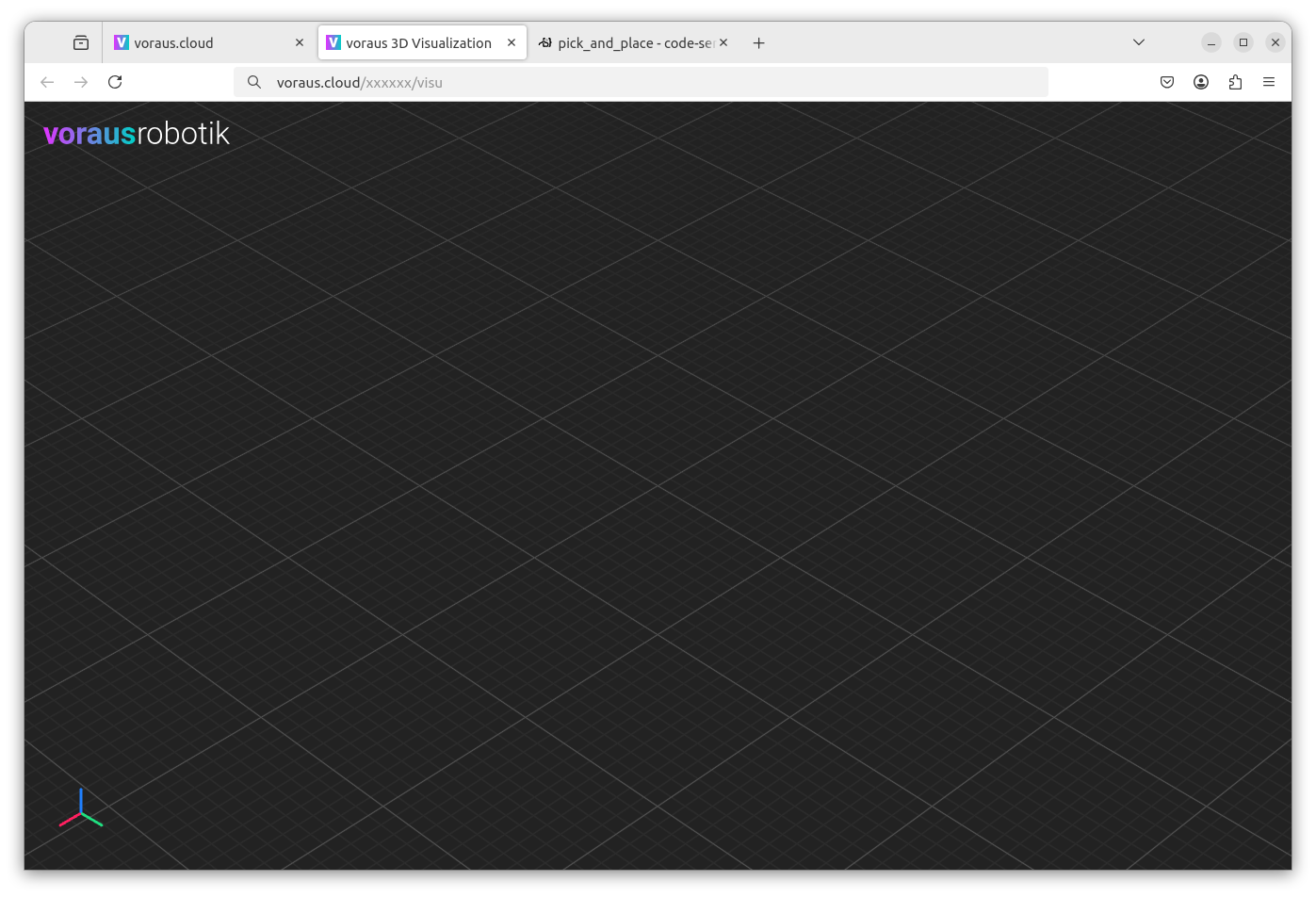
This opens the 3D visualization in a new tab, as shown in Fig. 21.
Open voraus.operator
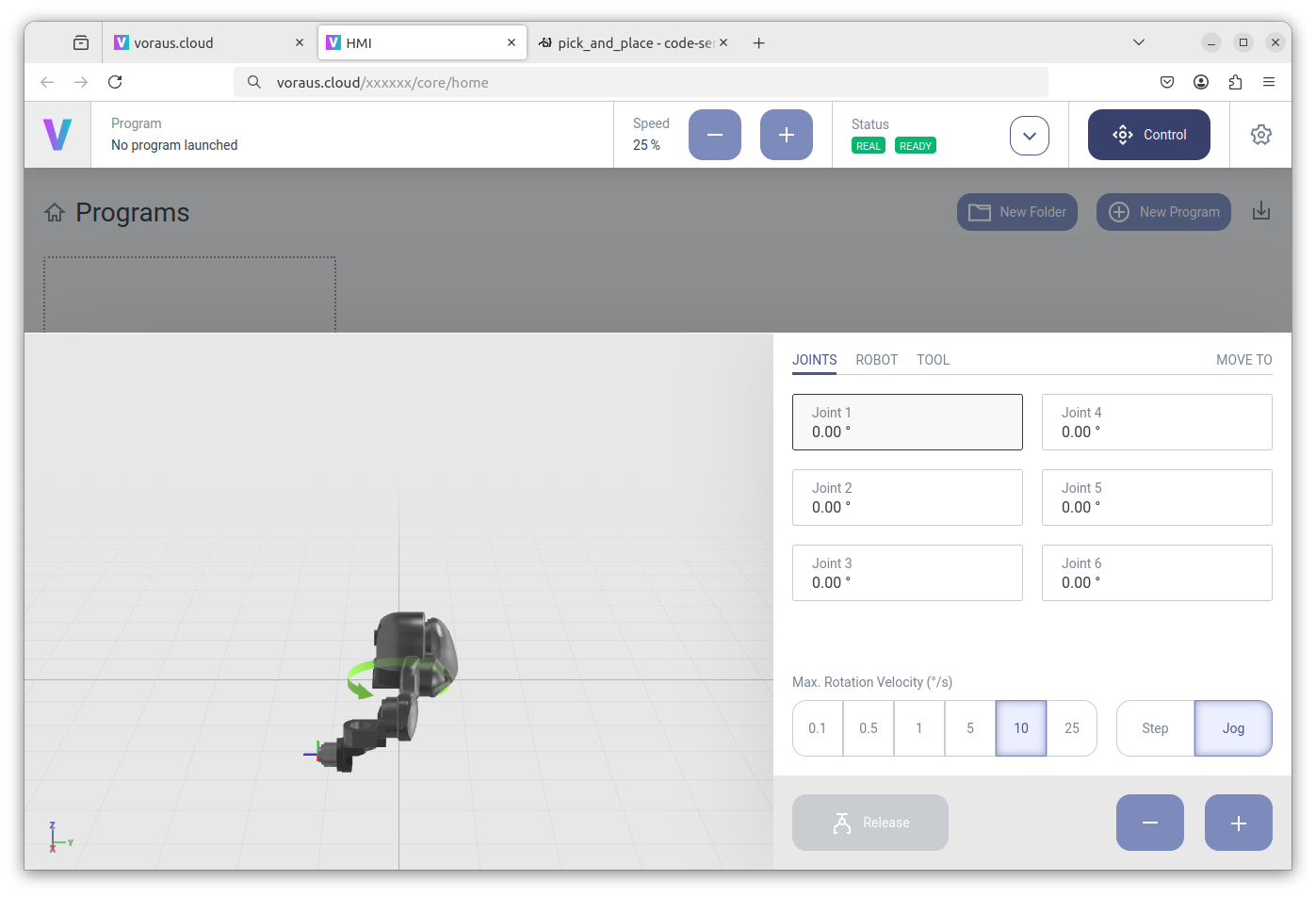
On the cloud landing page, scroll down to the Resources section, as shown in Fig. 20. Open the voraus.operator in your web browser by clicking Open service on the voraus.core (runtime) card. The voraus.operator can be used for jogging the virtual robot, setting digital I/Os, or resetting errors, as shown in Fig. 22.
For further information, for example, on resetting errors and setting the robot speed, read the voraus.operator documentation.
Next Steps
Now everything is set up, and you can continue with the Pick-and-Place Example.