Export Models with Blender
You can use any 3D modeling program that can export GLTF/GLB/OBJ files to load 3D models into the web-based visualization. This section describes the use of the open source tool Blender.
Enable the glTF Addon
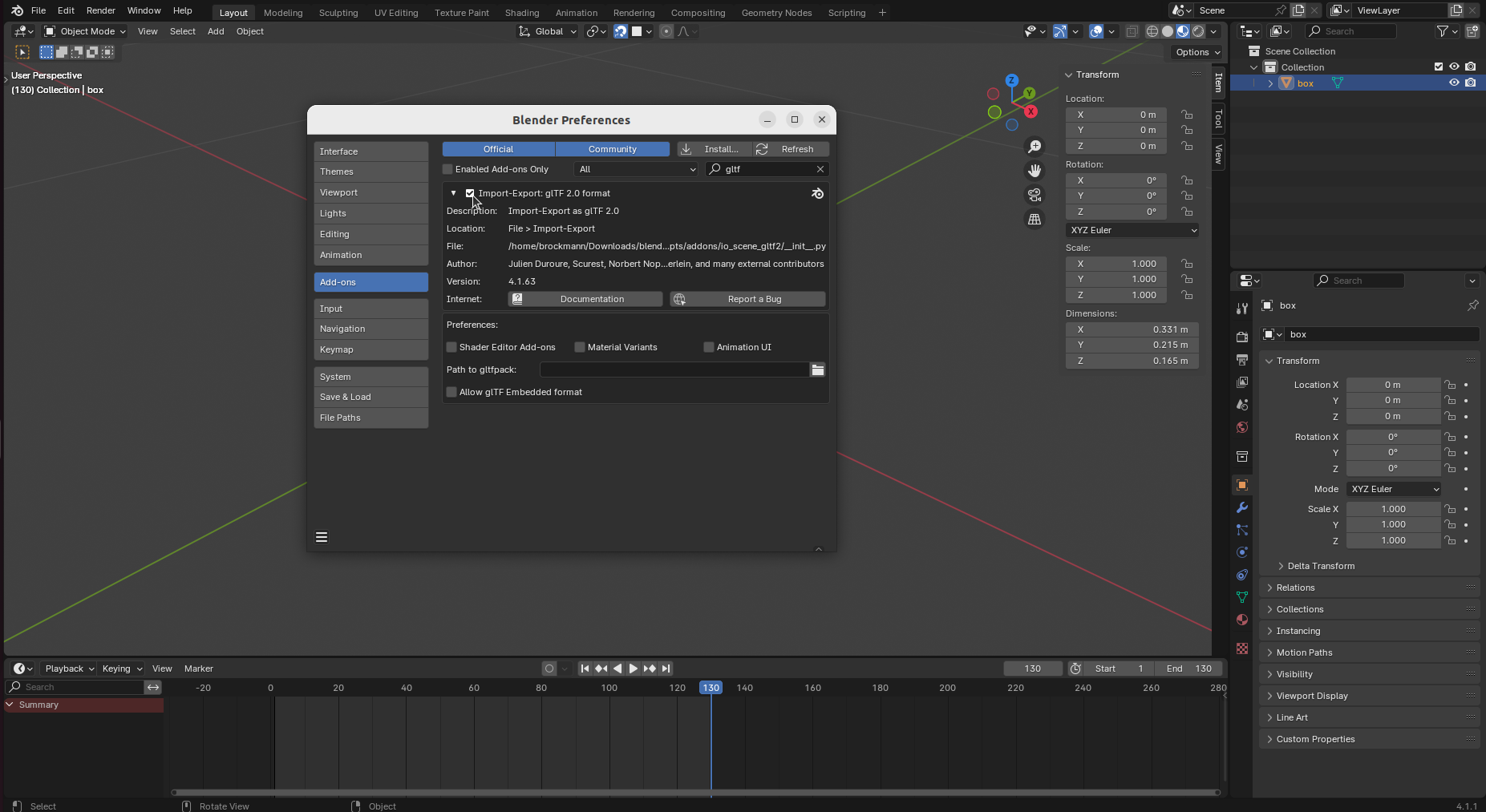
Open the addon preferences by clicking Edit - Preferences - Add-ons. Search for the Import-Export: glTF 2.0 format addon and enable it as shown below.
Prepare the Model
Make sure all translation, rotation and scale values are applied. Translation and rotation values are zero and scale values 1 as shown in Fig. 41
Make sure that the origin of the object is at the position around which you want to rotate the object later in the 3D visualization.
If you want to use materials, make sure that the shaders used in blender are compatible with the glTF format, such as the Principled BSDF shader.
Export the Model
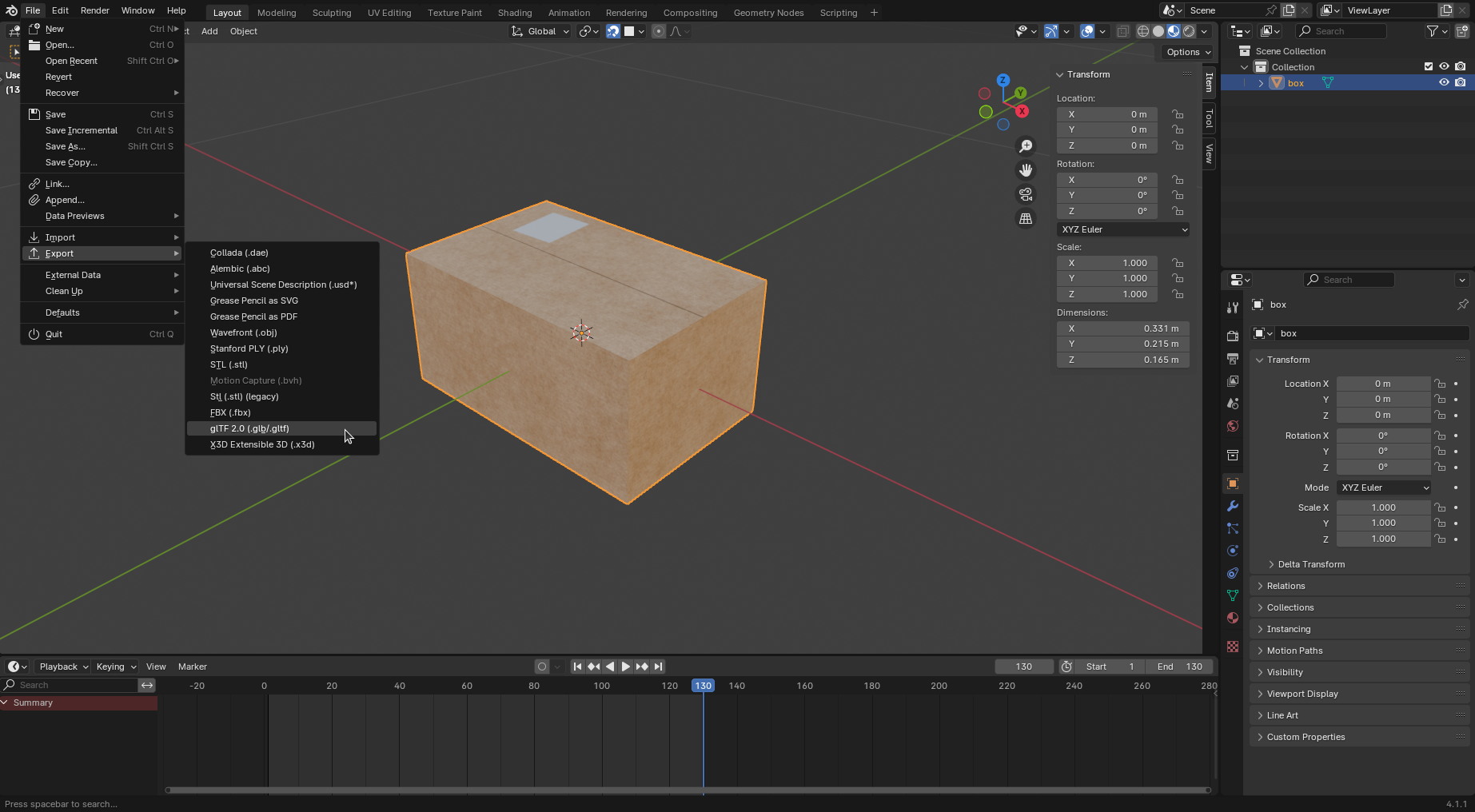
Select the object(s) and open the glTF export menu by clicking File - Export - glTF 2.0 (.glb/.gltf).
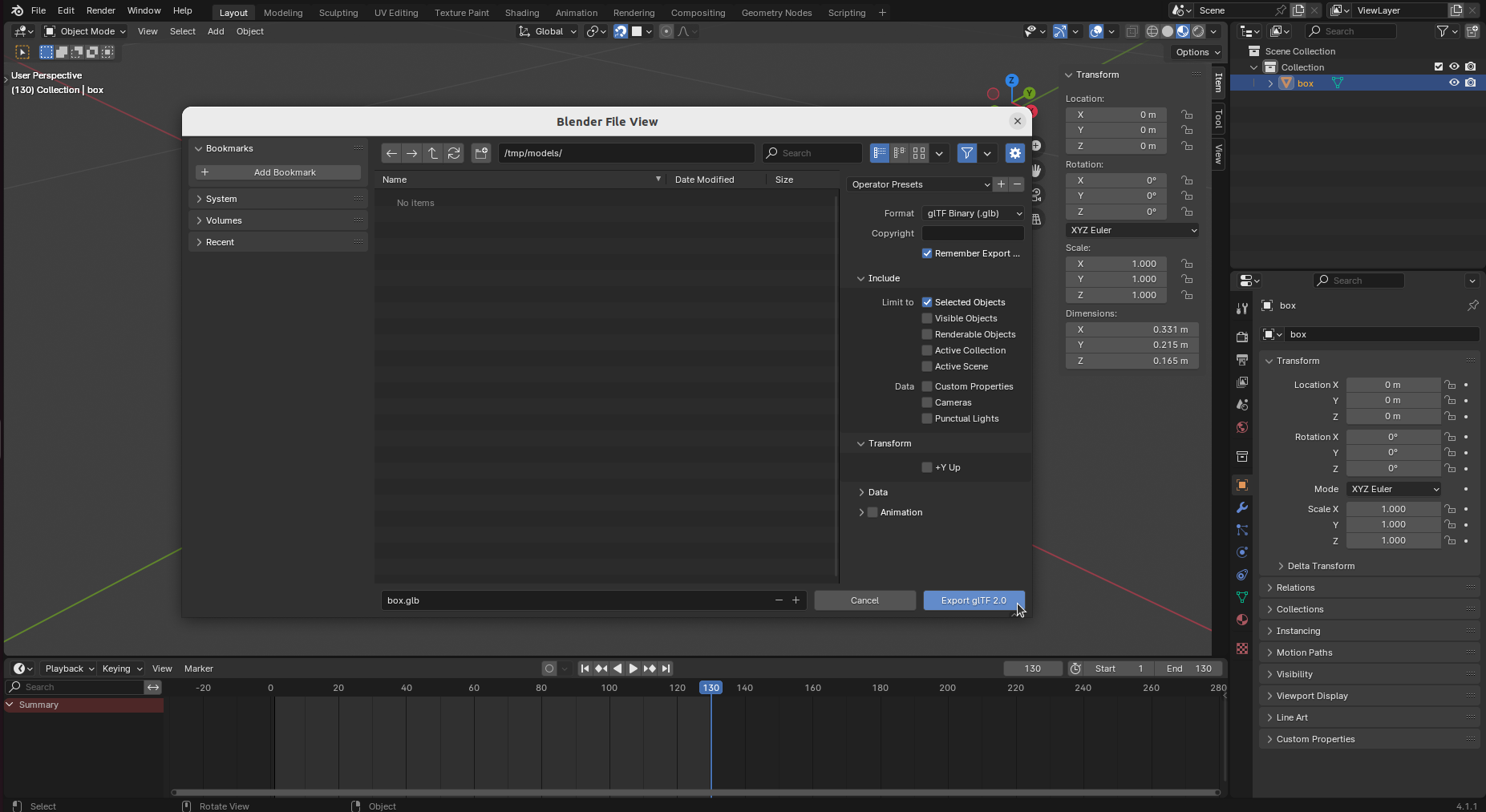
Choose glTF Binary (.glb) as format and limit to Selected Objects as shown in the image below. Make sure to deselect +Y Up transformation.