
Configuration Example
This example shows all possible configurations for 3D visualization. You can configure the visualization settings for your application either through environment variables or by sending HTTP requests to specific routes. This documentation provides detailed instructions on how to configure the camera, orbitControls and scene settings.
Camera Configuration
The camera settings can be configured with the following environment variables:
This is an example of a docker compose file using the camera settings parameters:
docker-compose.camera.yml
 1services:
 2  codemeter:
 3    hostname: codemeter
 4    image: artifactory.vorausrobotik.com/docker/voraus-codemeter:1.0.0
 5    environment:
 6      LICENSE_SERVER: host.docker.internal
 7    extra_hosts:
 8      - host.docker.internal:host-gateway
 9
10  voraus-3d-visu:
11    image: artifactory.vorausrobotik.com/docker/voraus-3d-visu:0.15.1
12    hostname: voraus-3d-visu
13    ports:
14      - 8077:80
15    environment:
16      CODEMETER_HOST: codemeter
17      V3DVISU_CAMERA__FOV: "70"
18      V3DVISU_CAMERA__POSITION: "[1, 1, 1.6]"
19    depends_on:
20      - codemeter
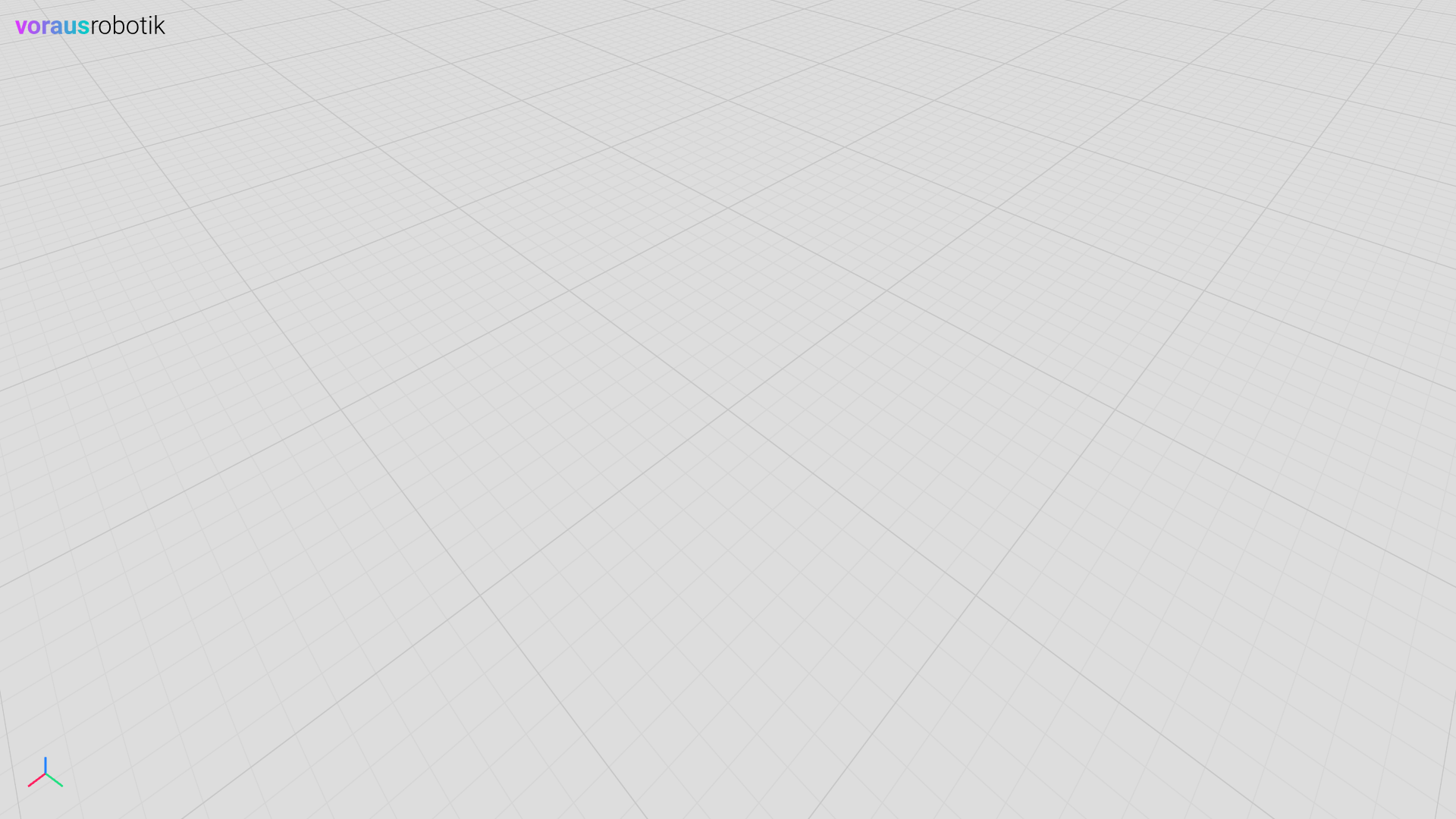
The following picture shows the result of the configuration:
Orbit Controls Configuration
The orbit controls settings can be configured with the following environment variables:
This is an example of a docker compose file using the orbit controls settings parameters:
docker-compose.orbit-controls.yml
 1services:
 2  codemeter:
 3    hostname: codemeter
 4    image: artifactory.vorausrobotik.com/docker/voraus-codemeter:1.0.0
 5    environment:
 6      LICENSE_SERVER: host.docker.internal
 7    extra_hosts:
 8      - host.docker.internal:host-gateway
 9
10  voraus-3d-visu:
11    image: artifactory.vorausrobotik.com/docker/voraus-3d-visu:0.15.1
12    hostname: voraus-3d-visu
13    ports:
14      - 8077:80
15    environment:
16      CODEMETER_HOST: codemeter
17      V3DVISU_CAMERA__POSITION: "[9, 0, 3.5]"
18      V3DVISU_ORBITCONTROLS__DISTANCE_MIN: "2"
19      V3DVISU_ORBITCONTROLS__DISTANCE_MAX: "30"
20      V3DVISU_ORBITCONTROLS__SCREEN_SPACE_PANNING: "False"
21      V3DVISU_ORBITCONTROLS__INITIAL_TARGET: "[-0.3, 0, 0.8]"
22    depends_on:
23      - codemeter
The following picture shows the result of the configuration:
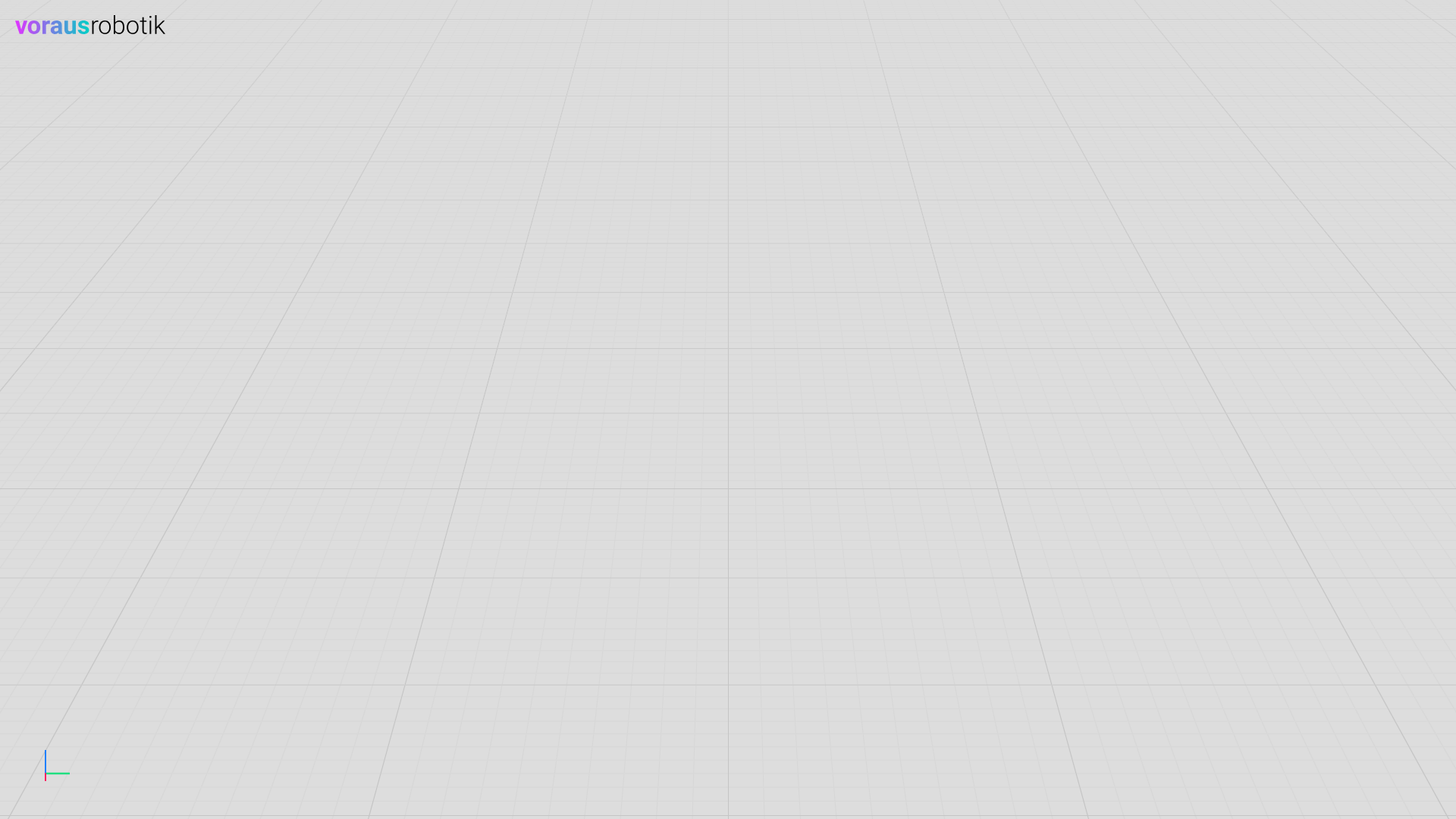
Fig. 35 The 3D visualization with custom orbit control settings
Scene Configuration
The scene can be configured with the following environment variables:
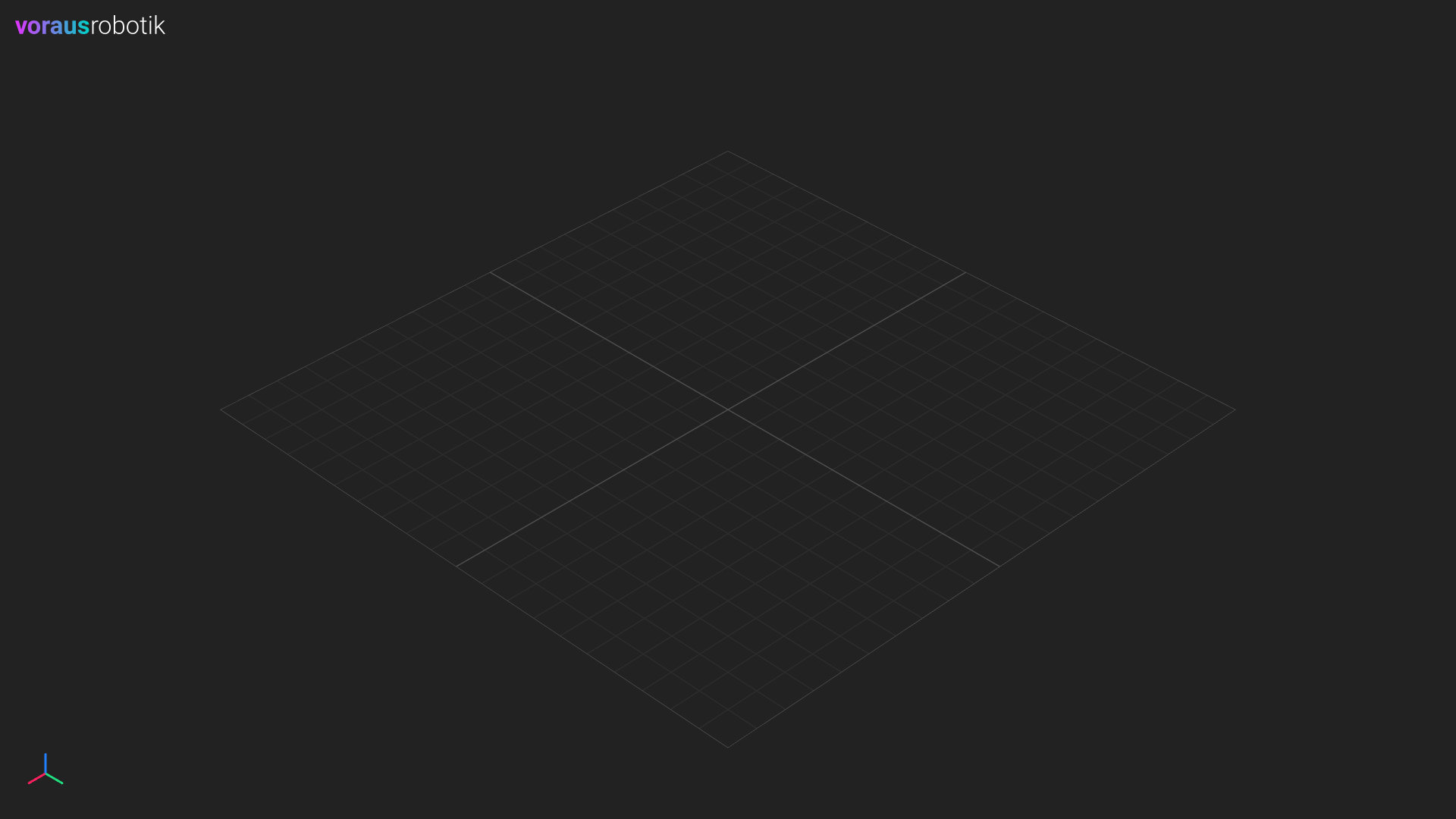
This is an example of a docker compose file which configures a dark mode using the scene settings parameters:
docker-compose.scene.yml
 1services:
 2  codemeter:
 3    hostname: codemeter
 4    image: artifactory.vorausrobotik.com/docker/voraus-codemeter:1.0.0
 5    environment:
 6      LICENSE_SERVER: host.docker.internal
 7    extra_hosts:
 8      - host.docker.internal:host-gateway
 9
10  voraus-3d-visu:
11    image: artifactory.vorausrobotik.com/docker/voraus-3d-visu:0.15.1
12    hostname: voraus-3d-visu
13    ports:
14      - 8077:80
15    environment:
16      CODEMETER_HOST: codemeter
17      V3DVISU_SCENE__COLOR: "#222"
18      V3DVISU_SCENE__GRID__ENABLED: "True"
19      V3DVISU_SCENE__GRID__INFINITE_GRID: "False"
20      V3DVISU_SCENE__GRID__SIZE: "4"
21      V3DVISU_SCENE__GRID__FADE_DISTANCE: "20"
22      V3DVISU_SCENE__GRID__FADE_STRENGTH: "0.1"
23      V3DVISU_SCENE__GRID__CELL_SIZE: "0.2"
24      V3DVISU_SCENE__GRID__CELL_THICKNESS: "0.8"
25      V3DVISU_SCENE__GRID__CELL_COLOR: "#454545"
26      V3DVISU_SCENE__GRID__SECTION_SIZE: "2"
27      V3DVISU_SCENE__GRID__SECTION_COLOR: "#555"
28      V3DVISU_LOGO: "voraus-gradient-white"
29    depends_on:
30      - codemeter
The following image shows the result of the configuration:
General Purpose
The logo can be configured with the following environment variable:
Property |
Default Value |
Description |
|---|---|---|
V3DVISU_LOGO |
voraus-gradient-black |
Logo shown in the corner of the screen (voraus-gradient-white, voraus-white, voraus-black). |
The debug mode can be enabled with the following environment variable:
Property |
Default Value |
Description |
|---|---|---|
V3DVISU_DEBUG |
False |
Activate the debug mode. |
It is useful for debugging during development and enables the following features:
Ruler (Measurement Tool)
The ruler can be used to measure distances between points in the scene.
Hold Ctrl to activate the tool, snapping to the origin of objects.
Hold Ctrl + Shift to snap to surfaces.
Hold Ctrl + Alt to snap to vertices.
Server Configuration
The server settings can be configured with the following environment variables:
Property |
Default Value |
Description |
|---|---|---|
V3DVISU_ALLOWED_HOSTS |
[] |
Allowed hosts for outbound requests, such as URLs from which models can be loaded. |