
Work in the Cloud
Run the examples directly in a cloud environment from your web browser from any device:
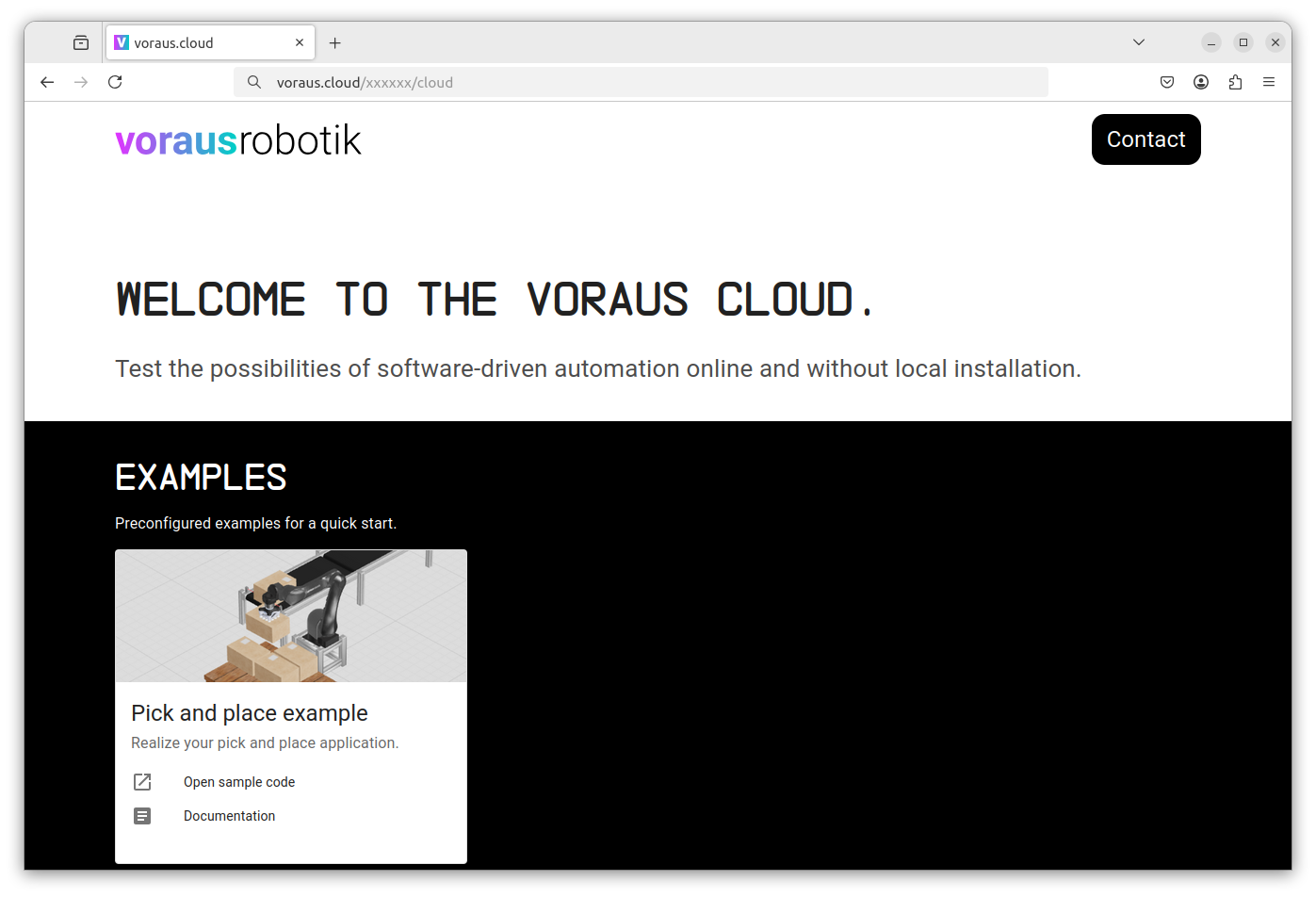
You will receive an access link in the format https://voraus.cloud/xxxxxx and access data (username and
password) with which you can log in to the cloud. The link will take you to the landing page of the cloud,
which is shown in Fig. 13.
Open VSCode in web browser
Click on Open sample code on the Pick and place example card on the cloud landing page to open VS Code in a new tab. If you are asked whether you trust the authors, press yes.
Embed 3D Visualization
To display the 3d visualization directly in VS Code, press ctrl + shift + p, search for Simple Browser: Show
and click on it (see Fig. 14).
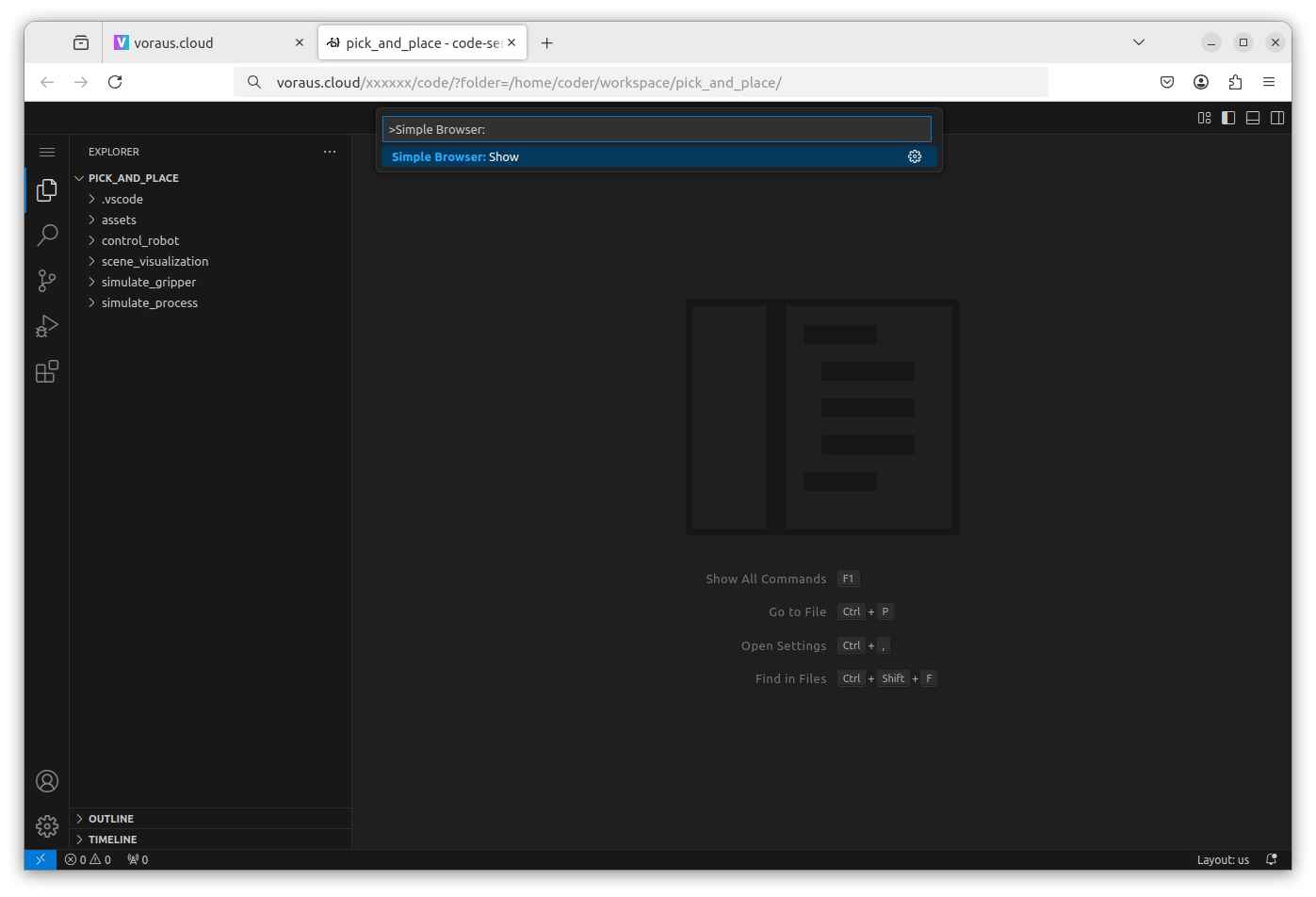
Enter the local URL of the 3D visualization https://voraus.cloud/xxxxxx/visu
in the following menu and press Enter.
The xxxxxx need to be replaced by your cloud ID, which is the same as used for the landing page.
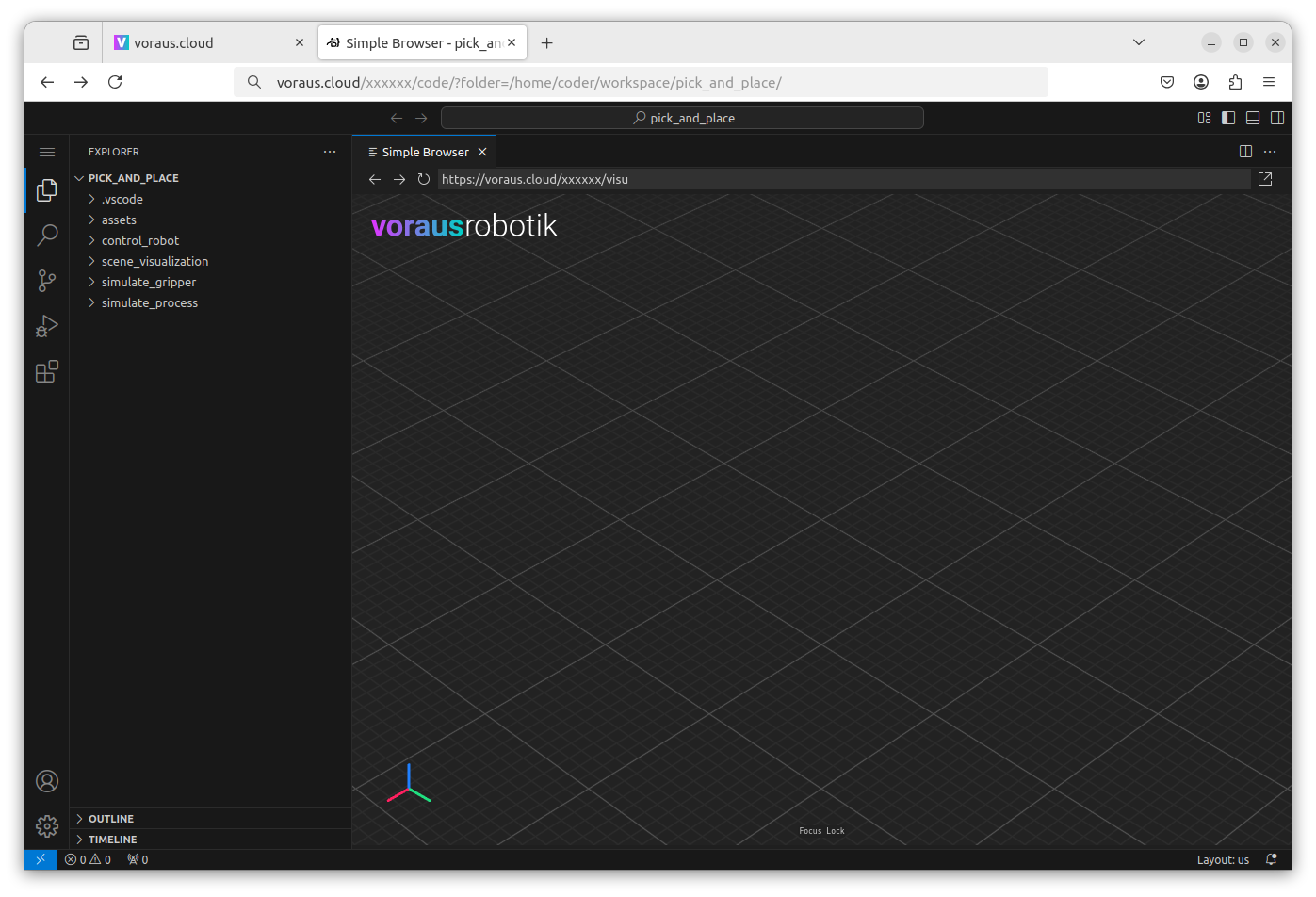
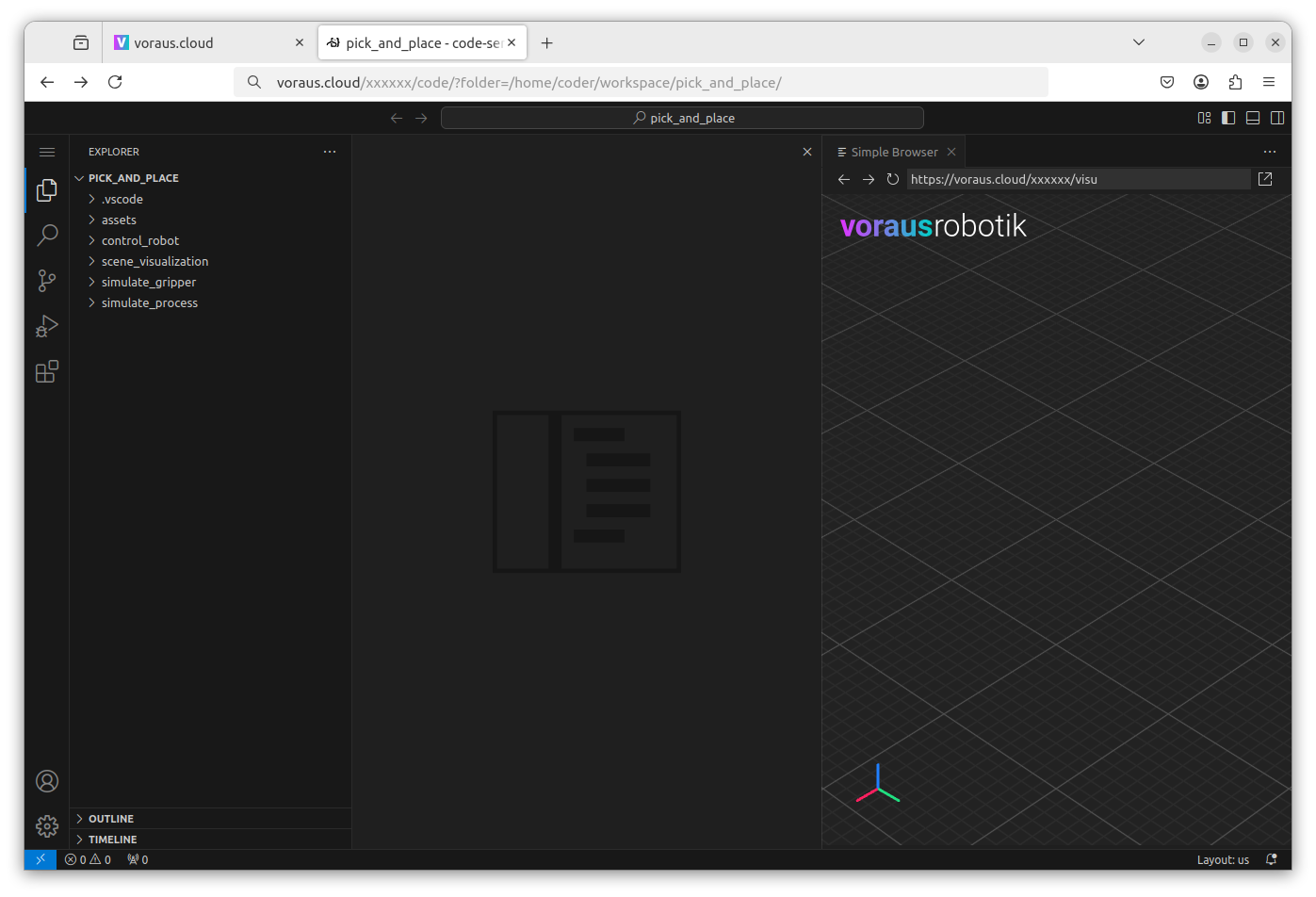
Now the 3d visualization is visible in VS Code as shown in Fig. 15.
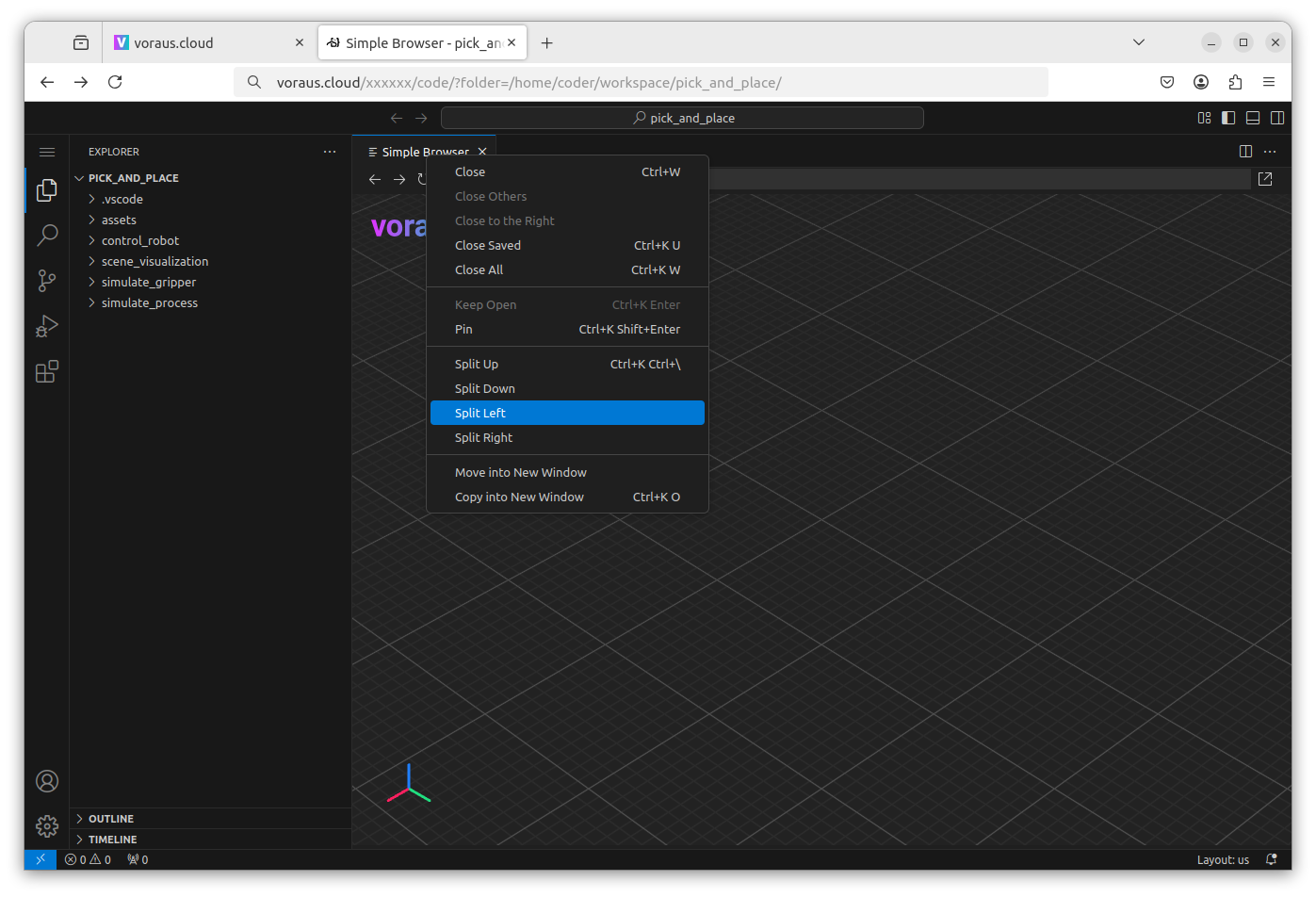
For efficient development, the screen can be split so that you can see both the Python code and the 3D visualization at the same time. To do this, right-click on Simple Browser and then select Split Left, see Fig. 16.
As shown in Fig. 17, the 3D visualization is now displayed on the right side of the screen.
Note
Displaying the 3D visualization directly in VS Code is practical for development, but performance problems can occur with large 3D scenes in the Simple Browser. In these cases, use a web browser such as Chrome.
To do this, please read Open 3D Visualization.
Open a Terminal
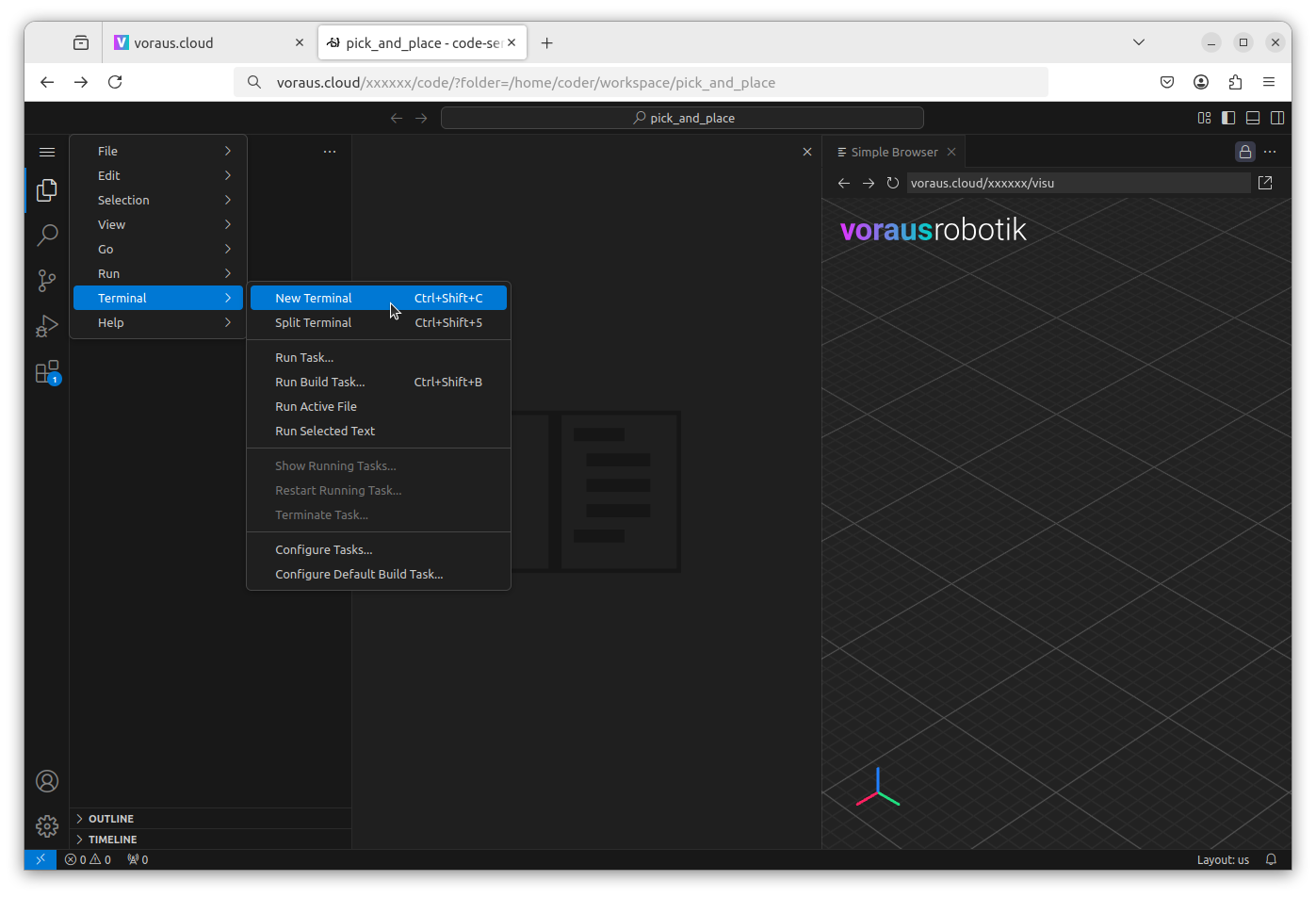
During development, a terminal is required to execute Python scripts. To open a terminal, click on the menu in the top
left corner of the screen. Then, select New Terminal under the Terminal menu item or press
ctrl + shift + c as shown in Fig. 18.
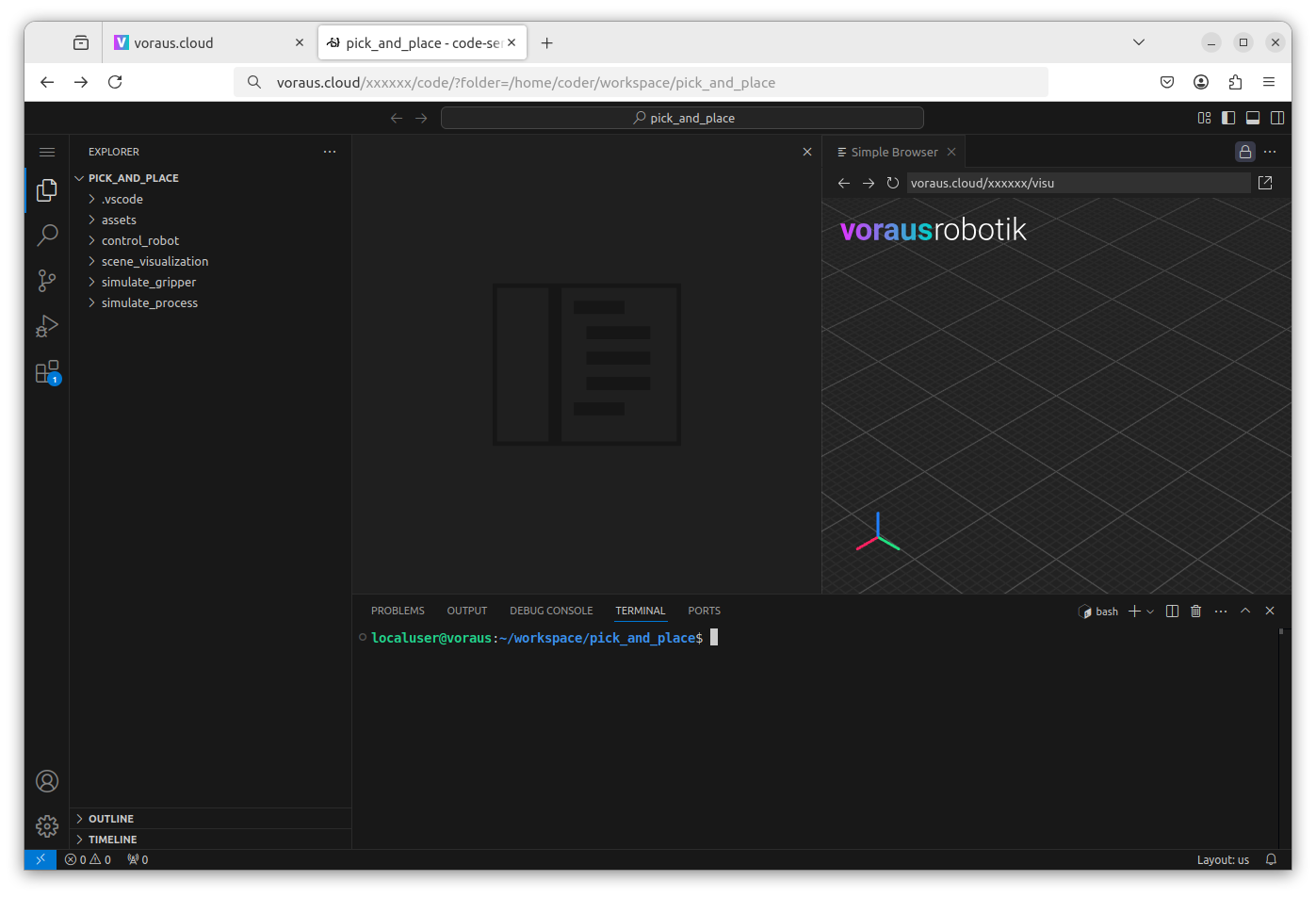
The terminal is now displayed at the bottom of the screen as shown in Fig. 19. In the following examples, you can enter the commands here. If you need a second terminal to execute scripts in parallel, you can also split the terminal by pressing the Split Button at the top right of the terminal window.
Open 3D Visualization
This section is only relevant for you if you do not want to display the 3D visualization in VS Code but in a separate tab of your web browser, else continue with Open voraus.operator.
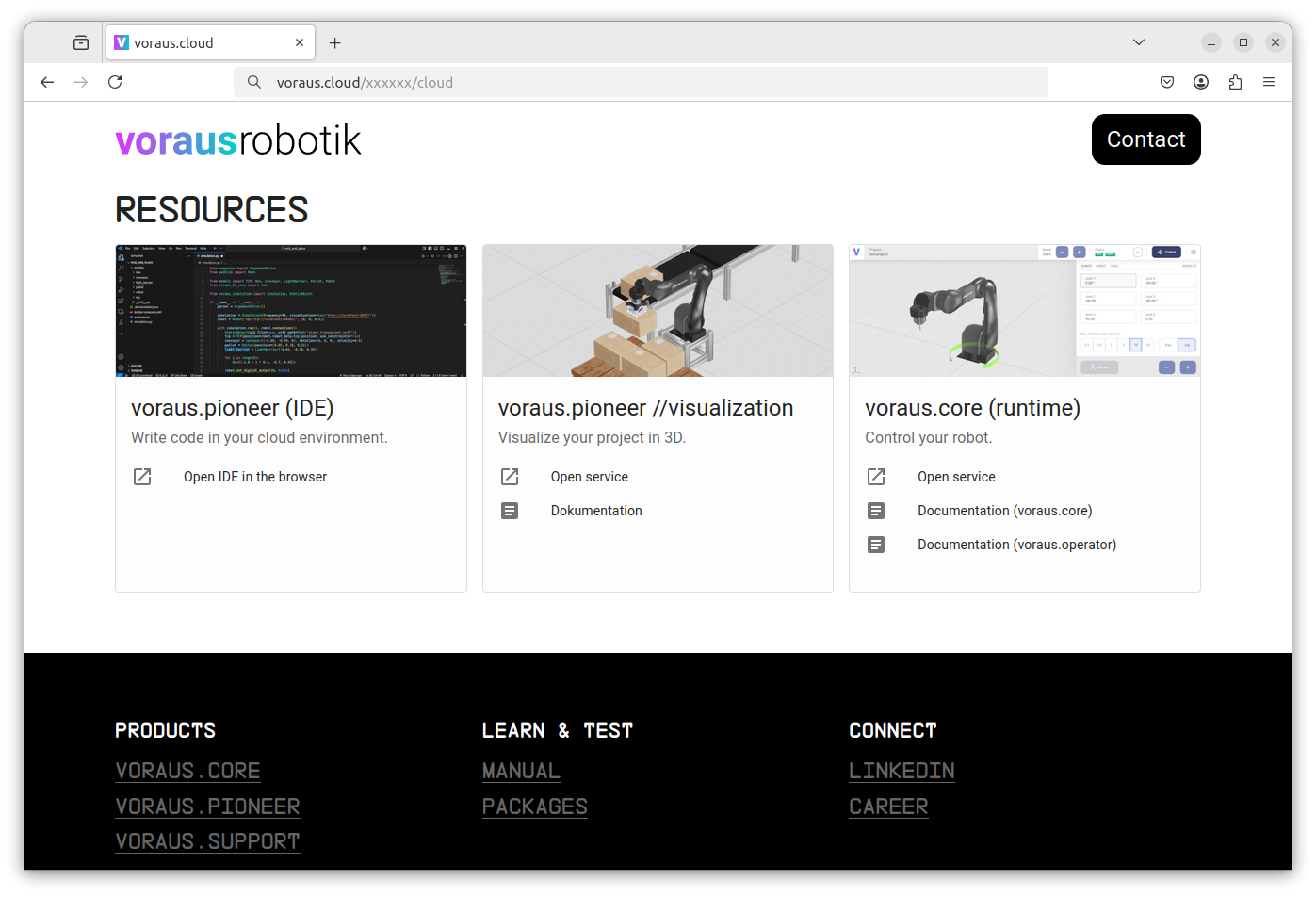
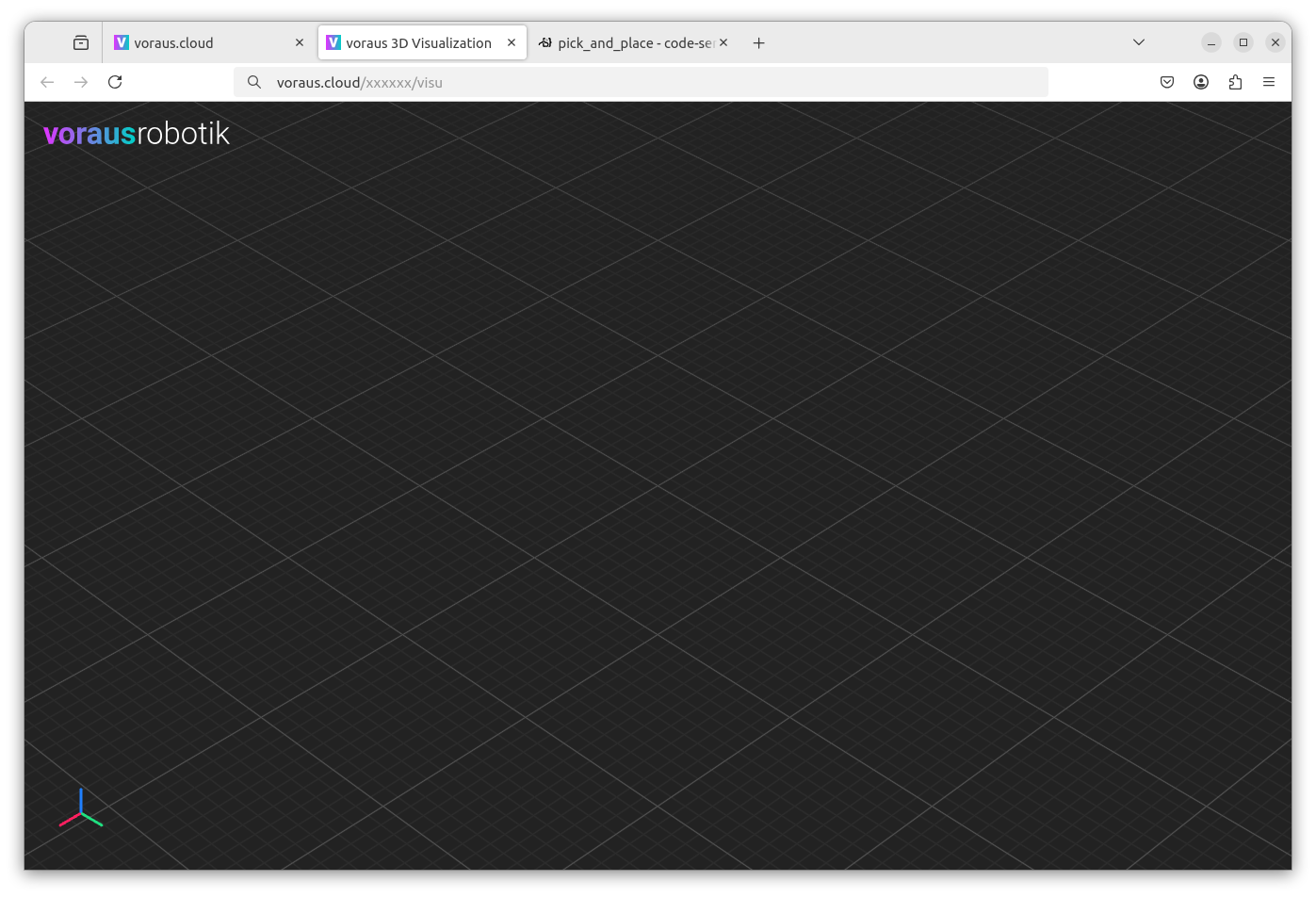
On the cloud landing page, scroll down for the resources section as shown in Fig. 20. Open the 3D visualization by clicking on Open service on the voraus.pioneer //visualization card.
This will open the 3D visualization in a new tab, as shown in Fig. 21.
Open voraus.operator
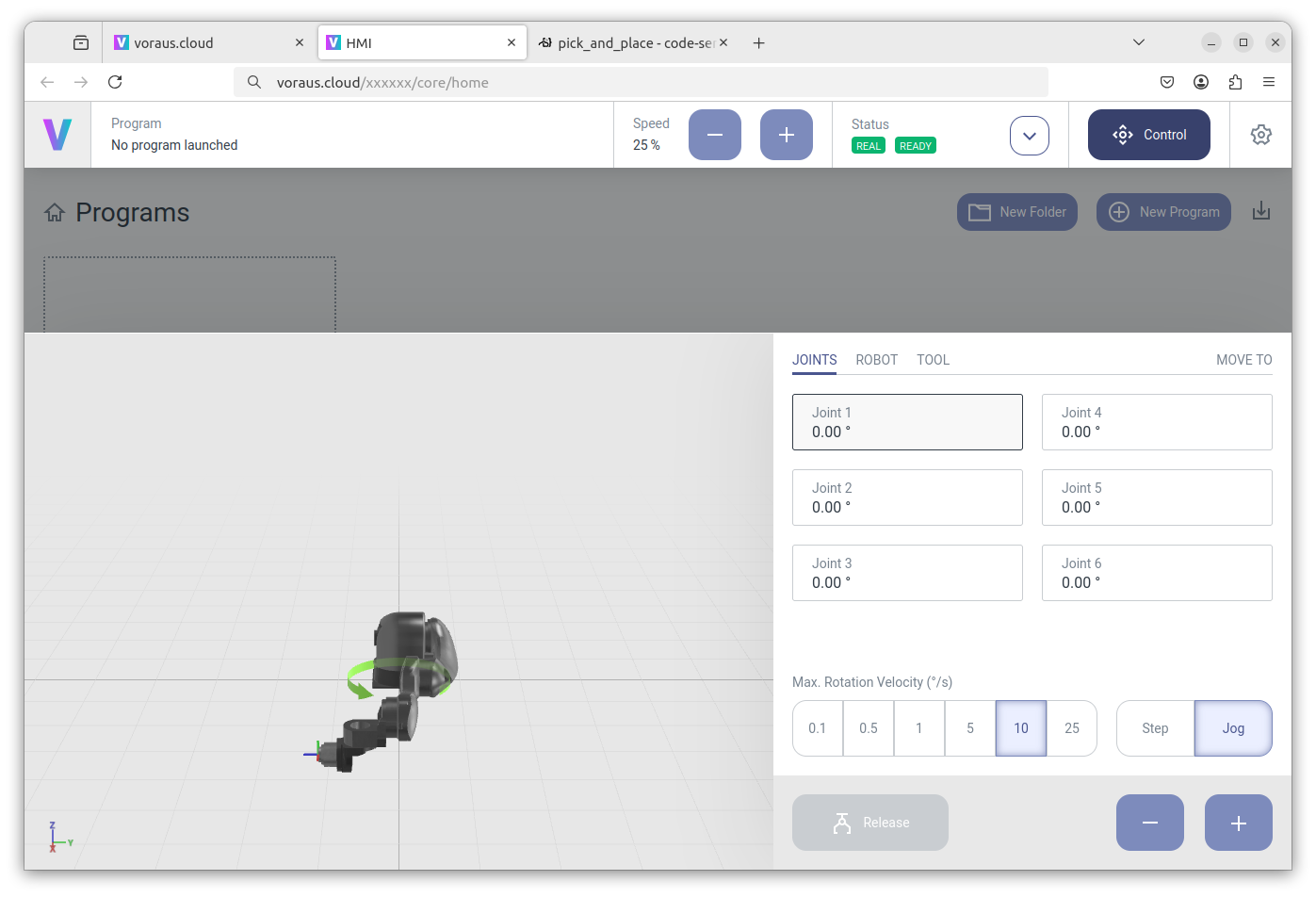
On the cloud landing page, scroll down for the resources section as shown in Fig. 20. Open the voraus.operator by clicking on Open service on the voraus.core (runtime) card in your web browser. The voraus.operator can be used for jogging the virtual robot, setting digital IOs or resetting errors, as shown in Fig. 22.
For further information such as resetting errors and setting the robot speed, please read the voraus.operator Documentation .
Next Steps
Now everything is set up, and you can continue with the Pick and Place Example.