Scene Visualization
Based on Control Robot, the example pick_and_place/scene_visualization loads further 3D assets into the
visualization and modifies them.
Used components are:
As in the previous example the robot is loaded into the visualization with robot_visualization.py
and synchronized with the voraus.core via OPC UA.
python3.11 scene_visualization/robot_visualization.py
robot_visualization.py:
 1"""Syncs the robot position with the voraus.core."""
 2
 3import os
 4import time
 5
 6from asyncua.sync import Client
 7from voraus_3d_visu import Visu
 8
 9VORAUS_CORE_URL = os.getenv("VORAUS_CORE_URL", default="http://voraus-core")
10ROBOT_MODEL_URL = f"{VORAUS_CORE_URL}/robots/VORAUS_INDUSTRIAL_ROBOT/VORAUS_INDUSTRIAL_ROBOT.glb"
11
12
13if __name__ == "__main__":
14    visu = Visu("http://voraus-3d-visu/")
15    client = Client("opc.tcp://voraus-core:48401/")
16
17    with visu.connection(), client:
18        robot = visu.add_model(model_url=ROBOT_MODEL_URL, position=[0, 0, 0])
19        joint_positions_node = client.get_node("ns=1;i=100111")
20
21        while True:
22            (joint_positions,) = client.read_values([joint_positions_node])
23
24            visu.update(
25                robot.child("CS0").rotation.z(joint_positions[0]),
26                robot.child("CS1").rotation.z(joint_positions[1]),
27                robot.child("CS2").rotation.z(joint_positions[2]),
28                robot.child("CS3").rotation.z(joint_positions[3]),
29                robot.child("CS4").rotation.z(joint_positions[4]),
30                robot.child("CS5").rotation.z(joint_positions[5]),
31            )
32
33            time.sleep(0.01)
After we have loaded the robot model into the visualization via a model_URL, there are further local 3D assets located
in assets/, some of which are loaded into the scene by executing scene_visualization.py.
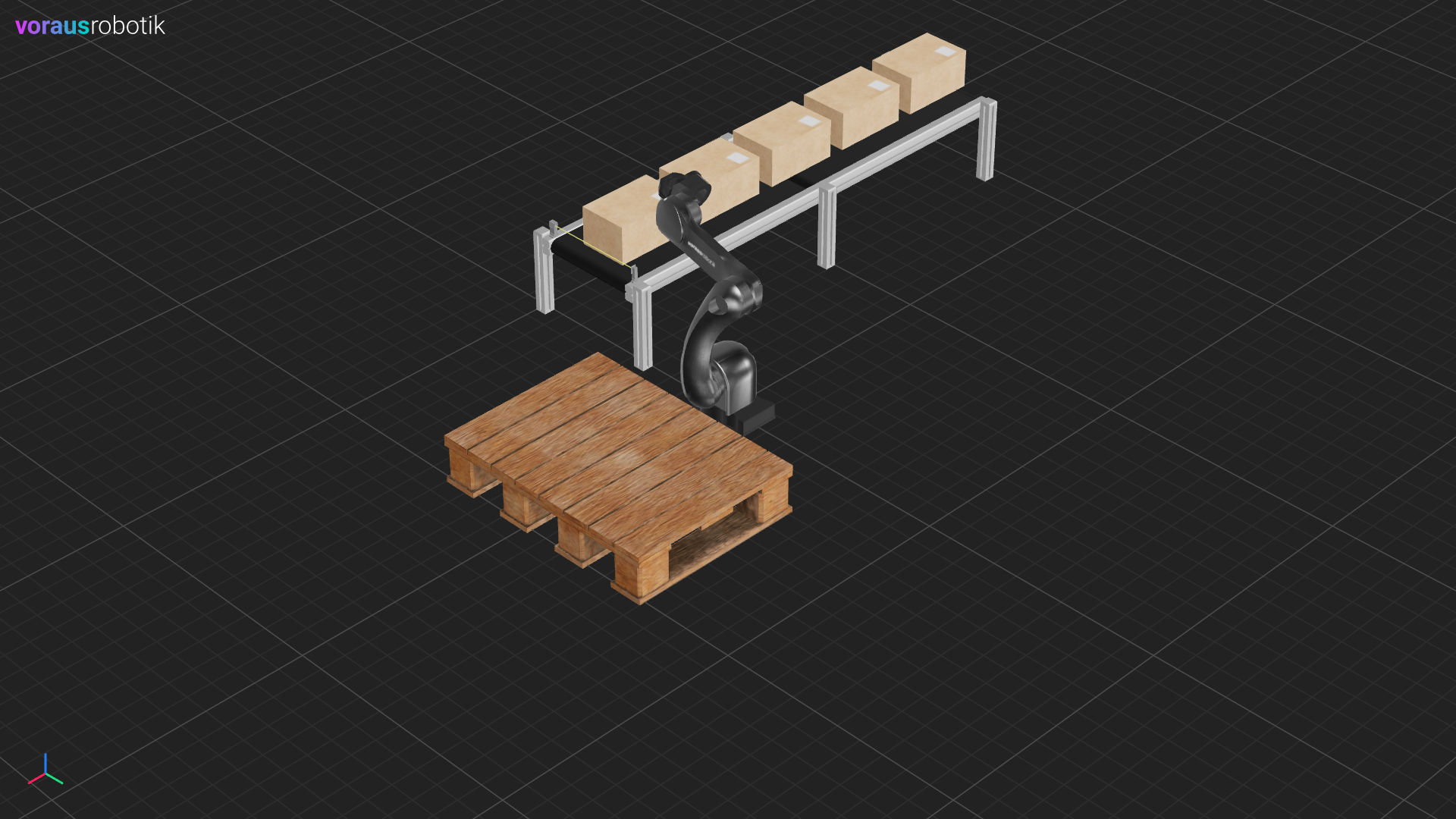
These include a pallet, a conveyor belt, 5 boxes and a light barrier as shown in Fig. 26.
python3.11 scene_visualization/scene_visualization.py
scene_visualization.py:
 1"""Sync assets with the visualization."""
 2
 3from pathlib import Path
 4
 5from voraus_3d_visu import Visu
 6
 7ASSETS = Path(__file__).parent.parent / "assets"
 8
 9
10COLOR_RED = [0.8, 0.02, 0.05]
11COLOR_GREEN = [0.02, 0.8, 0.05]
12
13if __name__ == "__main__":
14    visu = Visu("http://voraus-3d-visu/", clear=True, identifier="scene")
15
16    visu.add_model(
17        model_path=ASSETS / "pallet/pallet.glb",
18        position=[0.65, 0.10, 0.11],
19        rotation=[0, 0, 0],
20    )
21
22    visu.add_model(
23        model_path=ASSETS / "conveyor/conveyor.glb",
24        position=[-0.95, -0.70, 0],
25    )
26
27    boxes = [
28        visu.add_model(
29            model_path=ASSETS / "box/box.glb",
30            position=[-1.8 + i * 0.4, -0.7, 0.43],
31        )
32        for i in range(5)
33    ]
34
35    light_barrier = visu.add_model(
36        model_path=ASSETS / "light_barrier/light_barrier.glb",
37        position=[0.01, -0.70, 0.35],
38        unique_material=True,
39    )
40
41    with visu.connection():
42        visu.update(
43            light_barrier.child("light_beam").material.color.rgb(*COLOR_GREEN),
44        )
45
46        input("Press <enter> to update the scene.")
47        visu.update(
48            boxes[4].position.x(-0.1),
49            light_barrier.child("light_beam").material.color.rgb(*COLOR_RED),
50        )
The script sets the color of the light barrier beam to green at the beginning and pauses. When the enter key is pressed, a box is moved, and the beam is coloured red (see Fig. 27).
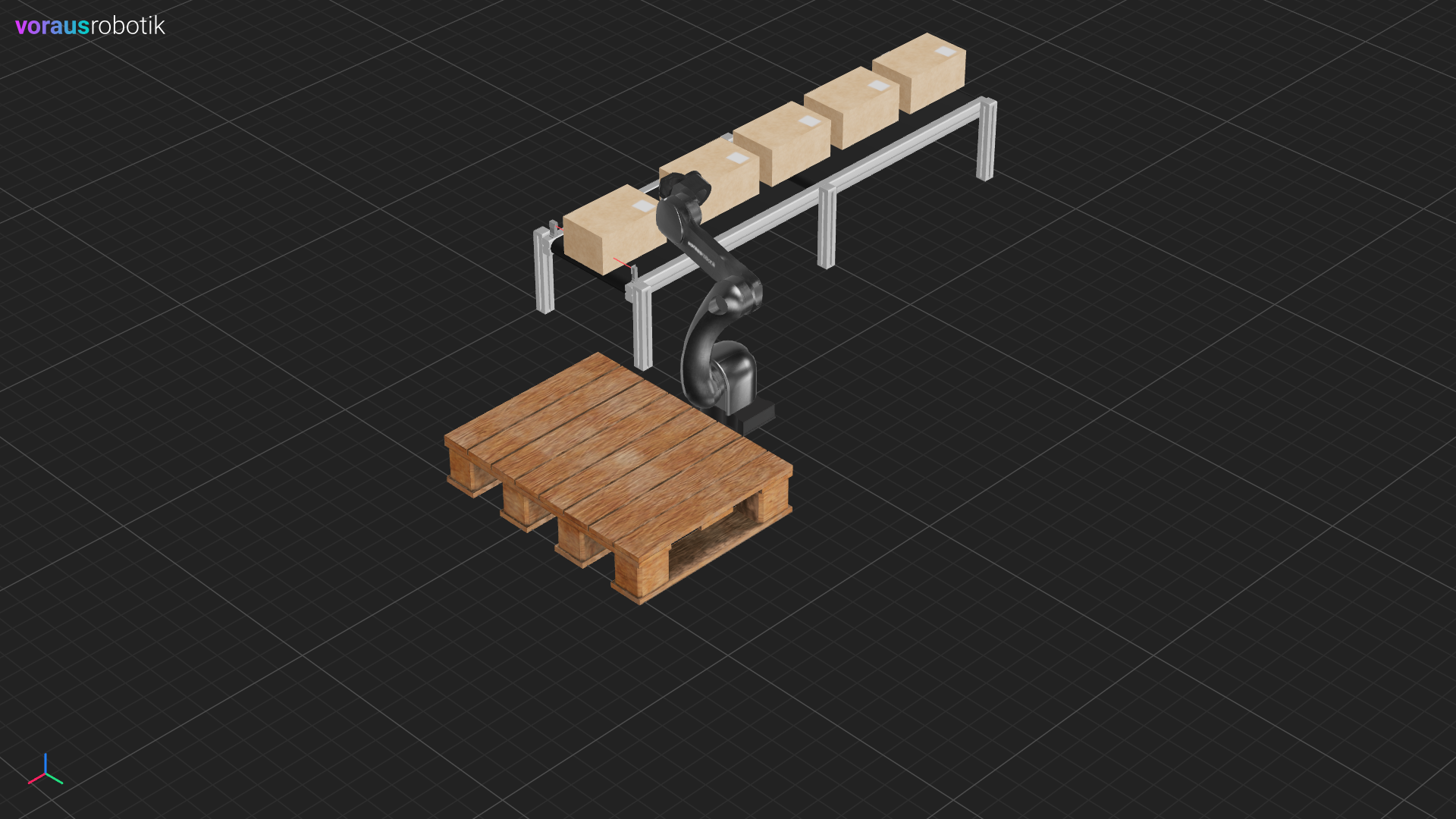
Fig. 27 Modified scene after changing the light barrier beam color and a pox position
By executing program.py the robot is moved and continues after waiting for a user input with pressing the
enter key.
python3.11 scene_visualization/program.py
program.py:
 1"""Moves the robot."""
 2
 3from math import radians
 4
 5from voraus_robot_arm import CartesianPose, JointPose, VorausIndustrialRobotArm
 6
 7HOME = JointPose(0, -1.57, 1.57, -1.57, -1.57, 0)
 8POSE1 = CartesianPose(0.5, 0, 0.2, -radians(180), 0, radians(35))
 9
10if __name__ == "__main__":
11    robot = VorausIndustrialRobotArm()
12    with robot.connect("voraus-core", port=48401):
13        robot.activate()
14
15        robot.move_ptp(HOME)
16        robot.move_ptp_relative(JointPose(j1=-1.57, j2=-0.3)).result()
17
18        input("Press <enter> to move the robot again.")
19        robot.move_linear(POSE1).result()
Finally, the robot, the box and the light barrier color have changed as shown in Fig. 28.