
Host your own Cloud
Our software is fully containerized and can also be hosted in your own cloud. You can use any cloud provider such as AWS or IONOS.
Note
This section is for experienced users.
Expertise in containerization such as Docker, cloud, networking, virtual machines and, if required, reverse proxies, Docker Compose, Docker Swarm or Kubernetes is required.
Since the setup of a cloud environment is highly dependent on your chosen cloud provider, only the voraus specific steps are explained here.
Licensing in the Cloud
Our software is protected with WiBu Systems CodeMeter . CodeMeter supports Docker and virtual machines, which enables integration into the cloud.
The CodeMeter license server must run on a dedicated virtual machine. All other software components can run on at any virtualization level on x86 hardware. We recommend setting up a single license server in the cloud and allowing all other instances to access it, as shown in Fig. 33.
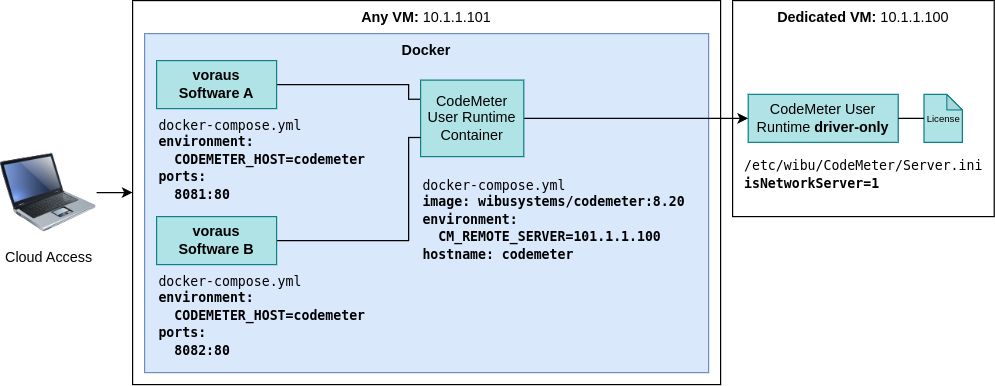
Setting up the licensing
To set up the licensing, set up a dedicated VM with your cloud provider and request a VM license from us. Install the CodeMeter User Runtime driver-only from WiBu Systems CodeMeter on the VM.
Now you have to configure the CodeMeter Runtime as a license server. Log in to your VM via SSH and stop the CodeMeter Runtime.
sudo systemctl stop codemeter
Now edit the file /etc/wibu/CodeMeter/Server.ini.
Set isNetworkServer=1 and save your changes.
Restart the CodeMeter runtime.
sudo systemctl restart codemeter
Activate the License
To activate the license, first stop the CodeMeter Runtime on your computer, if you have one running.
sudo systemctl stop codemeter
Create an SSH tunnel to the license server VM and leave it open until after license activation.
ssh -L 22350:localhost:22350 user@host
Now open the link to the license ticket you received from us in your web browser. Follow the instructions and select CmActLicense. After the activation is complete, you can close the SSH tunnel and restart codemeter on your local system.
sudo systemctl restart codemeter
You can check whether the activation was successful by entering the following command.
cmu -l
This should display a new CmContainer.
voraus Software in the Cloud
You can now select any VM type to create additional VMs (x86 architecture). You can run several voraus.cores on one and the same VM or use separate VMs. If you want to run multiple voraus.cores on the same VM, make sure that you bind different ports, as shown in Fig. 33.
A Codemeter container is required for the allocation of licenses, an example configuration is shown below. Make sure that all containers that require licenses are connected to the CodeMeter container via a network.
services:
  codemeter:
    hostname: codemeter
    image: docker.io/wibusystems/codemeter:8.20
    environment:
      CM_REMOTE_SERVER: "IP_OF_YOUR_LICENSE_SERVER_VM"
For the licensed voraus software you can use the docker-compose.yml file from these examples.
You only need to set the environment variable CM_REMOTE_SERVER with the IP of your license server.
If you start the software in another way,
make sure that the environment variable CODEMETER_HOST=codemeter is set.
Where codemeter is the hostname of the CodeMeter Runtime Container.
If you have problems with license allocations,
you can use the following command to check whether the CodeMeter Runtime container can reach the license server.
CODEMETER is the id or the name of the CodeMeter Runtime container.
docker exec -it CODEMETER bash
cmu -k
Path-Prefixed Reverse Proxy
The voraus software is designed to run behind a reverse proxy even with path prefixes. You can find an example in the voraus.pioneer //visualization Documentation .
If you want to serve the voraus.core behind a path prefix,
you must set the environment variable VORAUS_HMI_BASE_PATH as in the example below.
services:
  voraus-core:
    environment:
      VORAUS_HMI_BASE_PATH: "/YOUR/PATH/PREFIX/"