
Simulate Process
The example pick_and_place/simulate_process extends the simulation models from Gripper Simulation to
implement a complete pick and place application. Fig. 31 shows the starting point of the pick and
place application, before the program is executed.
Used components are:
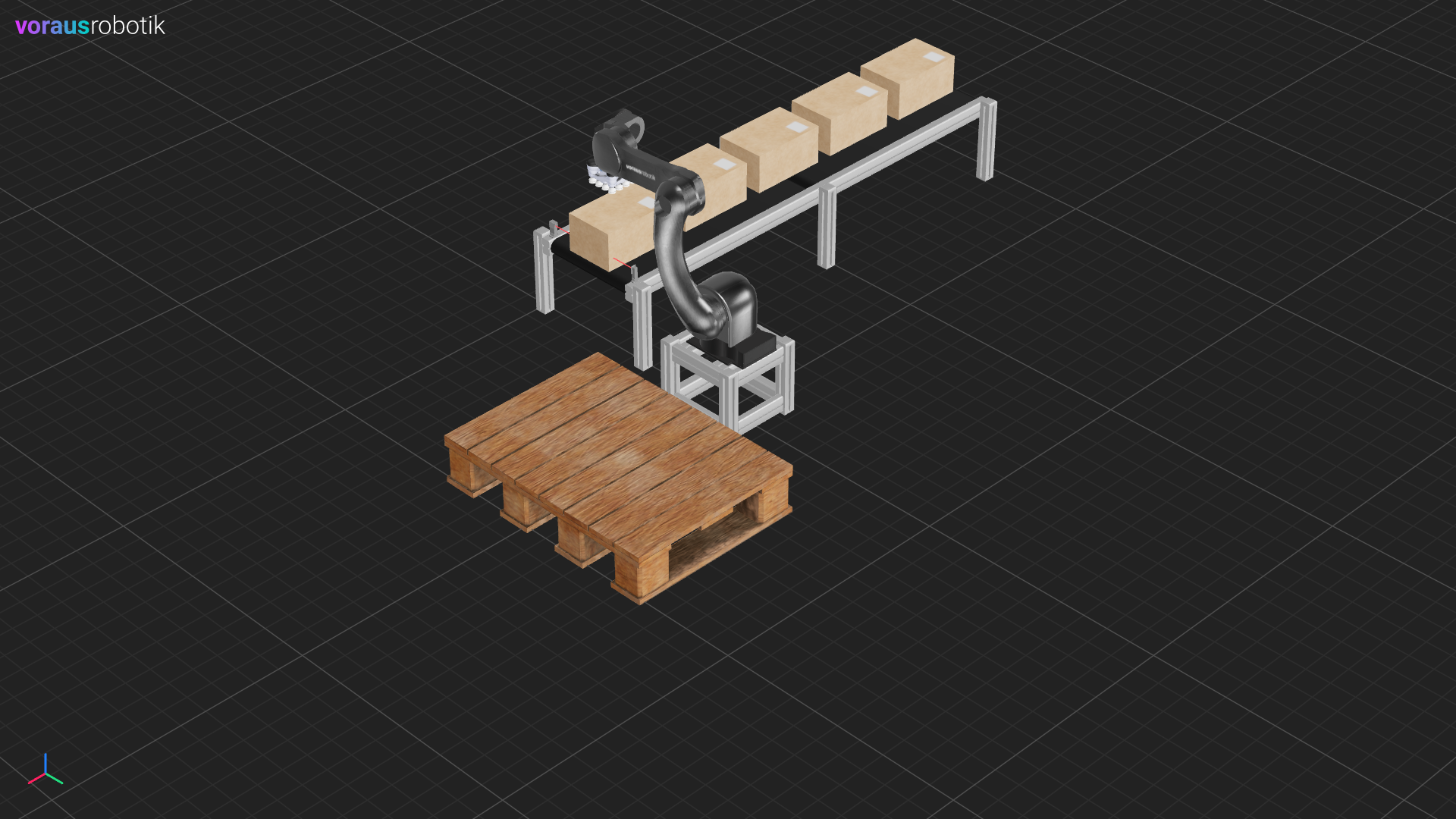
Fig. 31 Pick and place application before the program execution
The Simulation Models
The dynamic objects for the box and the gripper as well as the visualization object of the robot are used again as in
the previous example.
With models/pallet.py we add a palette as a static simulation object. It is only used for the simulation
environment, the position and orientation in the visualization do not change.
The python file models/conveyor defines the conveyor belt simulation model, which we equip with an update
method.
models/conveyor.py:
    def update(self, enable: bool, velocity: float | None = None) -> None:
        """Updates the state of the conveyor.

        Args:
            enable: True if conveyor is enabled, else false.
            velocity: The velocity in m/s, uses default velocity if None. Defaults to None.
        """
        velocity = self.velocity if velocity is None else velocity
        if enable:
            self.set_velocity(linear_velocity=[velocity, 0, 0], use_local=True)
        else:
            self.set_velocity(linear_velocity=[0, 0, 0])
The conveyor belt simulation is done by applying a linear velocity to the physics model.
This exerts a force on all dynamic objects lying on the conveyor belt, taking friction into account.
After the simulation step has been calculated, the position of the conveyor belt physics model is reset
in simulation.py without taking the physics into account.
The conveyor belt is to be controlled later with the help of a light barrier, which is defined
in models/light_barrier.
models/light_barrier.py:
    def is_clear(self) -> bool:
        """Checks if the light barrier is clear.

        Returns:
            bool: True, if clear, False if intercepted.
        """
        intersections = self.ray_test(self.point_a.position, self.point_b.position)
        if intersections and (intersections[0].object_unique_id == -1):
            return True
        return False
A ray intersection test can be used to determine whether there is an object between two points in the simulation
environment. We use this feature in the is_clear method.
This information is used not only to control the program, but also to change the color of the beam in the
visualization to either red or green.
The Simulation Python File
When simulation.py is executed, all models are loaded into the simulation and visualization.
python3.11 simulate_process/simulation.py
Open the visualization in your web browser to display the simulation as shown in Fig. 31.
The following requirements apply to simulation:
The boxes are dynamic objects with physics
The robot pose is synchronized with the voraus.core
The gripper position is synchronized with the voraus.core
A digital output is used for gripper open / close
A digital input is used for the signal of the light barrier
First, the simulation is initialized with a frequency of 50 Hz and the visualization backend is specified. Then the models for the robot, the gripper, the conveyor belt, the pallet and the light barrier are initialized. In a for loop, 5 boxes are placed on the conveyor belt and the digital outputs are initially set. The simulation logic is calculated in a while loop, whereby the robot data is read first. The conveyor belt and the gripper status are set based on digital outputs 1 and 2. The status of the light barrier is then read and set to digital output 3. Finally, the next simulation step is calculated, the conveyor belt is reset, and the system waits until the next step is to be calculated.
simulation.py:
 1"""Contains the simulation logic, which represents the real system.."""
 2
 3import sys
 4from pathlib import Path
 5
 6from voraus_3d_visu import Visu
 7from voraus_simulation import Simulation, StaticObject
 8
 9sys.path.append(str(Path(__file__).parents[1]))
10
11
12if __name__ == "__main__":
13    from simulate_process.models import Box, Conveyor, Gripper, LightBarrier, Pallet, Robot
14
15    simulation = Simulation(frequency=50, visualization=Visu("http://voraus-3d-visu/", clear_all=True))
16    robot = Robot("opc.tcp://voraus-core:48401/", [0, 0, 0.3])
17
18    with simulation.run(), robot.connection():
19        StaticObject(glb_file=None, urdf_path=Path("plane_transparent.urdf"))
20        gripper = Gripper()
21        conveyor = Conveyor([-0.95, -0.70, 0], rotation=[0, 0, 0], velocity=0.5)
22        pallet = Pallet(position=[0.65, 0.10, 0.11])
23        light_barrier = LightBarrier([0.01, -0.70, 0.35])
24
25        for i in range(5):
26            Box([-1.8 + i * 0.4, -0.7, 0.43])
27
28        for pin in [1, 2]:
29            robot.set_digital_output(pin, False)
30
31        prev_light_barrier_state = None
32
33        while True:
34            robot.get_robot_data()
35            dio1, dio2 = robot.robot_data.digital_outputs[:2]
36
37            # Update the gripper simulation: Grasp if digital output 1 is set.
38            gripper.update(robot.robot_data.world_flange_pose, grasping=dio1)
39
40            # Update the conveyor simulation: Set velocity if digital output 2 is set.
41            conveyor.update(dio2, velocity=0.5)
42
43            # Get the state of the light barrier simulation and set it to digital output 3.
44            obj_detected = not light_barrier.is_clear()
45            if obj_detected != prev_light_barrier_state:
46                robot.set_digital_output(3, obj_detected)
47                prev_light_barrier_state = obj_detected
48
49            simulation.step()
50            conveyor.reset_pose()
51            simulation.sleep()
The Program Python File
The program controls the voraus.core and can be used in exactly the same way for a real system after successful simulation.
The Python script creates a grid for palletizing the boxes. The positions for the application are then defined. After establishing the connection, the speed and the tool offset are configured. The function for the conveyor belt control is executed in a separate thread by reading and setting digital outputs. The pick and place application is then executed in a while loop.
program.py:
 1# pylint: disable=forgotten-debug-statement, protected-access
 2"""Contains the program which controls the system."""
 3
 4import time
 5from math import radians
 6from threading import Thread
 7
 8import numpy
 9from voraus_robot_arm import CartesianPose, Factor, JointPose, VorausIndustrialRobotArm, z
10
11box_size = numpy.array([0.215, 0.331, 0.165])
12box_size = box_size + 0.02
13
14place_start = CartesianPose(0.4, -0.21, 0.07, radians(180), 0, radians(90))
15place_poses = [
16    place_start + CartesianPose(x * box_size[0], y * box_size[1], z * box_size[2])
17    for z in range(2)
18    for y in reversed(range(2))
19    for x in reversed(range(2))
20]
21
22
23def conveyor_control(robot_arm: VorausIndustrialRobotArm) -> None:
24    """The conveyor control loop."""
25    dio = robot_arm._driver.dio
26    while True:
27        # Turn off the conveyor while the light barrier is detecting something.
28        dio.set_digital_output(pin=2, value=False)
29        while dio.read_digital_output(pin=3):
30            time.sleep(0.01)
31
32        time.sleep(2)
33
34        # Turn on the conveyor while the light barrier does not detect anything
35        dio.set_digital_output(pin=2, value=True)
36        while not dio.read_digital_output(pin=3):
37            time.sleep(0.01)
38
39
40if __name__ == "__main__":
41    robot = VorausIndustrialRobotArm()
42
43    home = JointPose(0, -1.57, 1.57, -1.57, -1.57, 0)
44    pre_pick = CartesianPose(-0.098, -0.705, 0.340, -radians(180), 0, -radians(180))
45    pick = CartesianPose(-0.098, -0.705, 0.22, -radians(180), 0, -radians(180))
46
47    with robot.connect("voraus-core", port=48401):
48        robot.set_time_override(Factor(0.8))
49        robot._driver.tool.set_offset(CartesianPose(0, 0, 0.103, 0, 0, 0))
50
51        thread = Thread(daemon=True, target=conveyor_control, args=[robot])
52        thread.start()
53
54        robot.activate()
55
56        count = 0
57        while True:
58            robot.move_ptp(home)
59
60            # Wait for a new box
61            robot.move_ptp(pre_pick).result()
62            while not robot._driver.dio.read_digital_output(pin=3):
63                time.sleep(0.1)
64
65            if count == 0:
66                input("Press <enter> to continue.")
67
68            # Pick box
69            robot.move_linear(pick).result()
70            robot._driver.dio.set_digital_output(pin=1, value=True)
71            robot.move_linear(pre_pick)
72
73            # Place box
74            place = place_poses[count]
75            robot.move_ptp(place + z(0.05 + box_size[2]))
76            robot.move_linear(place).result()
77            robot._driver.dio.set_digital_output(pin=1, value=False)
78
79            count += 1
With the execution of the script the robot starts with the pick and place application and stops as shown in Fig. 31. Press enter to continue the process.
python3.11 simulate_process/program.py
As soon as it has removed a box from the conveyor belt, the conveyor belt moves until another box interrupts the light barrier.
The robot picks up the individual boxes one after the other from the gripper pose and places them on the pallet as shown in Fig. 32.
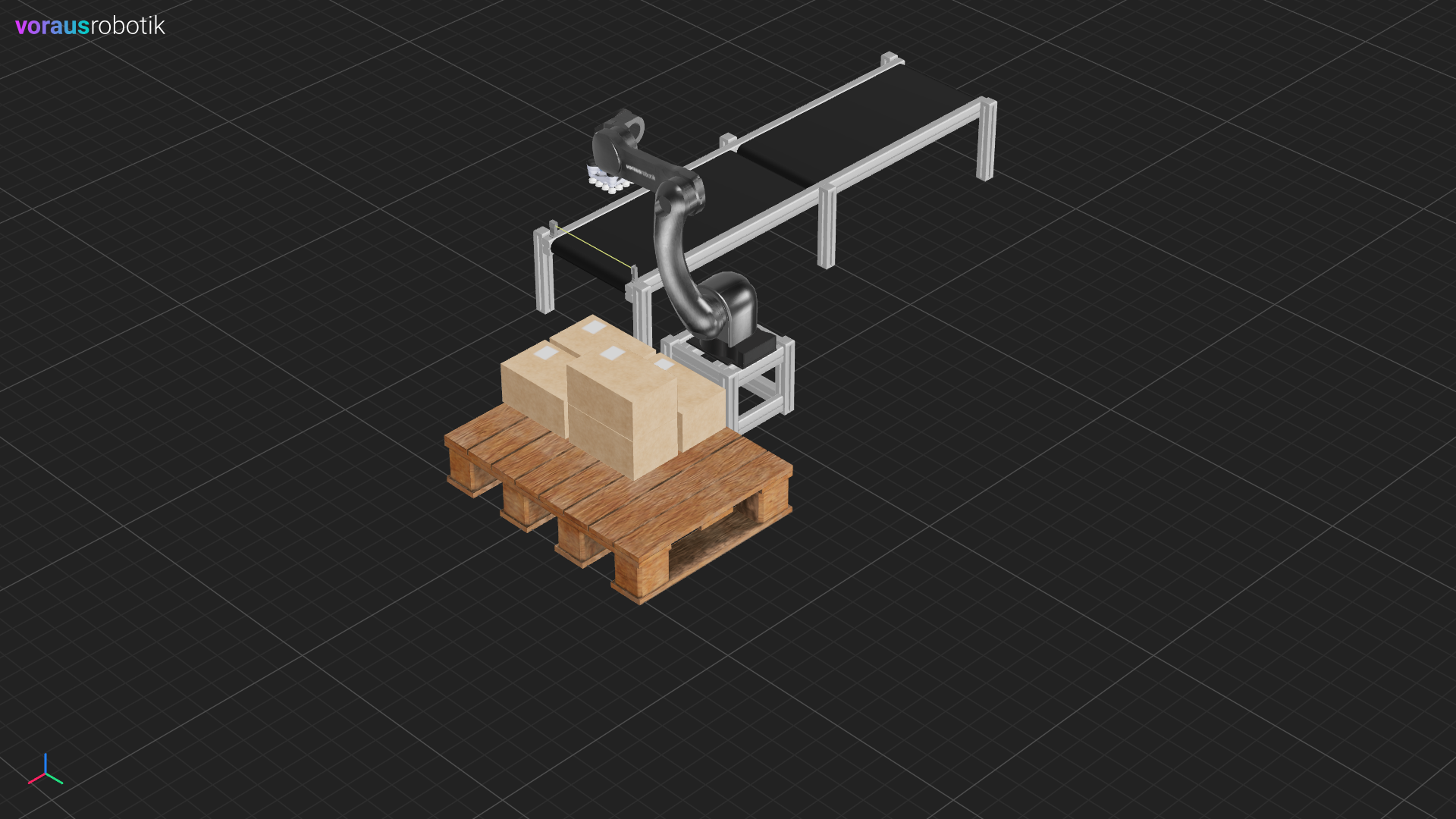
Fig. 32 Pick and place application after the program execution