
Download and work locally
Run examples locally on your computer:
Installation
Note
If you have not yet received a license, request a license for the voraus.pioneer examples now.
Docker and the CodeMeter runtime (for licensing) are required to run the examples. Follow the sections 1.1.1 and
1.1.2 in the manual chapters
Installation and License Activation
to prepare your system and activate licenses.
VS Code and Docker
Our software is provided as a Docker images and can therefore be easily integrated into modern software development environments. In this example, Visual Studio Code (referred to as VS Code in the following) is used as the integrated development environment (IDE), but you can use the IDE of your choice.
Install VS Code Dev Containers
The VS Code extension Dev Containers enables user-friendly development within Docker containers. If you are interested in further information, please read the articles Developing inside a Container and Dev Containers tutorial .
Open VS Code, click on Extensions and search for Dev Containers.
Click on install and wait until the installation is complete (see Fig. 2).
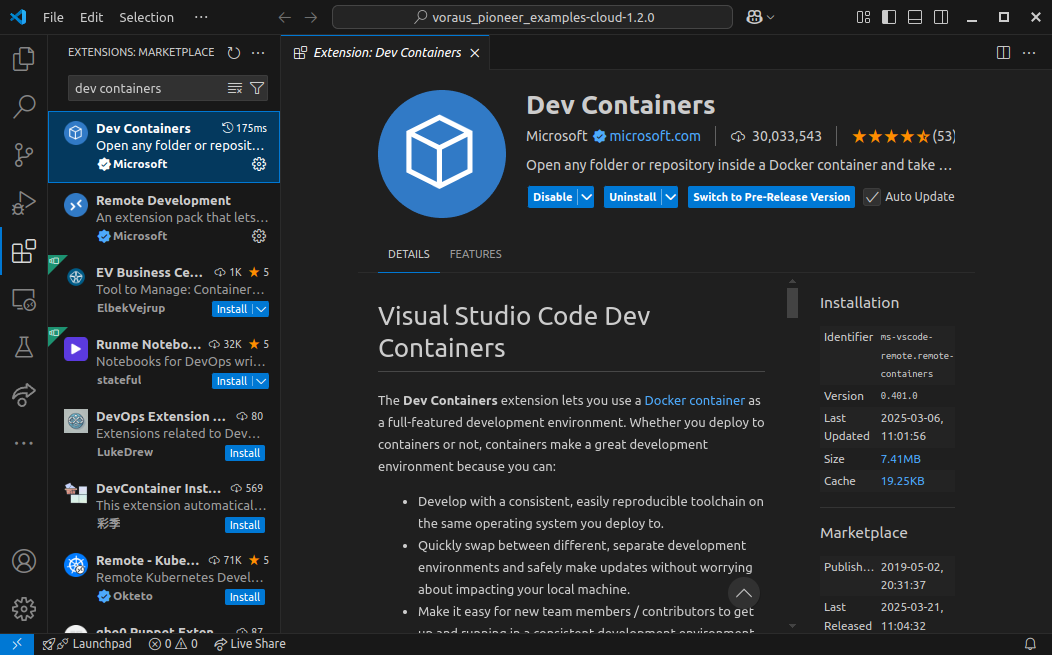
Dev Container example
The folder structure of the downloaded 📂voraus-pioneer-examples is shown below.
📂voraus-pioneer-examples/
  📂pick_and_place/
    📂assets/
    📂control_robot/
      🖹program.py
      🖹robot_visualization.py
    📂...
    🖹devcontainer.json
    🖹docker-compose.yml
  🖹common-services.yml
  🖹...
The 🖹common-services.yml file describes the common configuration of voraus services.
The 📂pick_and_place/ folder contains the pick and place example, with 3D models inside the 📂assets/
folder and Python scripts like 🖹program.py. The 🖹docker-compose.yml file describes which Docker
containers must be started in which configuration. The 🖹devcontainer.json file describes how VS Code attaches
the remote session to the Dev Container.
Open Dev Container
Open the folder 📂pick_and_place/ in VS Code, press ctrl + shift + p, and select
Dev Containers: Reopen in Container as shown in Fig. 3.
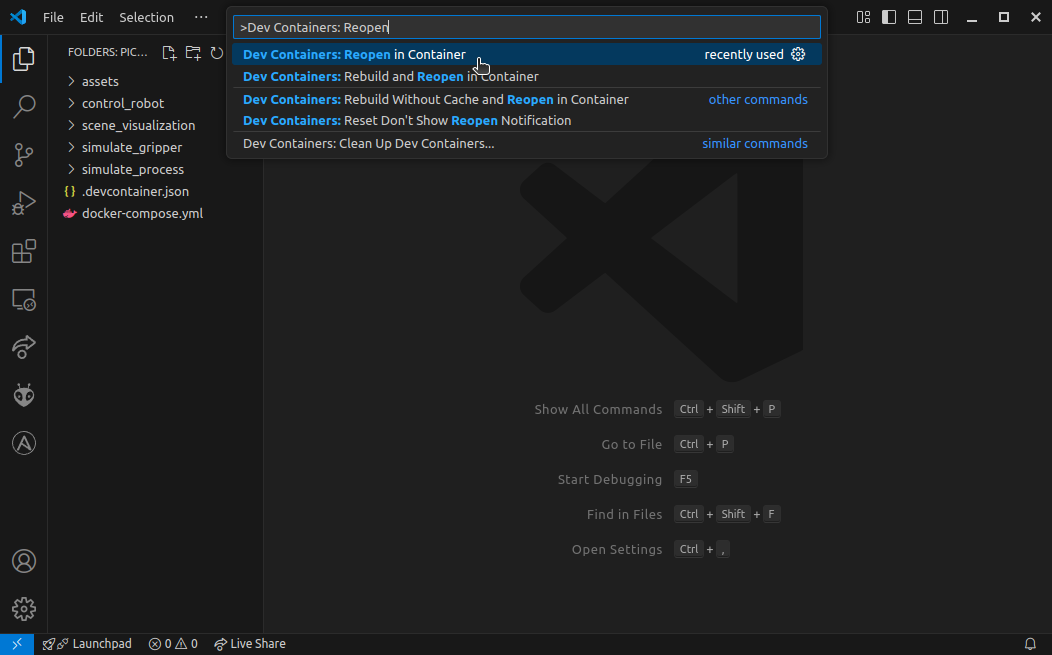
It takes a moment for the dev container to be started.
Note
If you have problems while starting the devcontainers, try Dev Containers: Rebuild and Reopen in Container to make sure the Docker containers are recreated.
Select Python Interpreter
If VS Code does not recognize the Python interpreter by itself,
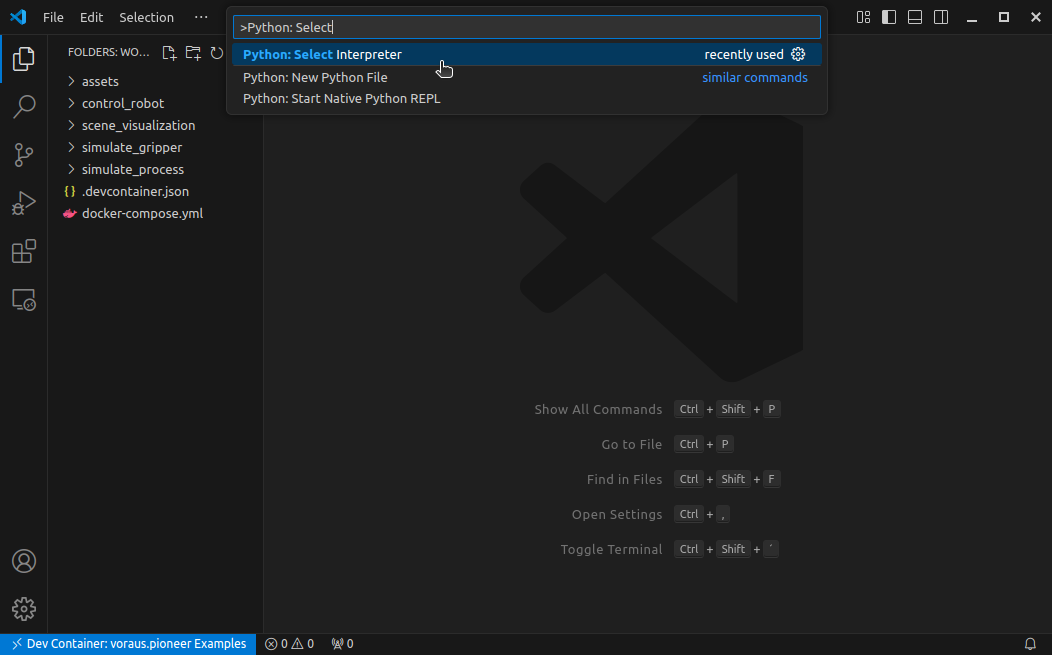
press ctrl + shift + p, search for Python: Select Interpreter and click on it
(see Fig. 4).
Select /usr/bin/python in the following menu, as shown in Fig. 5. From now on, the Python autocompletion, syntax highlighting and type hinting are available to you.
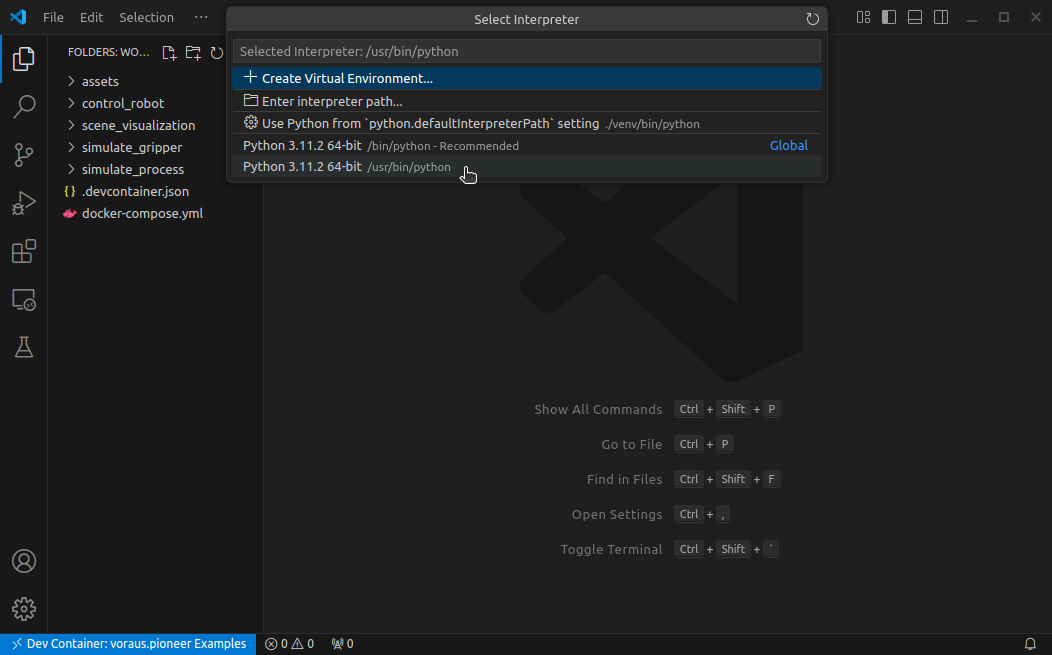
Fig. 5 VS Code Python: Select Python Interpreter from Docker Container
Open 3D Visualisation
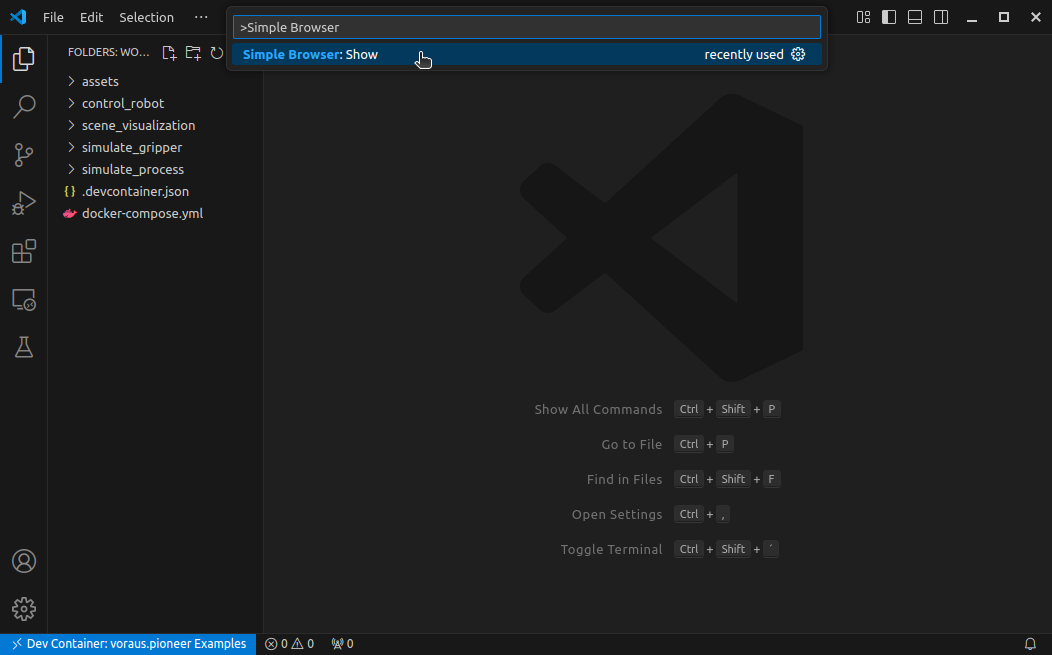
To display the 3D visualization directly in VSCode, press ctrl + shift + p, search for Simple Browser: Show
and click on it (see Fig. 6).
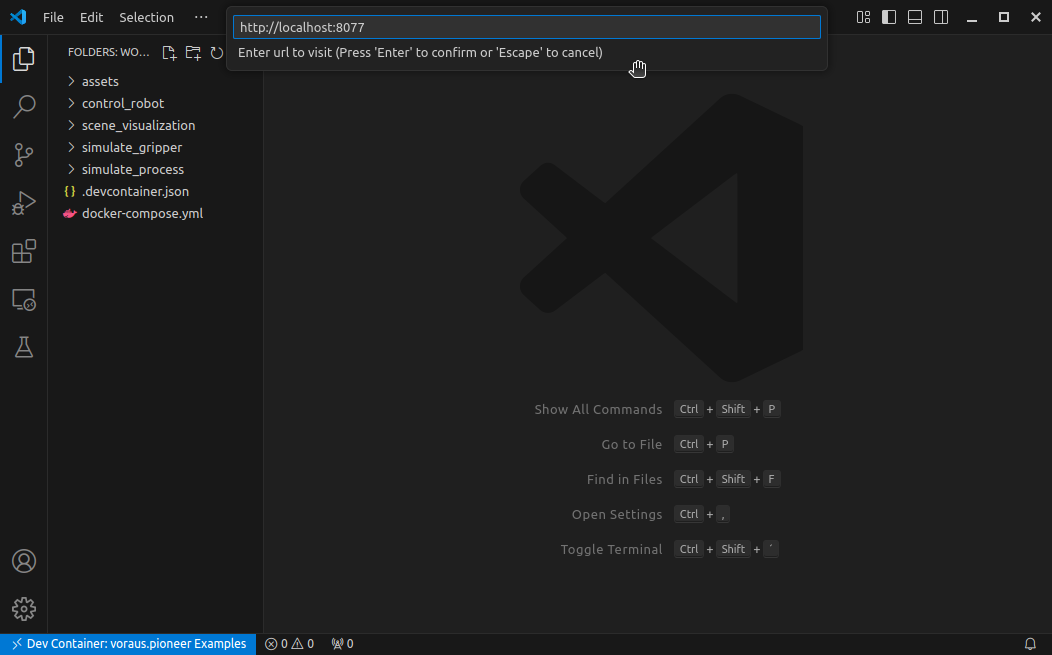
Enter the local URL of the 3D visualization http://localhost:8077 in the following menu,
as shown in Fig. 7 and press Enter.
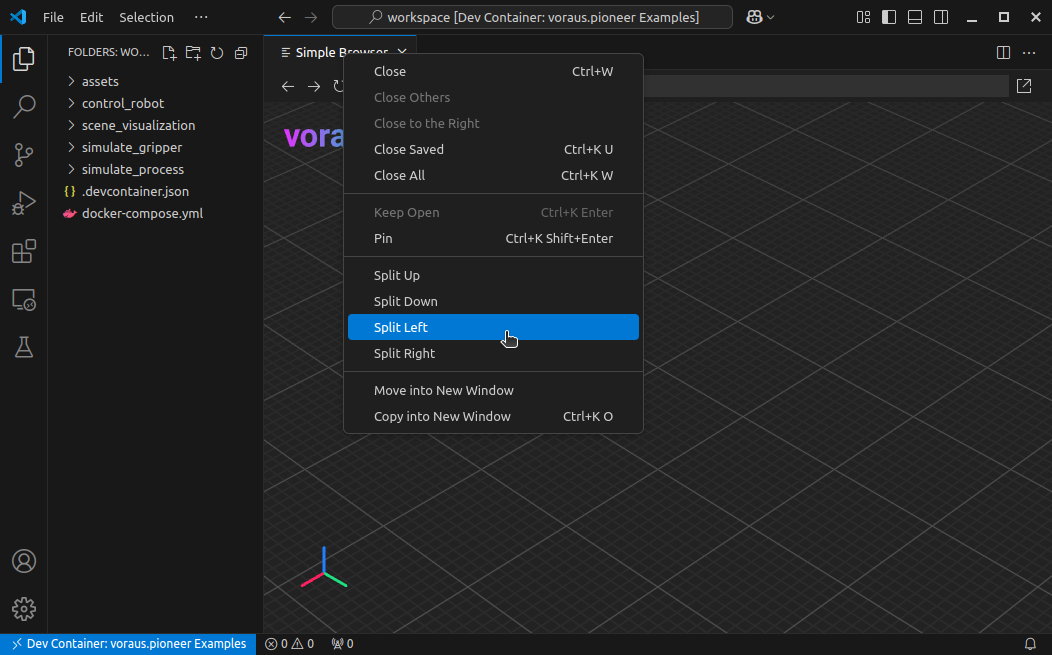
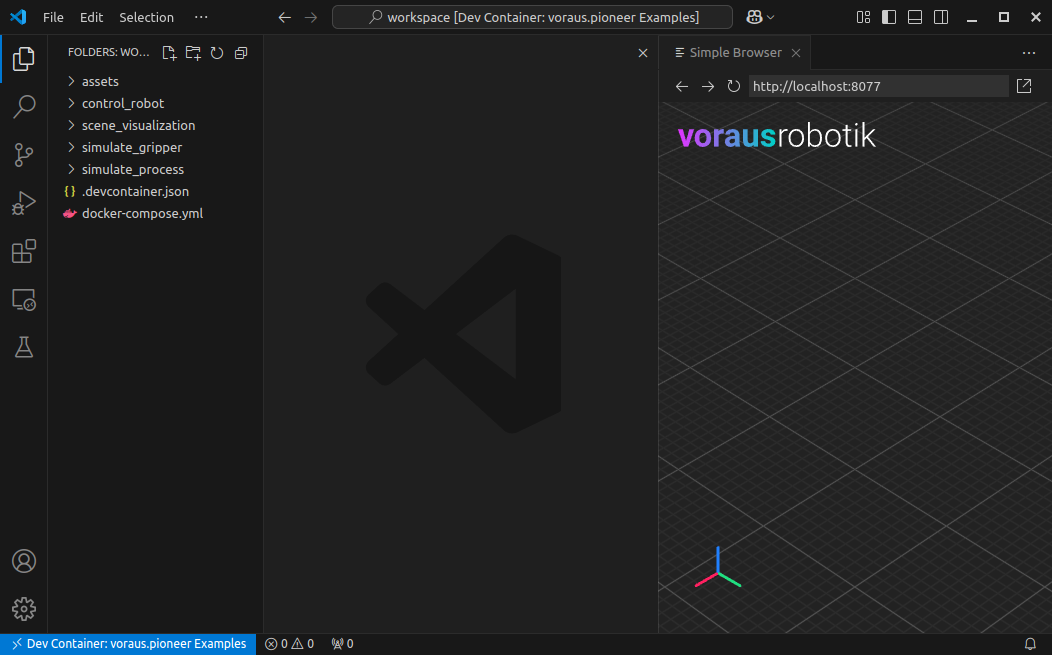
The 3D visualization is now displayed in the VS Code Simple Browser. For efficient development, the screen can be split so that you can see both the Python code and the 3D visualization at the same time. To do this, right-click on Simple Browser and then select Split Left as shown in Fig. 8.
As shown in Fig. 9, the 3D visualization is now displayed on the right side of the screen.
Note
Displaying the 3D visualization directly in VSCode is practical for development, but performance problems can occur with large 3D scenes in the Simple Browser. In these cases, use a web browser such as Chrome.
To do this, open http://localhost:8077 in your web browser.
Open a Terminal
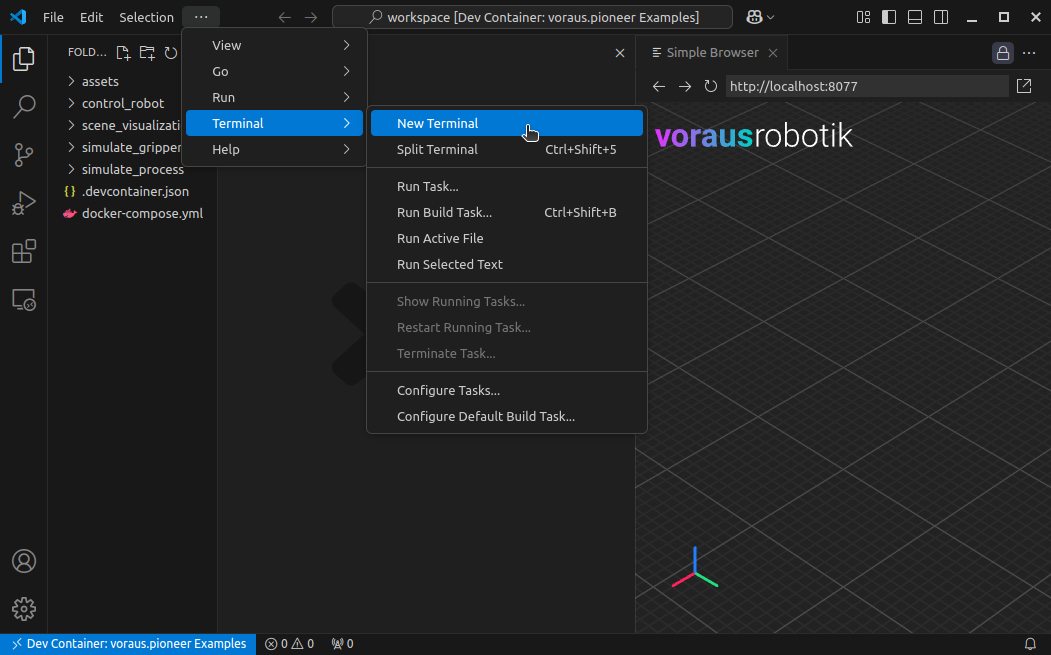
During development, you need a terminal to execute Python scripts. To do this, click on New Terminal under the Terminal menu item as shown in Fig. 10.
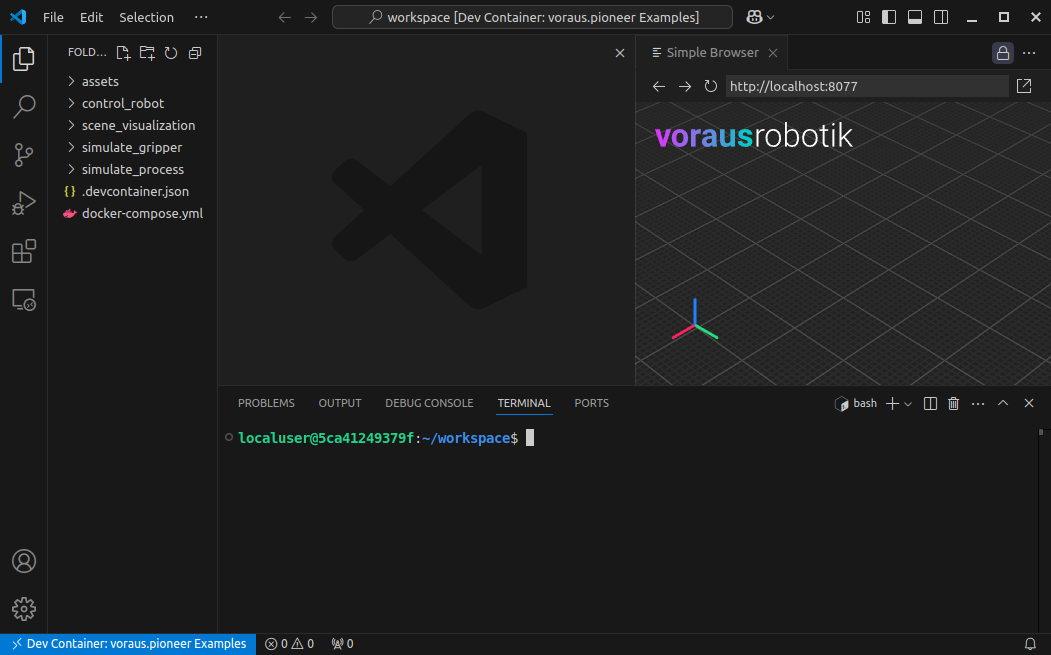
The terminal is now displayed at the bottom of the screen as shown in Fig. 11. In the following examples, you can enter the commands here. If you need a second terminal to execute scripts in parallel, you can also split the terminal by pressing the Split Button at the top right of the terminal window.
Open voraus.operator
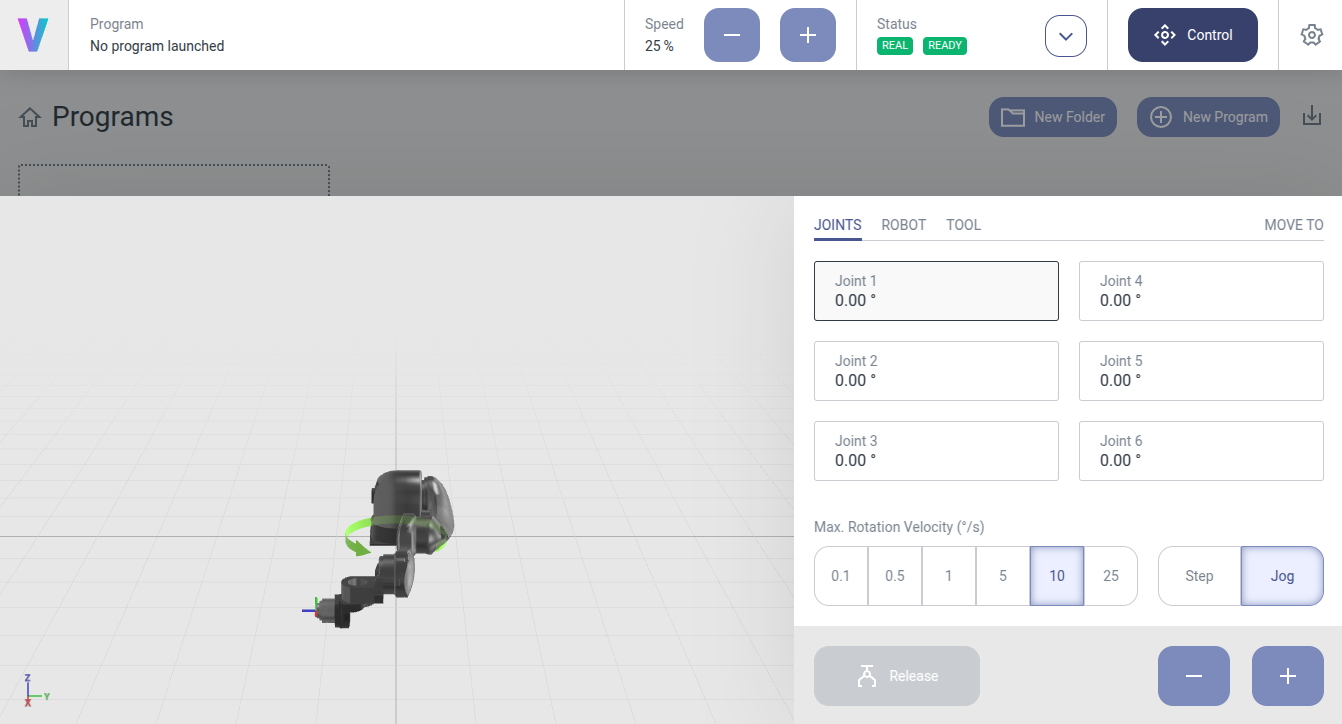
The voraus.operator can be accessed via http://localhost:8080/ with your web browser, as shown in Fig. 12. The voraus.operator can be used for jogging the virtual robot, setting digital IOs or resetting errors.
For further information such as resetting errors and setting the robot speed, please read the the voraus.operator Documentation .
Leave Dev Container
When you are finished with the development, you can leave the Dev Container by pressing ctrl + shift + p,
searching for Dev Containers: Reopen Folder Locally and clicking on it.
Next Steps
Now everything is set up, and you can continue with the Pick and Place Example.