Export Models with Blender
You can use any 3D modelling program that can export Wavefront OBJ files to create models for the voraus Simulation. This section describes the use of the open source tool Blender.
Note
If you would like to export visual objects (glTF/GLB files) for the visualization of the simulation, please read the voraus 3D Visu documentation.
The steps given below are illustrated using a simple box example as given in Fig. 30, but also apply to more complex objects.
Prepare the Model
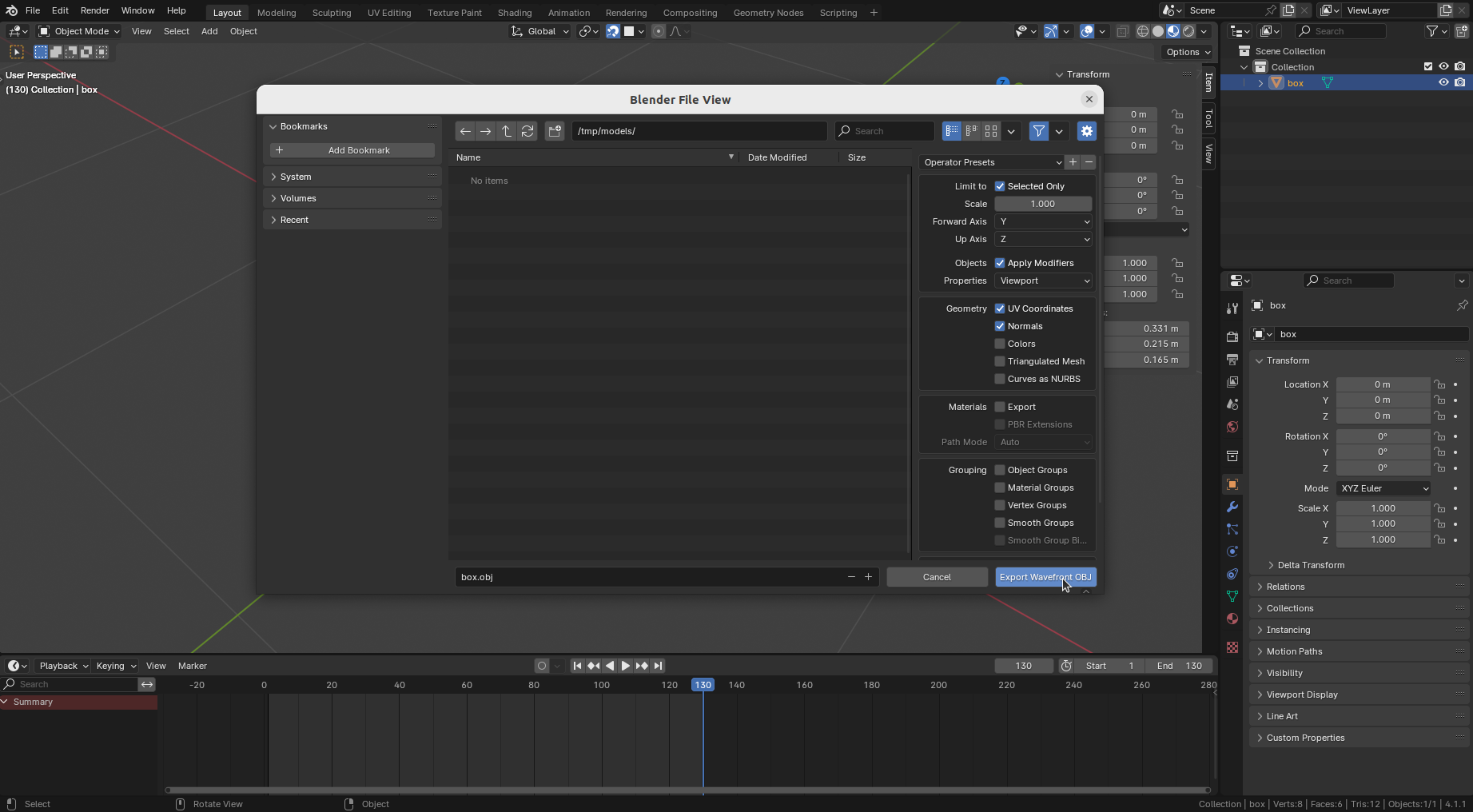
Make sure all translation, rotation, and scale values are applied. Translation and rotation values are zero and scale values are one, as shown in Fig. 30
Make sure that the origin of the object is at the position where the center of gravity / mass is.
Physics models should be as small as possible, use only as many polygons as you need to improve performance. It often makes sense to create separate meshes for visual and physical models.
Export the Model
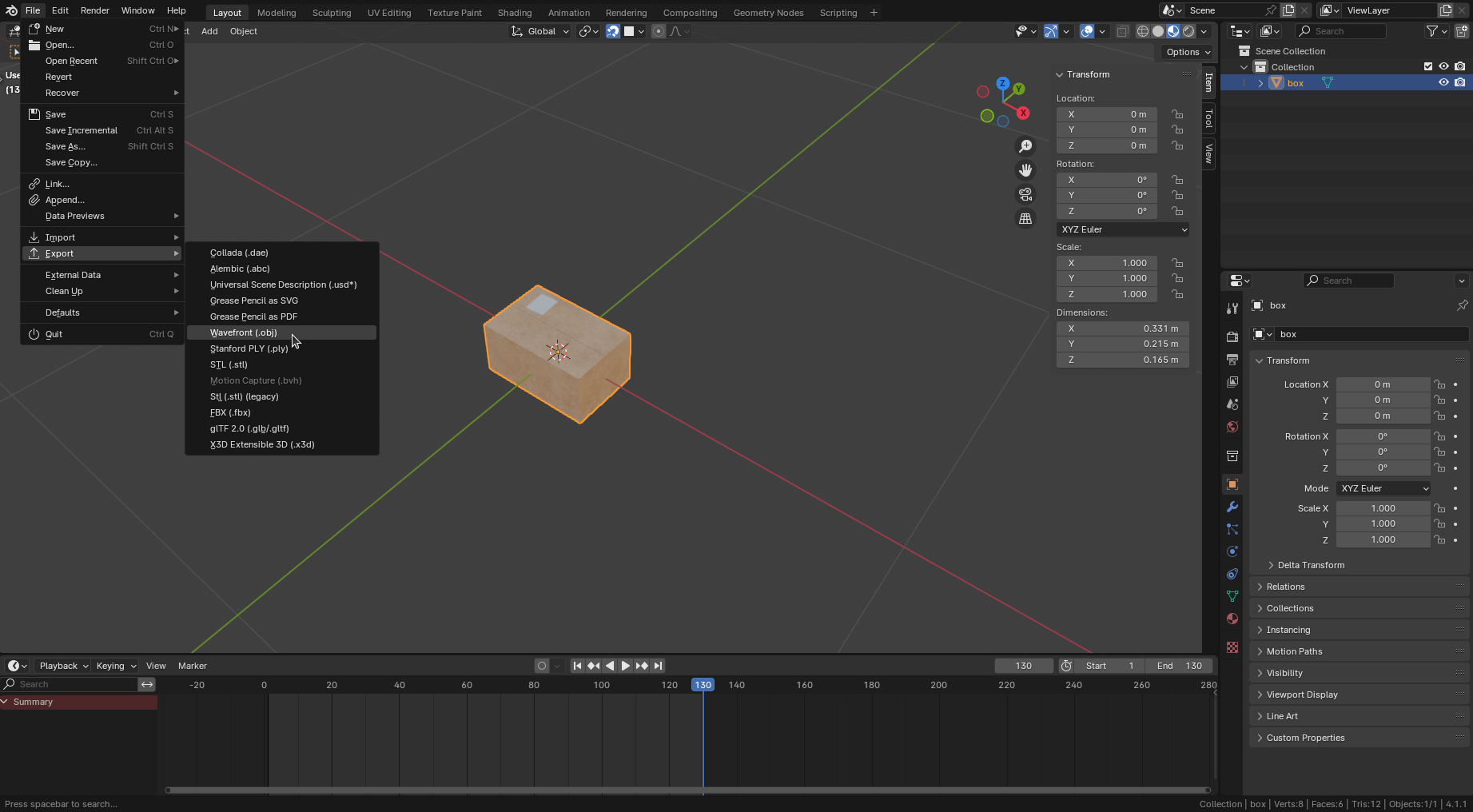
Select the object(s) and open the OBJ export menu by clicking File - Export - Wavefront (.obj), see Fig. 30.
Limit to Selected Objects and make sure to select Forward Axis Y (Up Axis Z). If you do not need materials, disable the material export. Common export settings are shown in Fig. 31.